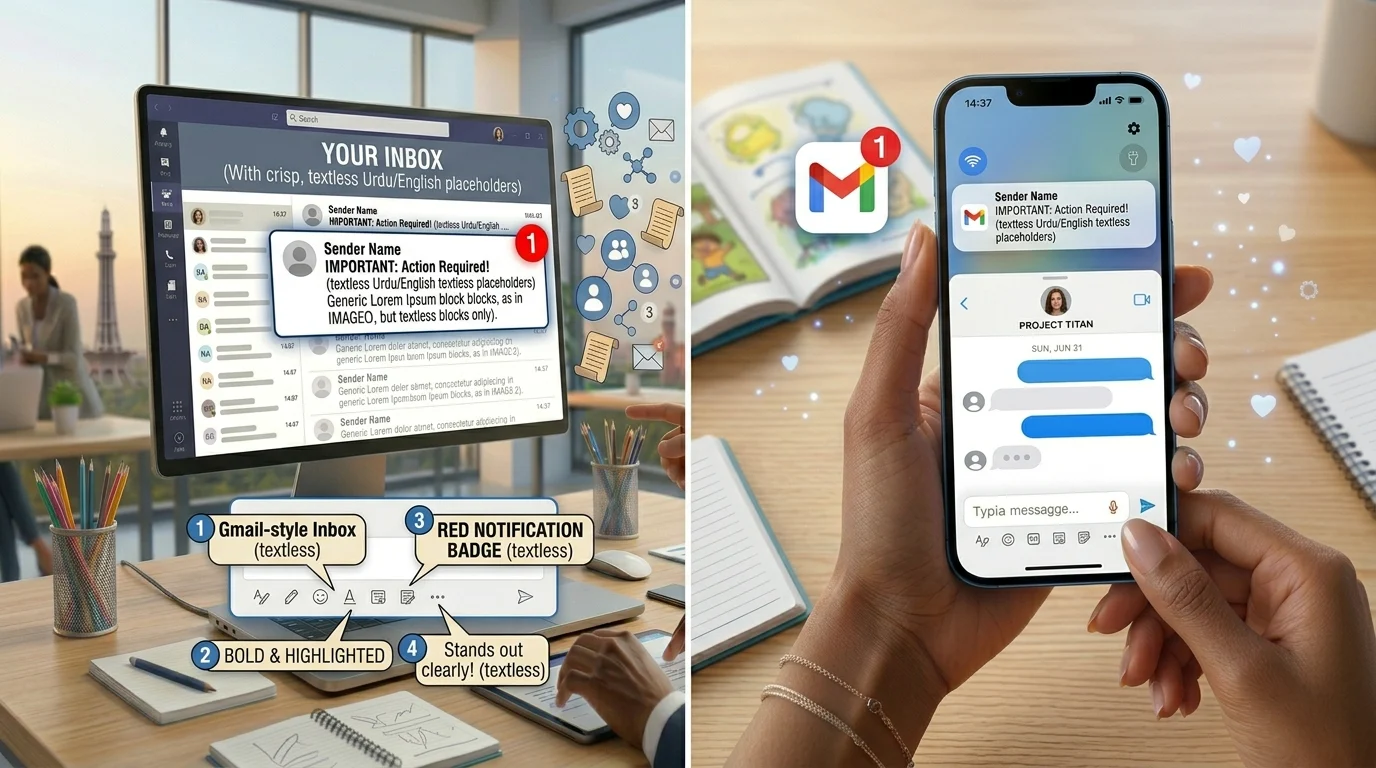
Does Gmail keep showing “1 unread message” even though you’ve checked every email in your inbox? This common issue can be surprisingly frustrating, especially when you’re trying to keep your inbox clean and make sure you haven’t missed something important.
In many cases, the unread email isn’t actually gone—it may be hidden in a different category, archived folder, spam folder, or affected by a syncing problem. Because the message isn’t visible where you expect it, the unread count can remain stuck and leave you wondering what you missed.
The good news is that this problem is usually easy to fix once you know where to look. In this guide, you’ll discover the most common reasons Gmail shows 1 unread message and learn practical solutions to find hidden emails and clear the notification quickly.
Quick Answer: Gmail Inbox 1 Unread Message
Gmail inbox 1 unread message usually means an unread email is hidden in Promotions, Social, Spam, Archived Mail, All Mail, or another Gmail label. Searching is:unread in Gmail often reveals the missing email instantly.
Use this search command:
is:unread
If Gmail still shows an unread count after checking all messages, a synchronization issue may be causing the problem.
Why Gmail Shows 1 Unread Email But There Are None
Many users encounter the gmail shows 1 unread email but there are none problem. This usually happens because Gmail tracks unread emails across multiple locations, not just your main inbox.
Common Causes
- Archived unread emails
- Hidden category emails
- Spam folder messages
- Custom label notifications
- Gmail sync delays
- Mobile app cache issues
- Multiple connected devices
- Email filters moving messages automatically
Fortunately, most of these issues can be fixed within a few minutes.
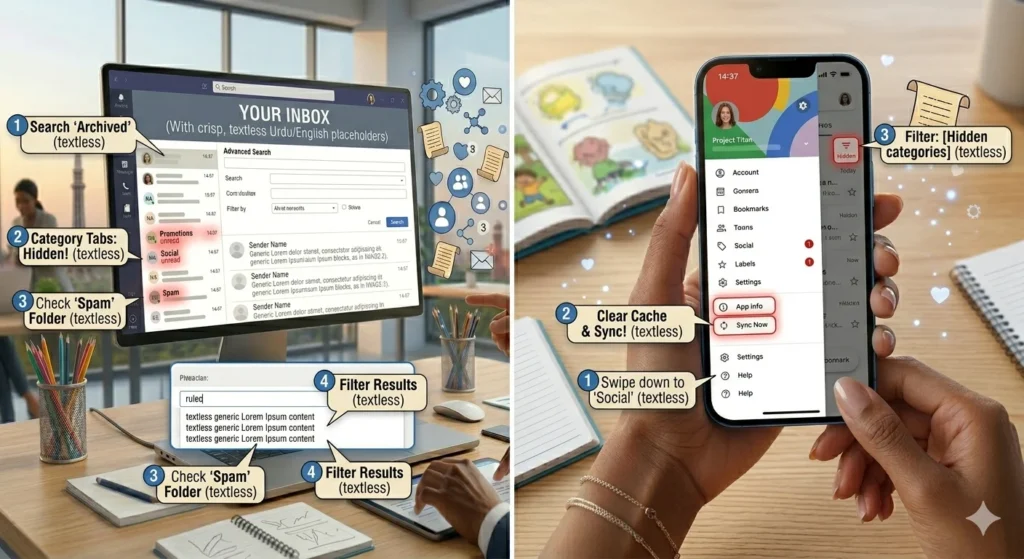
Use Gmail Search to Find Hidden Unread Emails
The fastest way to solve the gmail inbox 1 unread message gmail issue is by using Gmail’s search feature.
Search All Unread Emails
is:unread
Search Only Inbox Emails
in:inbox is:unread
Search Unread Emails in Primary Tab
category:primary is:unread
Search Archived Unread Emails
is:unread -in:inbox
These search operators can quickly reveal emails that are hidden from your normal inbox view.
MSU Message Board: Latest Discussions, Updates & Community Talk
Check Gmail Categories
Unread emails often hide in Gmail categories that many users rarely check.
Review These Tabs
- Primary
- Social
- Promotions
- Updates
- Forums
A hidden email in one of these sections can trigger the gmail inbox 1 unread message inbox notification even when your inbox looks empty.
Find Archived Unread Emails
Archived emails are one of the most common causes of unread message counts.
When you archive an email without opening it, Gmail still considers it unread.
How to Find Them
Use:
is:unread -in:inbox
This command displays unread messages that are no longer located in your inbox.
Teams Message Important: Make Urgent Messages Stand Out
Gmail Inbox 1 Unread Message Android Fix
If you’re dealing with gmail inbox 1 unread message android, synchronization issues are often responsible.
Try These Steps
- Open Gmail Settings.
- Select your Gmail account.
- Turn Sync Gmail off.
- Turn Sync Gmail back on.
- Clear Gmail cache.
- Restart your device.
- Update Gmail to the latest version.
These steps solve most Android-related unread email issues.
Gmail Inbox 1 Unread Message iPhone Fix
Many iPhone users experience the gmail inbox 1 unread message iphone problem because of notification synchronization delays.
Recommended Fixes
- Refresh Gmail manually.
- Update the Gmail app.
- Restart your iPhone.
- Remove and re-add your Gmail account.
- Check notification settings.
- Search for unread emails using Gmail search operators.
After re-syncing, the unread badge usually disappears.
Gmail Inbox 1 Unread Message iOS Solutions
The gmail inbox 1 unread message ios issue can occur on both iPhones and iPads.
Additional Fixes
- Force close Gmail.
- Clear notification badges.
- Check the All Mail folder.
- Update iOS software.
- Reinstall Gmail if necessary.
These actions often correct unread counts that remain stuck.
Gmail Inbox 1 Unread Message on Desktop
Desktop users can also experience hidden unread email problems.
Desktop Troubleshooting Steps
- Refresh Gmail.
- Sign out and sign back in.
- Clear browser cache.
- Disable browser extensions.
- Open Gmail in Incognito Mode.
- Update your browser.
- Search using
is:unread.
Most desktop notification issues are caused by cached browser data.
Gmail Unread Email Notification Won’t Go Away
Sometimes Gmail continues showing an unread notification even after every email appears to be read.
Why This Happens
- Delayed synchronization
- Browser cache problems
- App notification glitches
- Archived unread messages
- Connected email apps
Quick Fixes
- Refresh Gmail.
- Restart your device.
- Clear cache.
- Re-sync Gmail.
- Update the Gmail app.
- Log out and back in.
These methods usually remove stubborn unread notifications.
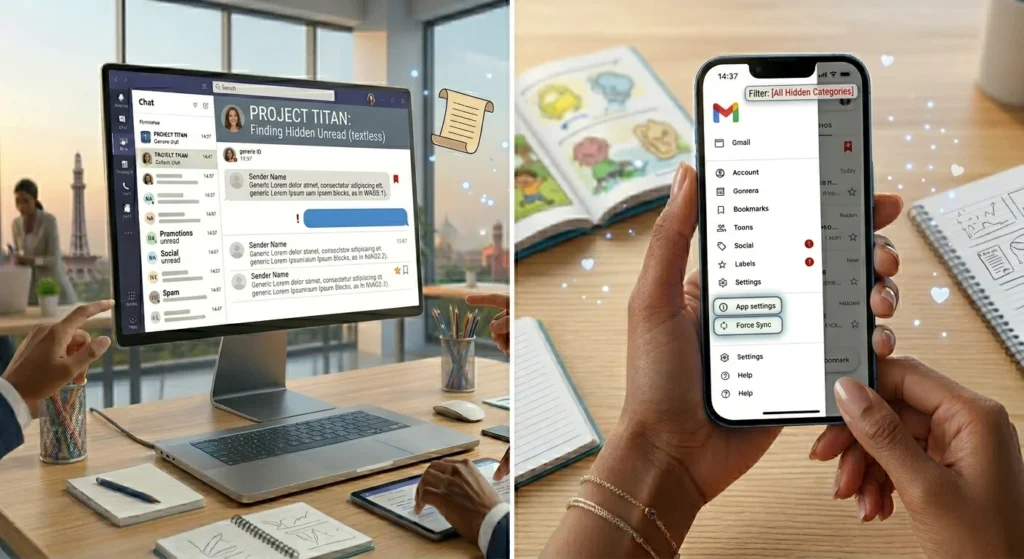
Advanced Gmail Search Operators
Advanced search operators can help you find emails that standard searches miss.
| Search Operator | Purpose |
|---|---|
| is:unread | Find all unread emails |
| in:inbox is:unread | Inbox unread emails |
| category:primary is:unread | Primary unread emails |
| newer_than:7d is:unread | Recent unread emails |
| is:unread -in:inbox | Archived unread emails |
| label:unread | Unread labeled emails |
These commands are extremely useful when troubleshooting gmail inbox 1 unread message gmail email issues.
Device Comparison: Best Fix for Each Platform
| Device | Best Solution |
|---|---|
| Android | Clear Gmail Cache |
| iPhone | Re-sync Account |
| iPad | Update Gmail App |
| Desktop | Clear Browser Cache |
| Gmail Web | Search Using is:unread |
| Multiple Devices | Sign Out and Back In |
This comparison helps you quickly identify the best fix for your device.
Check Spam, Trash, and Labels
Many hidden unread emails are located outside the inbox.
Check These Areas
- Spam
- Trash
- Important
- Starred
- Scheduled
- Custom Labels
- All Mail
Always inspect these folders before assuming Gmail is displaying an error.
How to View Unread Emails in Gmail Primary
If you only want unread emails from your Primary tab, Gmail provides a simple search command.
Use:
category:primary is:unread
Benefits
- Faster inbox management
- Better organization
- Reduced clutter
- Easier email tracking
This is one of the most useful methods for users searching for how to view unread emails in Gmail primary.
How to Prevent Gmail Unread Message Problems
A few good habits can help prevent future notification issues.
Best Practices
- Check Promotions regularly.
- Review Social tab weekly.
- Keep Gmail updated.
- Avoid excessive email filters.
- Archive emails carefully.
- Clean old emails monthly.
- Sync all devices frequently.
- Review custom labels.
These simple habits can keep your Gmail inbox organized and accurate.
Expert Tips for Finding Hidden Unread Emails
Many Gmail users overlook simple troubleshooting methods.
Pro Tips
- Search All Mail instead of Inbox.
- Check archived emails first.
- Review custom labels.
- Use Gmail search operators.
- Keep Gmail synchronized.
- Check every category tab.
- Review Spam before deleting notifications.
These strategies help resolve most unread email issues quickly.
Related Gmail Guides
If you found this guide helpful, you may also enjoy:
- Gmail Search Operators Explained
- How to Recover Archived Gmail Emails
- Gmail Notifications Not Working Fix
- How to Organize Gmail Like a Pro
- How to Recover Deleted Gmail Messages
Frequently Asked Questions
Why does Gmail say I have 1 unread message?
The unread email may be hidden in a category, label, archive, or affected by a sync issue.
How do I find hidden unread emails in Gmail?
Search using:
is:unread
This displays all unread emails in your account.
Why does Gmail show 1 unread email on Android?
The issue is often caused by synchronization delays, app cache, or hidden unread emails.
Why does Gmail show 1 unread email on iPhone?
Notification badge glitches and account sync issues are common causes on iOS devices.
What is the fastest way to find unread Gmail messages?
Using the Gmail search operator:
is:unread
is usually the quickest solution.
Can archived emails remain unread?
Yes. Archived emails still count as unread until you open them or mark them as read.
Conclusion
The gmail inbox 1 unread message issue can be frustrating, especially when you cannot locate the email Gmail says is unread. Fortunately, the problem is usually caused by hidden emails in Promotions, Social, Spam, Archived Mail, or custom labels.
By using Gmail search operators such as is:unread, checking category tabs, reviewing archived emails, and refreshing your account, you can usually solve the problem within minutes. Whether you’re using Android, iPhone, iPad, or desktop Gmail, the troubleshooting methods in this guide can help restore an accurate unread count.
A clean inbox makes email management easier, improves productivity, and helps ensure you never miss an important message again.

Sophie Linton is a reflective writer who finds beauty in everyday emotions and honest words. Her messages gently explore love, self-growth, and the quiet strength of human feelings.