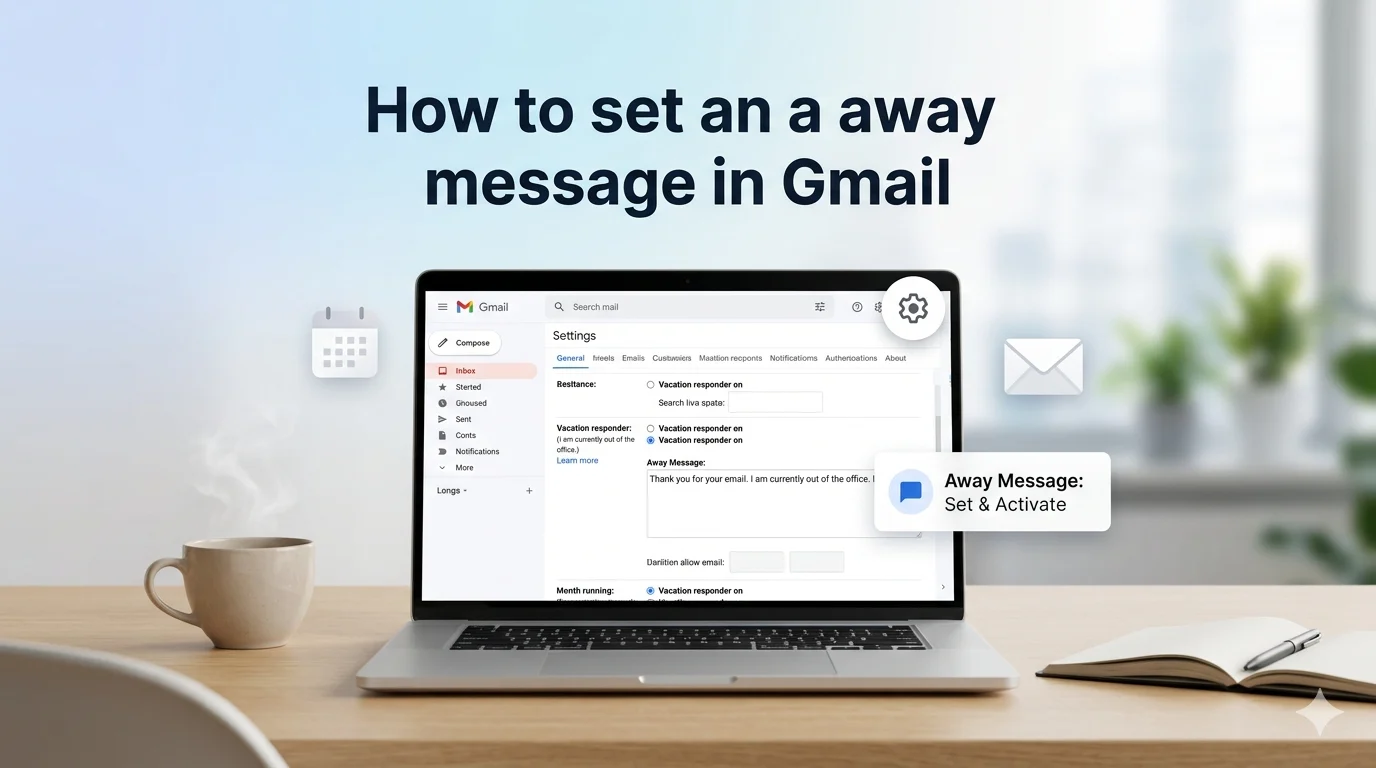
If you’re wondering how to set an away message in Gmail, it is done using the built-in “Vacation Responder” feature that automatically sends replies to anyone who emails you while you are unavailable. This helps you inform people instantly without needing to respond manually.
Many users struggle to find this option in Gmail settings, especially on mobile, and end up missing important emails or replying too late. Setting an away message helps you stay organized, maintain professionalism, and manage expectations when you are offline.
This feature is especially useful during vacations, busy schedules, or work breaks. In this guide, you will learn how to set an away message in Gmail step by step so you can keep your inbox under control and ensure every sender gets an automatic response.
📌 What is an Away Message in Gmail?
An away message in Gmail is an automatic email reply sent when you are unavailable. It is officially called Vacation Responder.
It works by:
- Automatically replying to incoming emails
- Informing sender about your absence
- Mentioning return date (optional)
👉 This feature is available on Gmail app and desktop version
📱 How to Set an Away Message in Gmail on Phone
This is the most searched query: how to set an away message in Gmail on phone
✔ Steps:
- Open Gmail app
- Tap ☰ Menu
- Go to Settings
- Select email account
- Tap “Vacation Responder”
- Turn ON
- Set start & end date
- Write subject + message
- Tap Save
Chicago Bears Message Board: Latest Fan Discussions
🍏 How to Set an Away Message in Gmail on iPhone
The process is identical but optimized for iOS users.
✔ Steps:
- Open Gmail app
- Tap Settings
- Select account
- Enable Vacation Responder
- Add message + dates
- Save changes
🤖 How to Set an Away Message in Gmail on Android
Android users follow the same system but UI may look slightly different.
✔ Steps:
- Open Gmail
- Settings
- Choose account
- Vacation Responder
- Turn ON
- Add details
- Save
💻 How to Set Away Message in Gmail on Desktop
This version is the most powerful for professional users.
✔ Steps:
- Open Gmail in browser
- Click Settings ⚙️
- Click “See all settings”
- Scroll to “Vacation responder”
- Select “Vacation responder ON”
- Set dates + message
- Click Save Changes
120+ Heartfelt Sorry for Loss Message Ideas for Friends & Family
💼 Professional Out of Office Message Gmail Examples
Use these for work, clients, and business emails.
Message: I am currently out of office and will respond after my return.
Message: Thank you for your email. I am unavailable at the moment.
Message: I will reply as soon as I return.
Message: I’m currently away from work.
Message: I appreciate your patience.
Message: Limited access to email right now.
Message: I am traveling for work.
Message: Your message is important to me. I will respond soon.
Message: I am currently on leave.
Message: Thank you for understanding.
🌴 Gmail Vacation Responder for Holidays
Message: I am currently on holiday and will respond after I return.
Message: Thank you for your email. I am away on vacation.
Message: I’m spending time with family.
Message: I will reply after the holidays.
Message: Out of office for holiday break.
Message: I appreciate your patience.
Message: I am currently offline.
Message: I will respond once I return.
Message: Enjoying my vacation time.
Message: Thank you for your message.
⚠️ Troubleshooting
❌ Gmail away message not working?
- Check Vacation Responder is ON
- Confirm correct dates
- Save settings again
❌ Not sending auto replies?
- Update Gmail app
- Check internet connection
- Try desktop version
❌ Only sends once?
- This is Gmail’s normal behavior (not an error)
😊 Casual Away Messages
Message: Hey! I’m away right now.
Message: I’ll reply soon.
Message: Taking a short break.
Message: Offline for a while.
Message: Talk soon!
Message: Busy right now.
Message: I’ll respond later.
Message: Taking time off screens.
Message: I’m away today.
Message: Catch you later!
⚠️ Emergency Away Messages
Message: I am currently unavailable due to personal reasons.
Message: I will respond when possible.
Message: Limited email access right now.
Message: I am dealing with urgent matters.
Message: Thank you for your patience.
Message: I may reply late.
Message: I am away unexpectedly.
Message: I appreciate your understanding.
Message: I will respond soon.
Message: Thank you for support.
🧠 FAQs
Can I put an away message on Gmail?
Yes, Gmail has a built-in Vacation Responder feature.
How do I set away status in Gmail?
Go to settings → enable Vacation Responder → write message → save.
Does Gmail work on iPhone and Android?
Yes, it works on both mobile platforms.
How do I turn off away message?
Go to settings and disable Vacation Responder.
Is Gmail auto-reply automatic?
Yes, it sends replies automatically during set dates.
🏁 Conclusion
Learning how to set an away message in Gmail is essential for maintaining professional communication when you are unavailable
Whether you are using Android, iPhone, or desktop, Gmail’s Vacation Responder helps you stay organized, professional, and stress-free.
Instead of leaving emails unanswered, a simple auto-reply builds trust and clarity with your contacts.
Now you can confidently set your Gmail away message in less than 2 minutes and manage your inbox like a professional.