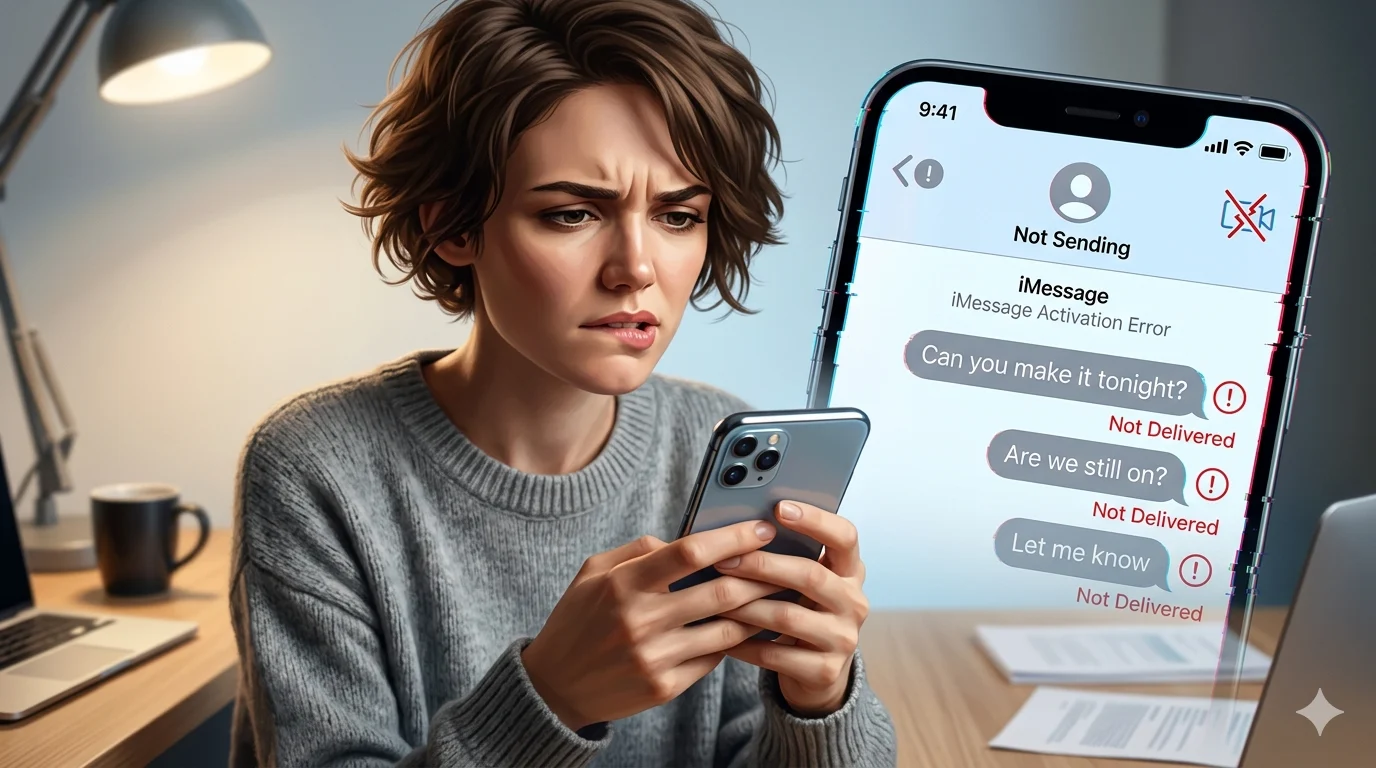
If your iMessage suddenly stops working, messages turn from blue to green, or you keep seeing the “Not Delivered” error, it can be extremely frustrating—especially when you need to send something urgently. This issue is usually not serious and is often caused by poor internet connection, Apple ID sync issues, incorrect settings, or minor iOS glitches.
The good news is that in most cases, the iMessage not working problem is temporary and can be fixed quickly with a few simple steps, once the exact cause is identified.
In this guide, you’ll learn the real reasons behind iMessage issues and easy step-by-step fixes to get your messaging back to normal—without any technical confusion.
⚡ QUICK FIX SUMMARY (FEATURED SNIPPET READY)
If iMessage is not working, try these quick fixes first:
- Restart your iPhone
- Check internet connection (WiFi/mobile data)
- Turn iMessage OFF and ON
- Sign out and sign back into Apple ID
- Reset network settings
🔧 1. Check Internet Connection First
A weak or unstable connection is one of the most common reasons for iMessage not working.
✔ Fix:
- Switch between WiFi and mobile data
- Turn Airplane mode ON/OFF
- Restart your router
- Open any website to confirm internet is working
120+AI Birthday Message: Best Funny, Sweet & Smart Wishes
🍎 2. Check Apple Server Status
Sometimes the issue is not your phone. Apple servers may be temporarily down.
✔ Fix:
- Check Apple System Status page
- If iMessage service is down, wait until it is restored
📲 3. Restart Your iPhone
A simple restart can fix hidden bugs causing iMessage not working.
✔ Fix:
- Turn off iPhone
- Wait 20–30 seconds
- Turn it back on
- Try again
🔐 4. Re-login Apple ID
Apple ID sync issues often stop iMessage from working properly.
✔ Fix:
- Go to Settings > Messages
- Turn OFF iMessage
- Sign out Apple ID
- Restart iPhone
- Sign in again and enable iMessage
Direct Message on Instagram: How to Use DM Links Easily
⏳ 5. Fix iMessage Activation Problem
If iMessage is stuck on activation, it needs verification.
✔ Fix:
- Ensure SIM has SMS service active
- Enable iMessage in settings
- Keep device connected to internet
- Wait up to 24 hours
📶 6. Reset Network Settings
Network glitches are a major cause of iMessage not working after SIM or eSIM change.
✔ Fix:
- Settings > General > Transfer or Reset iPhone
- Tap Reset Network Settings
- Reconnect WiFi
- Try again
📱 7. Check Send & Receive Settings
Sometimes iMessage is active but not linked properly.
✔ Fix:
- Go to Settings > Messages > Send & Receive
- Select your phone number
- Also select Apple ID email
🆕 8. iMessage Not Working on New iPhone
New iPhones often take time to activate iMessage.
✔ Fix:
- Sign in Apple ID properly
- Insert active SIM/eSIM
- Enable iMessage
- Restart device once
👤 9. iMessage Not Working for One Person
If only one contact is affected, it’s a contact-specific issue.
✔ Fix:
- Check if number is blocked
- Verify correct contact number
- Start a new message thread
- Ask recipient to check their iMessage
⚠️ 10. iMessage Suddenly Stopped Working
If iMessage suddenly stops, it’s usually a system glitch.
✔ Fix:
- Restart iPhone
- Toggle iMessage OFF/ON
- Check internet connection
- Update iOS
🔄 11. Final Deep Reset Method
If nothing works, follow this full reset flow:
✔ Fix:
- Turn OFF iMessage
- Restart iPhone
- Reset network settings
- Sign out Apple ID
- Sign back in
- Enable iMessage again
❓ FAQs
Q1: Why is my iMessage not working?
It usually happens due to network issues, Apple ID problems, or activation delays.
Q2: How do I fix iMessage activation failure?
Restart iPhone, check SIM SMS service, and sign in again to Apple ID.
Q3: Why is iMessage not working after eSIM?
Because carrier settings and number verification may need to update.
Q4: Why is iMessage not working for one contact only?
It may be blocked contact or incorrect number issue.
Q5: How long does iMessage activation take?
Usually a few minutes to 24 hours depending on network.
🌈 CONCLUSION
When iMessage is not working, it can interrupt your daily communication and feel stressful, but the issue is usually simple and fixable.
Most problems come from internet issues, Apple ID sync errors, or activation delays. By following the step-by-step solutions in this guide, you can quickly restore iMessage on your iPhone without technical help.
Start with basic fixes like restarting your phone and checking internet, then move to advanced steps like resetting network settings if needed.
In most cases, iMessage not working is temporary—and once fixed, your messaging will return to normal within minutes.
Stay calm, follow the steps, and your iPhone will be working again smoothly.

Jack Rowland is a modern writer who captures real emotions through clear, honest words. His messages focus on love, motivation, and everyday moments that quietly matter.