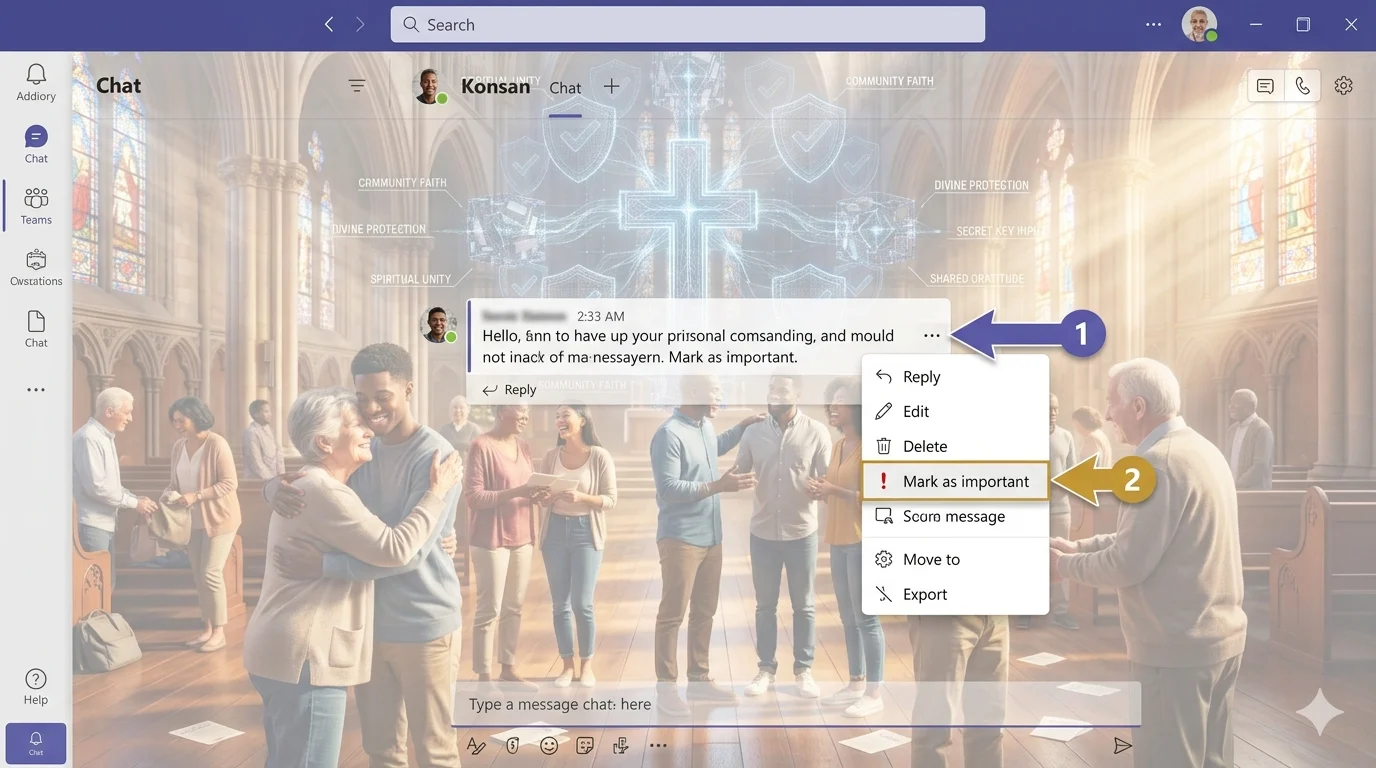
Microsoft Teams has become an essential tool for modern workplace communication, but with constant messaging and group discussions, important information can sometimes get lost in the flow of conversations. To solve this issue, Teams offers a helpful feature that allows users to mark messages as important, ensuring that critical updates are noticed quickly and clearly.
This feature is especially useful when sharing urgent announcements, deadlines, or instructions that require immediate attention. By highlighting a message as important, you make it stand out from regular chat content, increasing the chances that team members will read and respond on time.
Using this option not only improves communication clarity but also helps teams stay organized and focused. It reduces confusion, prevents missed updates, and supports better collaboration in fast-moving work environments where every message matters.
📌 How to Mark Message Important in Teams
Microsoft Teams has a built-in “Important” feature available while composing messages in chats or channels. It helps highlight urgent communication using a visual indicator.
Steps:
- Open Microsoft Teams and go to a chat or channel
- Click inside the message box
- Select the Format (A icon) below the message box
- Click “Set delivery options” or “Important” (exclamation icon)
- Type your message
- Click Send
👉 Your message will appear highlighted as Important for recipients.
📱 How to Mark Message Important in Teams
On mobile, Teams keeps the process simple but slightly different from desktop.
Steps:
- Open Teams mobile app
- Go to chat or channel
- Tap the message box
- Tap format (A icon) if available
- Select Important (exclamation icon)
- Type your message and send
👉 The message will be marked with high priority.

⚡ When to Use Important Messages in Teams
The mark message important in Teams feature should be used carefully for real urgency.
- Message: Use for deadlines or time-sensitive updates
- Message: Highlight urgent project instructions
- Message: Share critical announcements
- Message: Notify about system issues
- Message: Mark emergency communications
- Message: Send priority client updates
- Message: Highlight meeting changes
- Message: Share approval requests
- Message: Flag important reminders
- Message: Use only when attention is required
Message Authentication Code Explained: How Your Data Stays Safe Online
🚫 Limitations of Important Messages in Teams
Understanding limitations helps avoid confusion.
- Not all chat types support importance
- Some organization policies disable it
- Cannot always change importance after sending
- Works only inside Teams (not Outlook email)
- Recipients may still ignore notifications
- Mobile UI may vary by version
- Channel messages behave differently than chats
- No advanced priority levels available
- Cannot schedule important messages natively
- Depends on admin settings
🔍 Why Is My Teams Message Marked as Important?
Sometimes users see messages marked important unexpectedly.
- Sender manually selected importance
- Organization templates may apply priority
- Bots or workflows set message priority
- Admin rules may enforce tagging
- Repeated formatting mistakes
110+Heartfelt Thank You Messages for Church Support & Kindness
❓ How Do I Take Off Importance in Teams?
Currently, Microsoft Teams does not always allow editing importance after sending.
- Delete the message and resend normally
- Check before sending next time
- Remove formatting before clicking send
- Ask sender to resend without importance
- Use edit option if available in your version
💬 How Do I Message Someone on Teams?
To send a message in Teams:
- Search the person’s name
- Open chat
- Type your message
- Click send
- Use format options if needed
⚙️ Teams Message Shortcuts
While there is no shortcut specifically for “important message,” these help navigation:
- Ctrl + N → New chat
- Ctrl + E → Search
- Ctrl + Shift + M → Mute/unmute
- Enter → Send message
- Tab → Navigate options

🤖 Teams Automated Messages
Automated messages come from bots or workflows:
- System notifications
- Scheduled reminders
- Workflow approvals
- Bot responses
- Integration alerts
💾 Teams Saved Messages
You can save messages for later reference:
- Hover over message
- Click Save this message
- Access from Saved list
- Revisit anytime
- Remove when no longer needed
❓ SEO FAQs
1. How do I mark message important in Teams?
Use the format option and select the “Important” (exclamation icon) before sending.
2. Why can’t I see important message option in Teams?
Your organization settings or Teams version may not support it.
3. Can I change importance after sending a message?
In most cases, no. You may need to delete and resend.
4. Do important messages notify everyone?
They appear highlighted but notification behavior depends on user settings.
5. Is there a shortcut for important messages in Teams?
No direct shortcut exists; it must be selected manually.
🧾 Conclusion
Understanding how to mark message important in Teams helps you communicate urgent information clearly and effectively. This feature is designed to highlight critical messages so teammates can respond quickly when it matters most.
In this guide, you learned the correct way to mark message important in Teams, where it works, and its real limitations. You also explored mobile and desktop steps, common issues, and how messaging works inside Microsoft Teams.
The key is to use this feature only when necessary. Overusing it can reduce its impact and make urgent messages less effective.
With the right approach, you can ensure your important updates stand out and get the attention they deserve, improving communication and productivity across your team.

Vira Solen writes heartfelt messages at Best Messege, helping readers express love, emotions, and meaningful thoughts through simple and beautiful words.