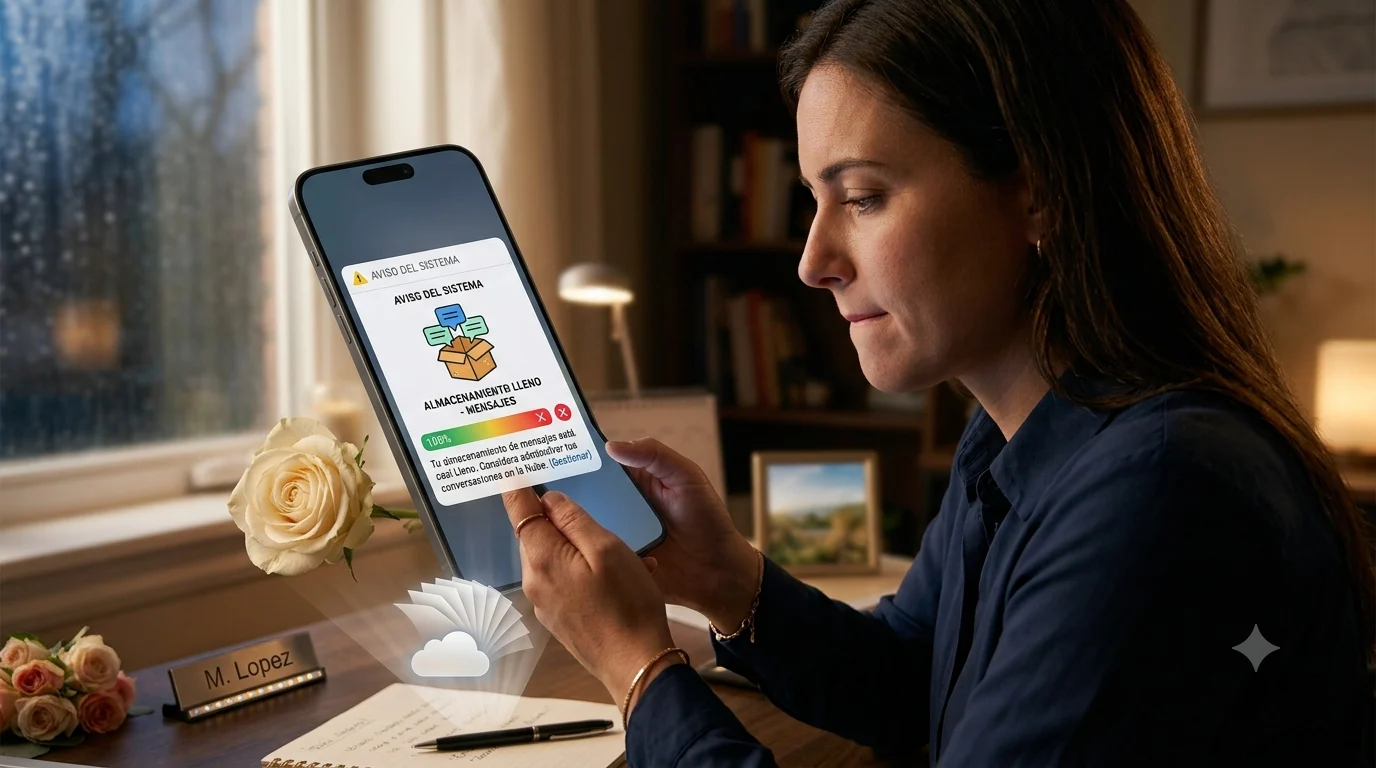
Have you ever missed an important text message because your phone showed “Message storage is full”? This common problem can stop new SMS messages from arriving and become frustrating when you are waiting for an OTP, personal message, or important update.
If you are searching for Message storage is full, you are likely looking for a quick way to clear space and make your messages work again. This error usually appears when your SIM card, messaging app, or SMS storage has reached its limit.
In this guide, you will find simple and practical solutions to fix Message storage is full on Android, Samsung, and Xiaomi devices. You will learn how to delete old messages, clear SMS storage, move messages from SIM to phone memory, and prevent this issue in the future. Follow these easy steps to restore your messaging service and receive new texts without problems.
Why Am I Getting a Message That My Storage Is Full?
When your phone shows a Message storage is full notification, it means there is no available space left for saving new text messages. This does not always mean your entire phone storage is full. In many cases, only the SMS storage area has reached its limit.
Older phones often save messages on the SIM card, which has very limited space. A SIM card may only store a small number of SMS messages compared to modern smartphone memory.
Other common reasons include:
- Too many saved text conversations
- Large multimedia messages with photos or videos
- Old OTP and promotional messages
- SIM card message storage reaching its limit
- Messaging app cache problems
- Incorrect SMS storage settings
Understanding the cause helps you choose the right solution instead of deleting unnecessary phone data.
Quick Fixes for Message Storage Is Full Android Problem
If you are facing a Message storage is full Android error, start with these simple solutions. Most users can solve the problem within a few minutes.
Delete Unnecessary Messages
Open your Messages app and remove old conversations you no longer need. Promotional messages, verification codes, and old chats can take up valuable SMS space.
Restart Your Android Phone
A simple restart can refresh the messaging system and remove temporary errors that prevent new messages from arriving.
Check Your Message Settings
Some Android devices have limits for storing SMS messages. Check your message settings and make sure your phone is not saving texts to limited SIM storage.
Update Your Messaging App
An outdated messaging app may create storage-related problems. Updating the app can improve performance and fix minor bugs.
These basic steps often solve the problem, but if the error continues, check your SIM card storage.
SIM Card Storage Is Full No More Space for SMS Messages
Many users see the warning “SIM card storage is full no more space for SMS messages” because their SIM card has reached its message limit.
Unlike phone storage, SIM cards have very limited space for text messages. If your device saves SMS messages directly on the SIM card, new messages may stop arriving.
To fix this issue:
Remove Old SIM Messages
Follow these steps:
- Open your Messages app.
- Go to Message Settings.
- Find the SIM messages option.
- Select old messages.
- Delete unwanted SMS.
Move Messages to Phone Storage
Modern smartphones have much more internal storage than SIM cards. Moving messages to phone memory allows you to save many more conversations.
Check Your SIM Card Age
Older SIM cards may have smaller storage capacity. If the problem happens repeatedly, replacing your SIM card may help.
Message Storage Is Full Samsung: Solutions That Work
Samsung users often search for Message storage is full Samsung because their device cannot receive new texts even when the phone has free storage.
Try these Samsung-specific fixes:
Delete Old Conversations
Open the Samsung Messages app:
- Press and hold unwanted conversations.
- Select multiple chats.
- Tap Delete.
Removing unnecessary chats creates space for new messages.
Remove Large Message Attachments
Pictures, videos, and files sent through messages can quickly increase storage usage.
Check your conversations and remove large attachments you no longer need.
Clear Samsung Messages Cache
A full or damaged cache may cause message errors.
Steps:
- Open Settings.
- Tap Apps.
- Select Messages.
- Choose Storage.
- Tap Clear Cache.
Clearing cache removes temporary files without deleting your messages.
How Do I Clear Storage From My Messages?
If you are wondering “How do I clear storage from my messages?”, the easiest method is removing old conversations and unnecessary media files.
Follow these steps:
Delete Old SMS Messages
Remove messages that are no longer important, such as:
- Old verification codes
- Marketing messages
- Expired notifications
- Unused conversations
Delete Multimedia Messages
MMS messages with images and videos use more space than normal texts. Review your messages and remove large files.
Use Automatic Message Deletion
Some Android phones allow automatic deletion of older messages after reaching a certain limit. Enabling this feature can prevent future storage issues.
Keeping your messages organized helps your phone work smoothly and reduces the chance of seeing storage warnings again.
How to Change SMS Storage From SIM to Phone
Many Android users search for how to change SMS storage from SIM to phone because SIM cards fill up quickly.
Saving messages on your phone is better because internal storage provides much more space.
General steps include:
- Open your Messages app.
- Tap Settings.
- Find SMS storage options.
- Choose Phone Storage instead of SIM Storage.
The option name may be different depending on your device model and Android version.
Some newer Android phones automatically save messages to internal storage. If you cannot find this option, your device may already be using phone storage.
SIM Card Storage Is Full Xiaomi: How to Fix the Problem
Xiaomi users may also experience the SIM card storage is full Xiaomi issue when their phone cannot save new SMS messages. This usually happens because the SIM card has limited space or old messages are still stored on it.
If your Xiaomi phone shows this warning, you can fix it by managing your SIM messages and changing your SMS storage settings.
Try these solutions:
Delete SIM Card Messages on Xiaomi
- Open the Messages app.
- Tap the settings menu.
- Find the SIM card messages option.
- Select unwanted messages.
- Delete them permanently.
Move SMS Messages to Phone Storage
Your phone storage has much more space than a SIM card. Moving messages to internal storage can stop repeated storage warnings.
Update Your Xiaomi Messaging App
Sometimes outdated apps create message-related errors. Check for updates and install the latest version for better performance.
By keeping SIM storage clean, you can receive new messages without interruptions.
The Unsent Message: Hidden Feelings Behind Unspoken Words
SIM Card Storage Is Full How to Fix: Advanced Solutions
If basic cleaning does not solve the problem, you may need advanced fixes. A SIM card storage is full how to fix search usually means the user has already tried deleting messages but still receives the warning.
Here are some additional solutions:
Check Hidden SIM Messages
Some messages may not appear in your normal inbox but are still saved on the SIM card.
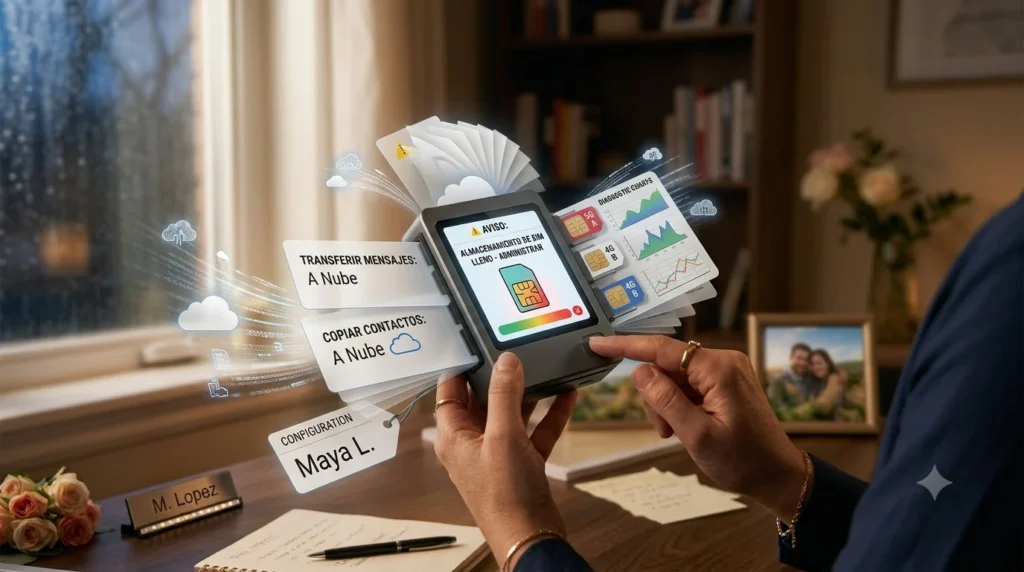
Look for:
- SIM message manager
- Imported messages
- Archived SMS
Delete anything unnecessary.
Remove Old Message Backups
Some phones restore old messages automatically after a backup. Check your backup settings and remove unnecessary saved message data.
Replace an Old SIM Card
If your SIM card is very old, it may have limited storage capacity or performance issues. A new SIM card can solve repeated SMS storage problems.
Reset Messaging Settings
Incorrect settings may prevent your phone from managing messages properly. Resetting message settings can help restore normal function.
What Do I Do When My SMS Storage Is Full?
If you are asking, “What do I do when my SMS storage is full?”, the solution depends on where your messages are stored.
Start with these steps:
Remove Unnecessary Text Messages
Delete conversations you no longer need. Focus on removing:
- Old promotional messages
- Expired OTP codes
- Duplicate conversations
- Unused chats
Delete Saved Draft Messages
Sometimes unfinished messages remain saved and use storage space. Check your drafts folder and remove unnecessary items.
Clear Message App Cache
Temporary files from your messaging app can sometimes create storage issues.
To clear cache:
- Open phone Settings.
- Select Apps.
- Choose your Messages app.
- Tap Storage.
- Select Clear Cache.
Check Your Phone Storage
Although the warning is usually about SMS space, low phone storage can also affect messaging performance.
Remove unused apps, videos, or downloads if your phone memory is almost full.
How to Delete Full Storage Without Losing Important Messages
Many users worry about deleting messages because some conversations contain important information. The goal is to remove unnecessary data while keeping valuable texts safe.
Before deleting messages:
Save Important Conversations
Take screenshots or use a message backup tool to save important chats.
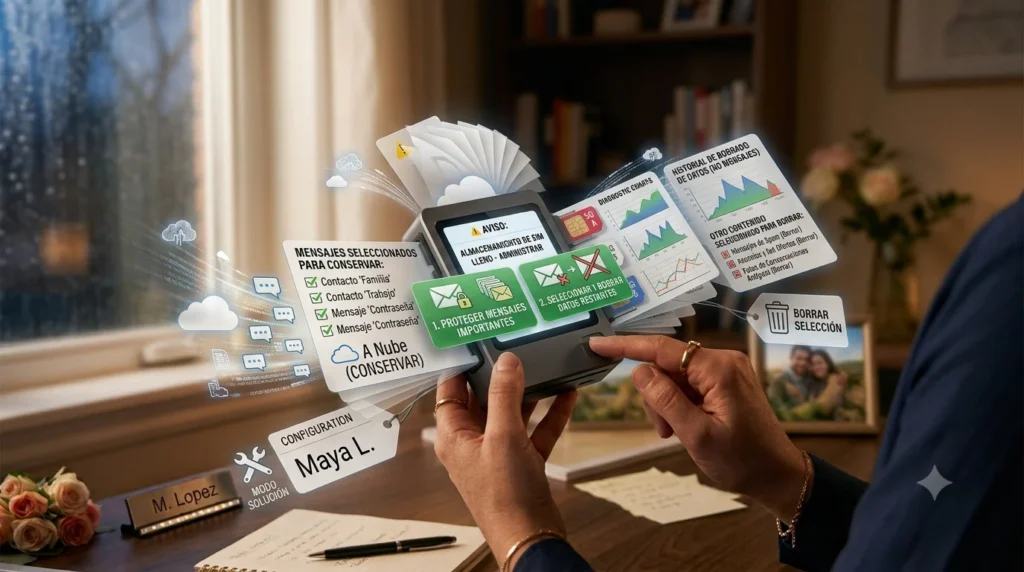
Delete Messages in Bulk
Instead of deleting one message at a time:
- Select multiple conversations.
- Choose Delete.
- Confirm removal.
Remove Only Unnecessary Content
You do not need to delete every message. Remove old and unwanted texts first.
Cleaning your message storage regularly keeps your phone faster and prevents future errors.
Why Does My Phone Keep Saying Message Storage Is Full?
If the warning keeps appearing after deleting messages, there may be another reason behind the problem.
Common causes include:
Messages Are Still Saved on SIM
Deleting phone messages will not help if your SIM card storage is full. You need to remove SIM messages separately.
Automatic Message Recovery
Some phones restore old SMS messages after syncing with a backup service.
Messaging App Problems
A corrupted app cache or outdated messaging app can cause repeated storage warnings.
Limited SIM Capacity
Older SIM cards simply cannot store many messages. Switching to phone storage is the best long-term solution.
Finding the real cause helps you fix the problem permanently instead of repeating the same steps.
How to Prevent Message Storage Problems in the Future
After fixing the Message storage is full error, you can take a few steps to prevent it from happening again.
Delete Unwanted Messages Regularly
Do not allow thousands of old messages to build up. Clean your inbox every few months.
Save Messages on Phone Storage
Phone memory is much larger than SIM storage. Keep SMS messages stored on your device whenever possible.
Remove Large Attachments
Photos and videos inside messages can quickly consume space. Delete old multimedia files regularly.
Keep Your Phone Updated
Software updates often improve messaging performance and fix bugs.
A little maintenance can keep your messages working smoothly and prevent missing important texts.
120+ Heartfelt Couples Messages to Express Your Love
Frequently Asked Questions About Message Storage Is Full
What does “Message storage is full” mean?
Message storage is full means your device or SIM card has reached its limit for saving SMS messages. You need to delete old messages or move storage to your phone.
How do I clear storage from my messages?
You can clear message storage by deleting old conversations, removing large attachments, clearing the messaging app cache, and removing unnecessary SIM messages.
Why am I getting a message that my storage is full?
You may see this warning because your SMS storage limit has been reached, your SIM card is full, or your messaging app has accumulated too much saved data.
How can I fix Message storage is full Android?
To fix Message storage is full Android, delete unwanted texts, clear message cache, check SIM storage, and make sure SMS messages are saved on phone memory instead of the SIM card.
Can I change SMS storage from SIM to phone?
Yes, many Android devices allow you to change SMS storage from SIM to phone. Open message settings and select phone storage if the option is available.
Conclusion
A Message storage is full warning can stop you from receiving important texts, but it is usually easy to fix. Whether the problem comes from your SIM card, Samsung device, Xiaomi phone, or Android messaging app, simple steps like deleting old messages, clearing storage, and changing SMS settings can solve the issue.
Regularly managing your messages helps your phone stay organized and prevents future storage problems. Always save important conversations before deleting anything important.
With the right settings and a little cleanup, your messages can continue working smoothly without annoying storage warnings.

Jack Rowland is a modern writer who captures real emotions through clear, honest words. His messages focus on love, motivation, and everyday moments that quietly matter.