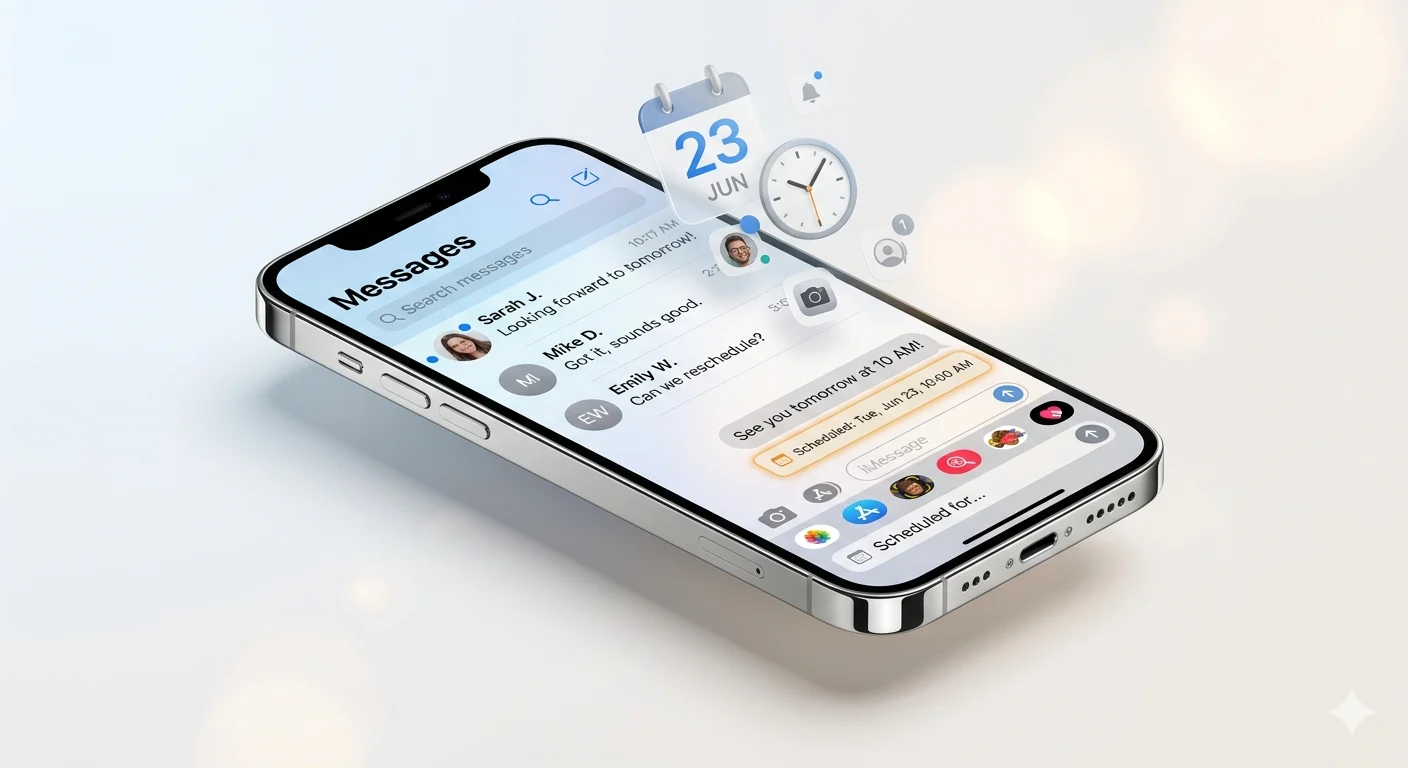
Forgetting to send an important text can be frustrating, especially when it’s a birthday wish, meeting reminder, or time-sensitive update. That’s why many iPhone users look for ways to schedule messages and make sure they are delivered at the right moment without needing to remember later.
While iPhones have evolved with many smart features, message scheduling can still be confusing for some users. Fortunately, there are simple methods that allow you to plan messages in advance and stay organized throughout your day.
In this guide, you’ll learn how to schedule a text message on iPhone using easy and effective methods. Whether you want to automate personal texts or manage professional communication, these step-by-step solutions will help you send messages at the perfect time with minimal effort.
What Does It Mean to Schedule a Text Message on iPhone?
Scheduling a text message allows you to write a message now and choose a future date and time for it to be sent automatically.
This feature is useful when you want to:
- Send birthday wishes at midnight
- Schedule business reminders
- Remember important appointments
- Send messages while you’re sleeping or busy
- Reach someone in a different time zone
Instead of relying on memory, your iPhone handles the timing for you.
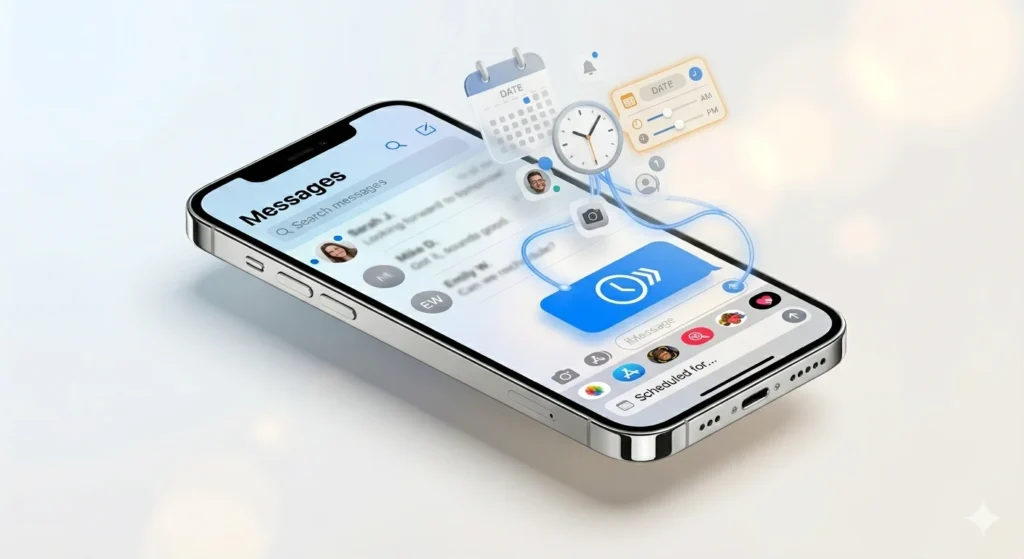
How to Schedule a Text Message on iPhone Using Send Later
The easiest way to schedule a text message iPhone is by using Apple’s built-in Send Later feature.
Step 1: Open the Messages App
Launch the Messages app on your iPhone and open an existing conversation or start a new one.
Step 2: Type Your Message
Write the text message exactly as you want it to appear.
Step 3: Access Send Later
Tap the plus (+) button near the message field and look for the Send Later option.
Step 4: Choose a Date and Time
Select the day and time when you want the message delivered.
Step 5: Confirm the Schedule
Tap Send to save the scheduled message.
Your message will remain visible in the conversation until the selected delivery time arrives.
Quick Answer
To schedule a text message on iPhone, open Messages, type your message, tap the + button, select Send Later, choose a date and time, and tap Send.
Friend Passed Away Message: Heartfelt Words of Sympathy & Remembrance
How to Schedule a Text Message Using the Shortcuts App
If your iPhone doesn’t support Send Later or you prefer automation, the Shortcuts app can help.
Open the Shortcuts App
Launch Shortcuts and tap the Automation tab.
Create a Personal Automation
Select “Create Personal Automation.”
Choose Time of Day
Pick the exact time you want the message sent.
Add Send Message Action
Search for “Send Message” and add it to the automation.
Enter Your Message
Type your desired text and select the recipient.
Save the Automation
Review the settings and save.
This method works especially well for recurring reminders.
How to Schedule a Text on iPhone 13, 14, 15, and 16
Many users search for device-specific instructions. Fortunately, the process is very similar across recent iPhone models.
iPhone 13
If your device is updated to a compatible iOS version, you can use Send Later or the Shortcuts app.
iPhone 14
Most iPhone 14 users can access the latest messaging features after updating iOS.
iPhone 15
The iPhone 15 supports modern scheduling options and generally provides the smoothest experience.
iPhone 16
Apple’s latest devices offer full support for current messaging features, including scheduled texting where available.
The exact options you see depend more on your iOS version than your phone model.
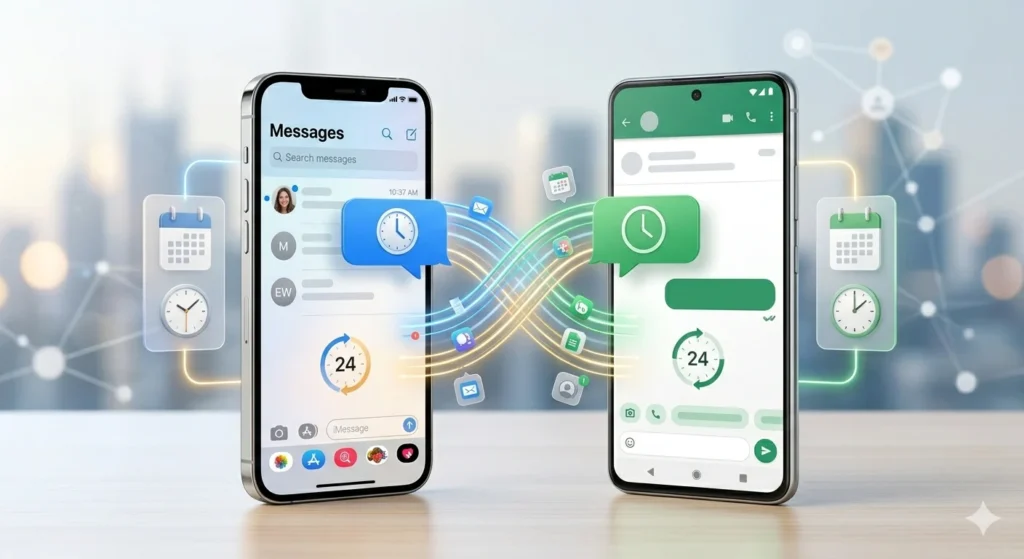
Can You Schedule a Text Message on iPhone to Android?
Yes.
One of the most common questions is: Can you schedule a text on iPhone to Android?
The answer is yes. The scheduling process is generally the same whether you’re texting another iPhone user or an Android user.
Simply:
- Create the message.
- Select the Android recipient.
- Choose Send Later.
- Set the desired time.
- Confirm the schedule.
The message will be sent at the chosen time if all requirements are met.
How to Edit or Delete a Scheduled Text
Plans change, and sometimes your scheduled message needs an update.
To Edit a Scheduled Message
- Open the conversation.
- Locate the scheduled message.
- Tap Edit if available.
- Make your changes.
- Save the updated version.
To Delete a Scheduled Message
- Open the conversation thread.
- Find the scheduled text.
- Cancel or delete it before the scheduled send time.
Always review scheduled messages before they are sent.
Get Well Soon Message for Coworker Wishes & Support
Why Don’t I See the Send Later Option on My iPhone?
If the Send Later feature is missing, several factors could be responsible.
Your iOS Version Is Outdated
Older versions of iOS may not include the latest messaging features.
Your Device Needs an Update
Check for software updates in Settings.
Feature Availability
Some features roll out gradually and may vary by device or region.
Temporary Software Issues
Restarting your iPhone can sometimes solve the problem.
Alternative Solution
If Send Later isn’t available, use the Shortcuts app as a backup method.
Do Scheduled Texts Send If the Phone Is Off?
This is one of the most frequently asked questions.
In many situations, scheduled messages work best when:
- Your iPhone is powered on
- The device has network access
- Airplane Mode is disabled
- Battery power is available
If your phone is turned off at the scheduled time, delivery may be delayed until the device reconnects.
For important messages, keep your phone on and connected.
Send Later vs Shortcuts App
| Feature | Send Later | Shortcuts App |
|---|---|---|
| Easy Setup | Yes | Moderate |
| Built Into Messages | Yes | No |
| Recurring Messages | Limited | Yes |
| Best for Beginners | Yes | No |
| Advanced Automation | No | Yes |
| Quick Scheduling | Yes | Yes |
Which One Is Better?
For most users, Send Later is the easiest option.
If you need advanced scheduling and recurring automations, Shortcuts offers more flexibility.
Tips for Successful Scheduled Messages
Follow these simple tips to avoid problems.
Double-Check the Recipient
Sending a message to the wrong person can be embarrassing.
Review the Time Zone
This is especially important when messaging someone in another country.
Keep Your Device Updated
Software updates often improve messaging reliability.
Check Scheduled Messages Regularly
Review pending messages in case plans change.
Test the Feature First
Send yourself a test message before relying on scheduled texting for important events.
FAQs
How do I schedule a text message on iPhone?
Open Messages, type your message, choose Send Later, select a date and time, and confirm.
Can I schedule a text on iOS 26?
Yes. Compatible devices running iOS 26 can use Apple’s scheduled messaging features.
How do I schedule a text on iPhone iOS 18?
The process is similar. Open Messages, compose your text, and use the available scheduling option.
Can I schedule a text message on iPhone to Android?
Yes. Scheduled messages can be sent to Android users just like standard SMS or RCS messages.
Why don’t I see the Send Later option on my iPhone?
You may need a software update, device restart, or an alternative method such as Shortcuts.
Do scheduled texts send if the phone is off?
Scheduled texts generally work best when your iPhone is powered on and connected to a network.
Can I edit a scheduled text message?
Yes. Most scheduled messages can be edited before the delivery time arrives.
Can I delete a scheduled message before it sends?
Yes. You can cancel or remove the message before the scheduled send time.
Conclusion
Learning how to schedule a text message on iPhone is a simple way to stay organized and make sure your messages arrive exactly when you want them to. Whether you’re sending birthday wishes, business reminders, follow-ups, or important updates, scheduled texting helps you communicate more effectively.
The built-in Send Later feature is the easiest option for most users, while the Shortcuts app offers extra flexibility for advanced scheduling needs. No matter which method you choose, taking a few minutes to set up scheduled messages can save time and prevent missed opportunities.
If you found this guide helpful, explore our articles on iMessage vs Text Message, Samsung RCS Message, and other messaging tips to get even more from your smartphone. A well-timed message can make all the difference, and now you know exactly how to send one.

Ruby Collins is a gentle storyteller who turns emotions into simple, meaningful words. Her writing focuses on love, warmth, and the quiet feelings people often struggle to express.