It can be frustrating when an important text message doesn’t reach the person you’re trying to contact. Whether you’re sending an urgent update, a personal message, or a business text, seeing a text message not delivered error can leave you wondering what went wrong. Many people immediately think they’ve been blocked, but in most cases, the problem is caused by a temporary network issue, incorrect settings, or a device-related error.
If you’re searching for text message not delivered, you’re likely looking for a quick explanation and a reliable solution. Message delivery failures can happen on both Android and iPhone for several reasons, including poor signal, carrier outages, incorrect phone numbers, software bugs, or messaging settings. Understanding the real cause is the first step toward fixing the problem.
In this guide, you’ll learn why a text message is not delivered, how to troubleshoot the issue step by step, and practical tips to prevent future SMS delivery problems. By the end, you’ll know how to get your messages sending normally again with confidence.
Why Is My Text Message Not Delivered? Top Reasons Explained
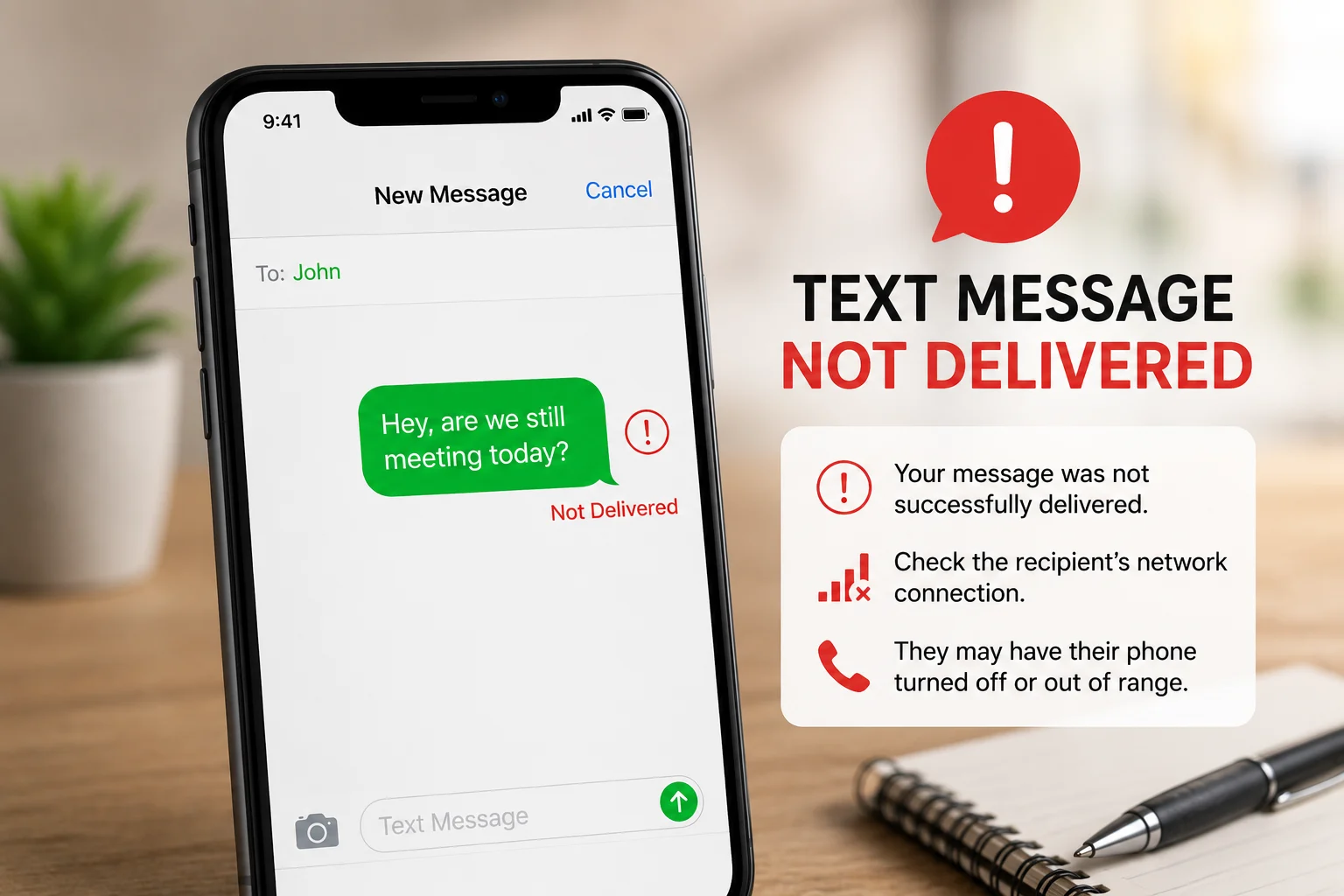
A “Text Message Not Delivered” error means your phone couldn’t successfully send the SMS to the recipient. This usually happens because of network problems, phone settings, carrier issues, or the recipient’s device being unavailable. In most cases, the problem is temporary and can be fixed without technical help.
Seeing a failed message can be worrying, but it doesn’t automatically mean someone has blocked your number. Many everyday issues can stop an SMS from being delivered, including poor signal strength, software glitches, or a temporary outage from your mobile carrier.
Before trying advanced troubleshooting, check whether you have a stable mobile signal, confirm that the recipient’s number is correct, and restart your phone. A simple reboot often clears temporary software issues that interfere with SMS delivery.
Quick Tip: If your message sends successfully to another contact, the issue is likely with the recipient’s phone, network, or mobile carrier—not yours.
10 Common Reasons Your Text Message Failed to Deliver
A failed text message can happen for many reasons. Understanding the exact cause makes it much easier to fix the problem and avoid it in the future.
1. Weak Mobile Signal
Poor network coverage can prevent your phone from sending SMS messages successfully.
2. The Recipient’s Phone Is Turned Off
If the recipient’s phone is switched off or has no battery, your message may remain undelivered until the device reconnects.
3. Airplane Mode Is Enabled
Airplane Mode disables mobile networks, preventing both sending and receiving text messages.
4. Carrier Network Problems
Temporary outages or maintenance by your mobile carrier can interrupt SMS delivery.
5. Incorrect or Inactive Phone Number
A small typing mistake or an inactive number will stop the message from reaching the recipient.
6. SIM Card Issues
A damaged or improperly inserted SIM card can affect your phone’s ability to send texts.
7. Messaging App Problems
Sometimes the default messaging app develops temporary bugs that interfere with SMS delivery.
8. Outdated Software
Older versions of Android or iOS may contain bugs that affect messaging performance.
9. Full Message Storage
If the recipient’s phone has reached its storage limit, new messages may not be accepted.
10. Temporary SMS Server Delays
Occasionally, mobile carriers experience routing delays that postpone message delivery even when everything else is working correctly.
Expert Tip: Most SMS delivery problems are caused by temporary network or device issues—not because you’ve been blocked. Waiting a few minutes and trying again often solves the problem.
100+ Heartfelt Thanksgiving Messages to Team Members
How to Fix SMS Text Messages Not Sending
If your SMS messages aren’t sending, follow these troubleshooting steps in order. Most users solve the problem within a few minutes without needing technical support.
Step 1: Check Your Network Signal
Make sure you have a strong mobile signal. Move to an area with better coverage if necessary.
Step 2: Restart Your Phone
Restarting your device refreshes the network connection and clears temporary software glitches.
Step 3: Turn Airplane Mode On and Off
Enable Airplane Mode for about 30 seconds, then disable it to reconnect to your carrier’s network.
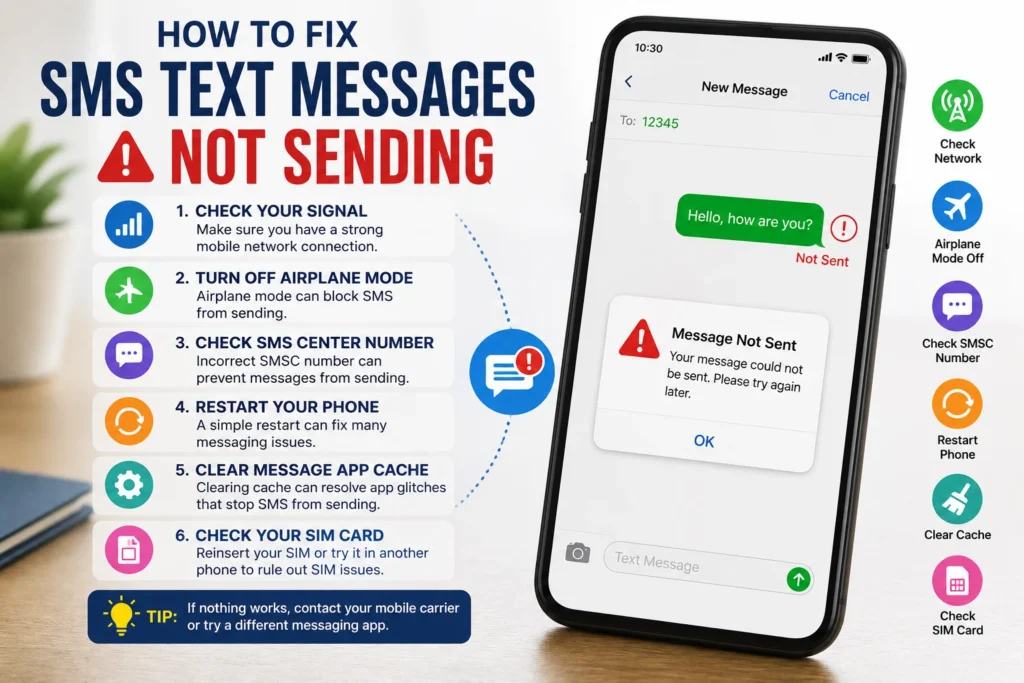
Step 4: Verify the Recipient’s Number
Double-check that you’ve entered the correct phone number, including the country code if needed.
Step 5: Update Your Device
Install the latest Android or iOS updates, as they often include fixes for messaging bugs.
Step 6: Clear the Messaging App Cache (Android)
If you’re using Android, clearing the messaging app’s cache can resolve temporary performance issues.
Step 7: Check Your SIM Card
Remove the SIM card, clean it gently, and insert it securely before trying again.
Step 8: Reset Network Settings
If the problem continues, reset your network settings. Keep in mind this will remove saved Wi-Fi passwords and Bluetooth connections.
If none of these solutions work, contact your mobile carrier. They can check for account restrictions, SIM card issues, or local network outages.
Quick Tip: Test your phone by sending a message to another contact. If it sends successfully, the issue is most likely on the recipient’s side.
Text Message Not Delivered on iPhone: Best Fixes
If your iPhone says “Not Delivered,” the issue could be related to iMessage, SMS settings, your mobile carrier, or a temporary software problem. Fortunately, most iPhone messaging issues are easy to fix.
First, check whether you’re sending an iMessage (blue bubble) or a regular SMS (green bubble). If iMessage isn’t available, your iPhone should automatically send the message as an SMS if Send as SMS is enabled in your settings.
Next, make sure your mobile signal or Wi-Fi connection is stable. Restart your iPhone, install the latest iOS update, and check for a carrier settings update. You should also set Date & Time to Automatic, as incorrect time settings can occasionally affect network services.
If the message still won’t send, try texting another contact. If that message is delivered successfully, the problem is likely related to the recipient’s phone or network rather than your iPhone.
Text Message Not Delivered on Samsung: Complete Troubleshooting Guide
If you’re using a Samsung phone and your text message isn’t delivering, the issue is usually related to your network, SIM card, messaging app, or device settings. Since Samsung phones support both Samsung Messages and Google Messages, switching between apps or incorrect settings can sometimes cause SMS delivery problems.
Start by checking your mobile signal and ensuring Airplane Mode is turned off. Restart your device, then update your phone to the latest software version. If you’re using Google Messages with RCS Chat, temporarily disable RCS and send a regular SMS instead. This simple step often fixes delivery problems.
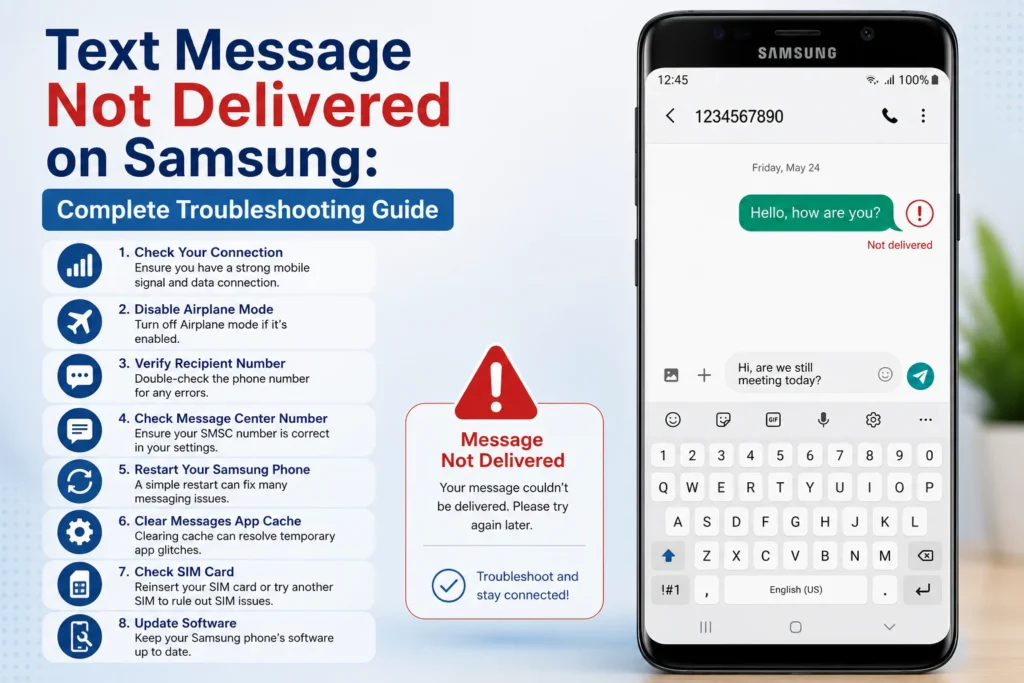
You should also clear the cache of your messaging app and make sure it’s set as the default SMS application. If your Samsung phone has dual SIM support, verify that the correct SIM card is selected for sending text messages.
If the problem continues after these steps, insert your SIM card into another phone to determine whether the issue is with your device or your mobile carrier.
Expert Tip: Samsung messaging problems are often caused by RCS settings or network configuration rather than hardware faults.
Why Aren’t My Texts Delivering to One Person If I’m Not Blocked?
If your messages send successfully to everyone except one person, it’s easy to assume you’ve been blocked. However, that’s not always the case. There are several other reasons why your texts may not reach a specific contact.
The recipient’s phone could be switched off, out of network coverage, or experiencing temporary service issues. They may have recently changed their phone number, switched mobile carriers, or enabled settings that affect message delivery. On iPhone, an iMessage configuration problem can also prevent messages from reaching a particular contact.
If possible, call the person or contact them through another messaging app to confirm whether they’re receiving messages. You can also ask them to send you a text first. If both of you experience the same problem, the issue is likely related to device settings or the network rather than blocking.
Remember, a “Not Delivered” message alone isn’t proof that someone has blocked your number.
Quick Tip: If calls go through normally but SMS doesn’t, check whether both phones are using the correct messaging service, such as SMS or iMessage.
Text Message Not Delivered: Recipient May Be Offline
Sometimes you’ll see a message suggesting that the recipient may be offline. This simply means the receiving device isn’t currently connected to the mobile network or the internet, depending on the type of message you’re sending.
The recipient’s phone may be turned off, in Airplane Mode, out of coverage, or have a dead battery. Once their device reconnects, the message may be delivered automatically if the carrier still holds it.
Instead of sending the same message repeatedly, wait a little while before trying again. Sending multiple copies usually doesn’t speed up delivery and can create confusion once the recipient comes back online.
If the message still isn’t delivered after several hours, consider contacting the person using another communication method to make sure they’re available.
Expert Tip: Temporary offline status is common during travel, poor network coverage, or phone maintenance. It doesn’t necessarily indicate a permanent delivery problem.
Why Would Messages in Messenger Be Sent but Not Delivered?
Many people confuse Facebook Messenger with regular SMS, but they work differently. A message marked as Sent simply means it has left your device and reached Messenger’s servers. It doesn’t mean the recipient has received it.
If the message remains in the “Sent” status, the recipient may be offline, have limited internet access, or may not have opened Messenger recently. In some cases, the conversation could be in the recipient’s Message Requests folder, especially if you aren’t connected as friends.
If the recipient has blocked you on Messenger, your message may never show as delivered. However, delayed delivery can also happen because of temporary server issues or poor internet connections.
Quick Tip: Check your own internet connection first. Messenger depends on Wi-Fi or mobile data, unlike traditional SMS.
Why Do Text Messages Say Not Delivered but They Actually Are?
In some situations, your phone may display “Not Delivered”, but the recipient still receives your message. This usually happens because of delayed delivery reports, temporary carrier issues, or synchronization errors between your phone and the network.
For example, your carrier may successfully deliver the SMS, but your device doesn’t receive the confirmation immediately. As a result, the messaging app continues to display the message as failed even though it has already been delivered.
Software bugs can also create incorrect delivery notifications. Updating your device and messaging app often resolves this issue.
If you’re unsure whether your message arrived, ask the recipient before sending it again. This helps avoid duplicate messages and unnecessary confusion.
Expert Tip: Delivery reports aren’t always instant. A temporary delay doesn’t always mean your message failed.
Frequently Asked Questions
1. Why is my text message not delivering to someone?
Your message may fail because of poor network coverage, carrier issues, incorrect phone settings, or the recipient’s phone being switched off. It doesn’t automatically mean you’ve been blocked.
2. What should I do if my SMS is not delivered?
Restart your phone, check your mobile signal, verify the recipient’s number, update your device, and try sending the message again. If the issue continues, contact your mobile carrier.
3. How do I test if SMS is working?
Send a text message to another trusted contact or ask someone to send you an SMS. If both sending and receiving fail, the problem is likely with your phone, SIM card, or carrier.
4. Why does my iPhone keep saying “Not Delivered”?
This can happen because of iMessage issues, poor network coverage, incorrect settings, outdated software, or temporary carrier problems. Updating your device and enabling Send as SMS often solves the issue.
5. Does “Not Delivered” always mean I’m blocked?
No. Most delivery failures are caused by network problems, device settings, software bugs, or temporary carrier issues. Blocking is only one possible reason and shouldn’t be your first assumption.
Conclusion
Seeing a text message not delivered error can be frustrating, but in most cases, it’s a temporary problem with a simple solution. Whether you’re using an iPhone, Android, or Samsung device, checking your network, updating your software, reviewing your messaging settings, and testing your SIM card can resolve most SMS delivery issues.
If your messages continue to fail after trying every troubleshooting step, your mobile carrier can help identify account or network-related problems. Understanding what different delivery statuses mean also prevents unnecessary worry and helps you choose the right solution more quickly.
The next time your text message isn’t delivered, you’ll know exactly what to check and how to fix it—saving time, reducing stress, and keeping your conversations flowing without interruption.

Jack Rowland is a modern writer who captures real emotions through clear, honest words. His messages focus on love, motivation, and everyday moments that quietly matter.