Sent a message to the wrong person, spotted an embarrassing typo, or instantly wished you could take it back? Don’t worry—you may be able to remove it before the other person reads it. If you’re wondering how to unsend a message on iPhone, Apple’s Messages app lets you unsend certain iMessages within a limited time.
The feature is helpful when you make a mistake, send something by accident, or simply change your mind. However, it doesn’t work for every type of text message, and there are a few limits you should know.
In this guide, you’ll learn how to unsend a message on iPhone, how long you have to remove it, what the recipient can see, and why the Unsend option may not appear. You’ll also discover what happens after you unsend an iMessage, so you can use the feature with confidence.
How to Unsend a Message on iPhone
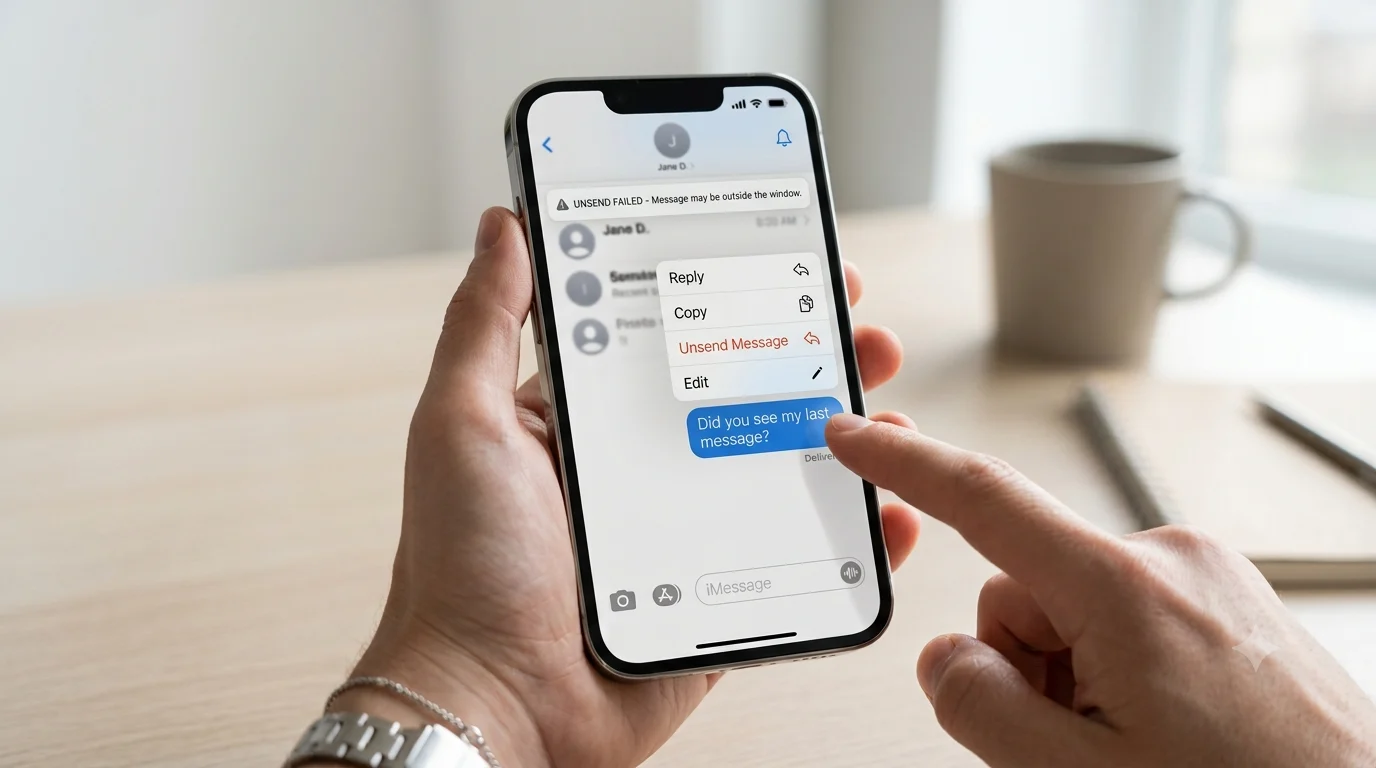
If you just sent an iMessage and want to take it back, you can try Apple’s Undo Send feature. The process is quick and simple.
Follow these steps:
- Open the Messages app on your iPhone.
- Open the conversation where you sent the message.
- Find the message you want to remove.
- Touch and hold the message bubble.
- Tap Undo Send.
If the message is eligible, it will be removed from the conversation.
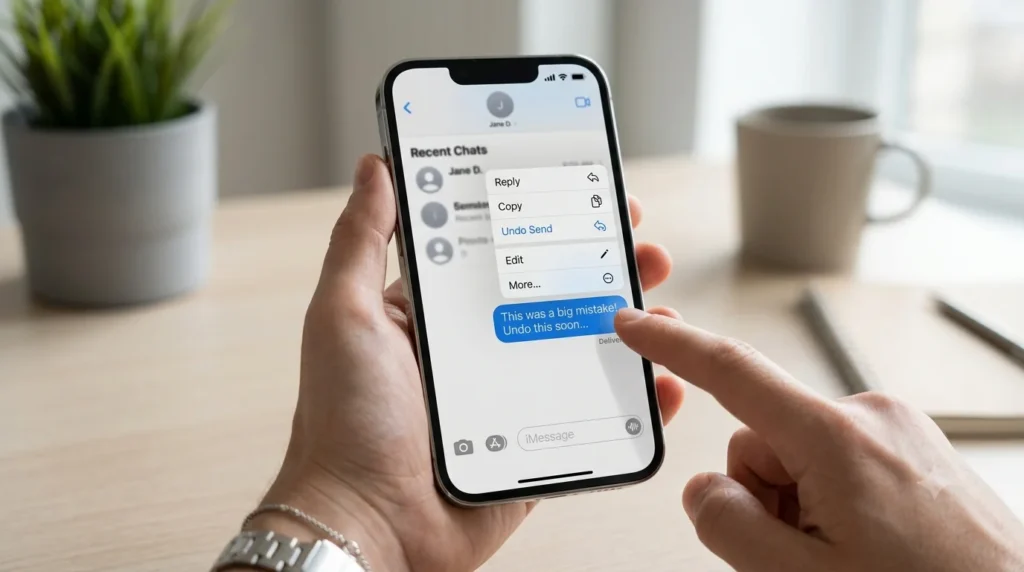
The most important thing is to act quickly. Apple’s Undo Send feature is available only for a short period after a message is sent. If the option does not appear, the message may no longer be eligible.
This feature can be helpful if you send a message to the wrong person, notice an embarrassing typo, or immediately change your mind about what you wrote.
What Happens When You Unsend a Message?
When you unsend a message on iPhone, the original message is removed from the conversation when the feature works successfully. However, this does not mean the message was never seen.
The other person may see a system notice that a message was unsent. They may not be able to read the original content afterward, but they can still know that you removed something.
There is also a chance the recipient already saw your message. They might have opened the conversation, read it quickly, or seen part of it in a notification preview.
For this reason, Undo Send is useful, but it is not a perfect erase button. Once a message is sent, you cannot always control whether someone has already seen or remembered it.
Why Can’t I Unsend a Message on My iPhone?
There are several reasons why you may not see the Undo Send option.
The first possibility is that the message is no longer within the allowed time period. Apple limits how long you have to undo a recently sent message.
Another reason is the type of message you sent. Undo Send is designed for compatible iMessage conversations. It does not work as a remote delete feature for regular SMS or MMS texts.
Your iPhone’s software can also make a difference. If your device is running an older version of iOS, you may not have access to the feature.
The recipient’s device and software may also affect how the feature works. If the other person is using an older Apple operating system, the message may not behave as expected when you try to unsend it.
If Undo Send is unavailable, you can still delete the message from your own conversation. Just remember that deleting it from your iPhone does not necessarily remove it from the other person’s device.
70+Housewarming Card Message: Heartfelt Wishes
Can You Unsend a Regular Text Message?
No. You generally cannot use Apple’s Undo Send feature to remove a regular SMS or MMS message from someone else’s phone.
This is an important difference to understand.
If you see a blue message bubble, you are usually using iMessage. Compatible iMessages may be eligible for the Undo Send feature.
If you see a green message bubble, the message is generally being sent through SMS, MMS, or another non-iMessage service. Once a regular text has been sent, you cannot normally remove it remotely from the recipient’s phone.
So, if you accidentally send a green-bubble message, your best option may be to send a quick correction or apology.
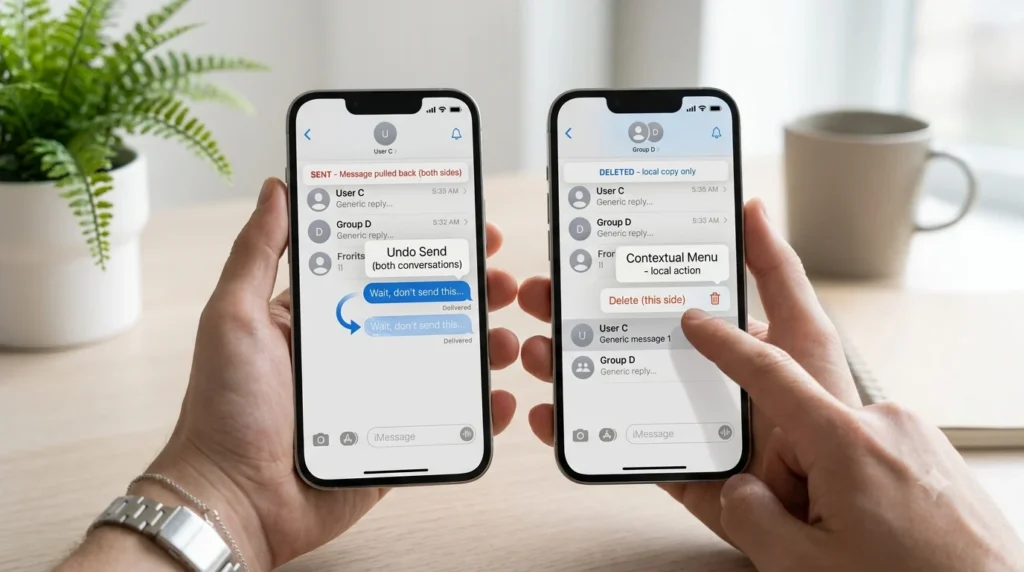
What Is the Difference Between Unsend and Delete?
Unsend and delete are not the same thing.
When you use Undo Send, you are attempting to remove a recently sent iMessage from the conversation for both sides, subject to Apple’s rules and compatibility requirements.
When you delete a message, you are usually removing it from your own Messages app. The other person may still have the original message in their conversation.
For example, imagine you send an iMessage and then delete the conversation from your iPhone. The recipient may still see the message on their device.
If your goal is to take back a recent message, you should use Undo Send rather than simply deleting it from your phone.
This is one of the most important things to remember when you want to unsend a message on iPhone.
Can the Other Person See an Unsent Message?
Usually, the recipient cannot see the original content after an iMessage has been successfully unsent. However, there are a few important things to remember.
First, the other person may see a notice in the conversation showing that a message was unsent.
Second, they may have already read the message before you removed it. If they opened the chat quickly, they could have seen the content before you had time to use Undo Send.
They may also have seen the message through a notification preview. In that case, unsending the message cannot erase what they already saw.
The recipient’s software version can also affect how Undo Send works. Therefore, you should never assume that unsending a message guarantees nobody saw it.
Can You Unsend a Message After the Time Limit?
Once the allowed Undo Send period has passed, you generally cannot use the feature to remove the message from the other person’s conversation.
You can still delete the message from your own device, but this is different from unsending it.
If the message contains something embarrassing or sensitive, you may feel stressed when you realize it is too late. Try not to panic. In many situations, a simple explanation can make things better.
You could say:
“Sorry, I sent that message by mistake. Please ignore it.”
Or:
“I apologize. I sent that before I had a chance to think it through.”
A short and honest message is often better than making the situation more complicated.
What If You Sent the Message to the Wrong Person?
Sending a private message to the wrong person can be embarrassing. If you notice the mistake quickly, try to unsend a message on iPhone if the message is eligible for Undo Send.
If you cannot remove it, stay calm. You do not always need a long explanation.
You can send:
“Oops! That message was meant for someone else. Sorry about that.”
“Sorry, wrong chat. Please ignore my last message.”
“I apologize. I sent that to you by mistake.”
“Please disregard my previous message. It was intended for another conversation.”
Most people have made a similar mistake at some point. A simple apology can quickly make the situation less awkward.
What If You Regret the Words You Sent?
Sometimes, you do not want to unsend a message because it went to the wrong person. You want to take it back because you regret what you said.
If the message is still eligible, you can try Undo Send. But if the other person has already read it, removing the message may not solve the problem.
In this situation, honesty is often the best answer.
You might say:
“I’m sorry. I was upset when I sent that, and I should have waited before replying.”
“I realize my message came across the wrong way. I’m sorry.”
“I wish I had chosen my words more carefully. Please accept my apology.”
“I didn’t express myself well. Can we talk about it?”
When words cause hurt, a sincere apology can do more than technology ever could.
How to Avoid Sending a Message You May Regret
The best way to deal with a message you want to unsend is to pause before sending it.
Before tapping Send, check the recipient’s name. Read your message one more time. Make sure you are in the correct conversation.
If you are angry or emotional, give yourself a few minutes before replying. You can write your thoughts in the Notes app first. Then read them again when you feel calmer.
For sensitive conversations, ask yourself one simple question:
“Would I still want to send this message tomorrow?”
If the answer is no, it may be better to wait.
Technology can sometimes help you unsend a message on iPhone, but a few seconds of patience can help you avoid the problem completely.
60+Florida Gators Message Board: Fan Discussions & News
Frequently Asked Questions
Why can’t I unsend a message on my iPhone?
You may be unable to unsend a message because the Undo Send time limit has passed, the message was sent as SMS or MMS, or your device or the recipient’s device does not support the required feature.
When you unsend a message on iPhone, does the person see it?
The recipient generally cannot see the original message after it is successfully unsent. However, they may see a notice that you unsent a message. They may also have already read the message before you removed it.
How do I unsend an already sent message?
Open the Messages app, find the recent iMessage, touch and hold the message bubble, and select Undo Send. The feature is available only for a limited time after sending.
Can you delete a message on iPhone so the other person can’t see it?
Deleting a message from your iPhone usually does not remove it from the recipient’s device. If you want to remove a recently sent iMessage from both sides, use Undo Send when the message is eligible.
Can I unsend a green text message?
No. Apple’s Undo Send feature does not work like a remote delete for regular SMS or MMS messages. If you send a green-bubble text, you generally cannot remove it from the recipient’s phone.
Conclusion
Knowing how to unsend a message on iPhone can be a huge relief when you send the wrong text, make a mistake, or instantly regret your words. The key is to act quickly and understand that Undo Send has limits.
If your message is an eligible iMessage, you may be able to remove it using the Undo Send option. However, the other person may still know that a message was unsent, and they may have already seen the original content.
If you cannot take the message back, do not panic. A simple apology or honest explanation can often fix an awkward moment. Everyone makes mistakes. What matters most is how you handle them.
Sometimes, you cannot unsend your words—but you can always choose kindness, honesty, and better words next.

Ruby Collins is a gentle storyteller who turns emotions into simple, meaningful words. Her writing focuses on love, warmth, and the quiet feelings people often struggle to express.