
Have you ever sent a message and instantly wished you could take it back? Whether it was a typo, a text sent to the wrong person, or something you regret saying, knowing how to delete a message can help you avoid embarrassment and regain control of the conversation.
In most messaging apps, deleting a message is quick and easy, but the steps can vary from one platform to another. Some apps allow you to remove messages for everyone in the chat, while others only delete them from your own conversation history. This often leaves users confused about what actually happens after a message is deleted.
Many people also wonder if the recipient can still see a deleted message or if there is a time limit for removing it. In this guide, you’ll learn how to delete a message on different platforms, what happens after deletion, and the important limitations you should know before taking action.
Quick Summary
- WhatsApp supports Delete for Everyone.
- Messenger includes an Unsend feature.
- Instagram allows message removal using Unsend.
- iMessage supports Undo Send.
- SMS messages usually cannot be removed from another device.
- Many apps have time limits for deleting messages.
- Deleted messages may still have been seen before removal.
How to Delete a Message on WhatsApp
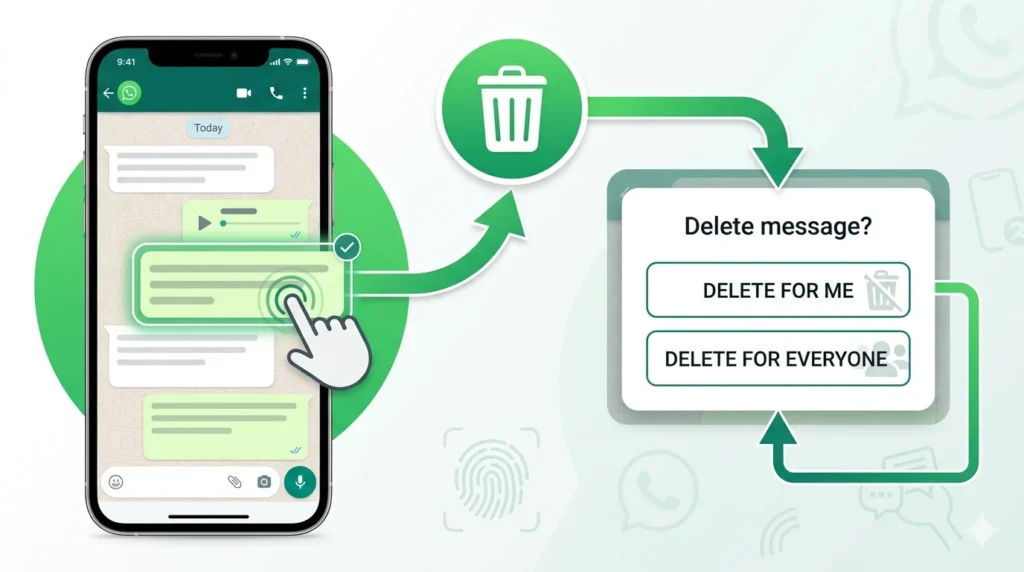
WhatsApp makes message deletion simple. Whether you want to remove a message for yourself or everyone in the chat, the process only takes a few seconds.
Steps
- Open WhatsApp.
- Open the conversation.
- Tap and hold the message.
- Tap the trash icon.
- Choose Delete for Me or Delete for Everyone.
How to Delete WhatsApp Messages for Everyone After a Long Time
WhatsApp allows message removal for everyone within a specific time limit. Once that period expires, you can usually only remove the message from your own device
How to Delete a Message on iPhone and iMessage
Many users want to know how to delete a message on iPhone or how to remove an iMessage after sending it.
Delete a Single Message
- Open the Messages app.
- Open the conversation.
- Touch and hold the message.
- Tap More.
- Select Delete.
Undo a Sent iMessage
- Open Messages.
- Press and hold the message.
- Tap Undo Send.
Can You Delete a Message on iPhone for Both People?
Only supported iMessages can be unsent. Regular SMS messages generally remain on the recipient’s phone.
100+ Maintenance Message Examples for Websites and Systems
How to Delete a Message on Android
Android users can quickly remove individual messages or entire conversations.
Delete a Specific Message
- Open Messages.
- Open the conversation.
- Press and hold the message.
- Tap Delete.
Delete an Entire Chat
- Open Messages.
- Press and hold the conversation.
- Select Delete.
How to Delete SMS Messages From Both Sides
Unfortunately, standard text messages cannot normally be deleted from another person’s device after delivery.
How to Delete a Message on Messenger
Messenger gives users two options when removing messages.
Steps
- Open Messenger.
- Open the chat.
- Press and hold the message.
- Tap Remove.
- Choose:
- Remove for You
- Unsend
The Unsend feature removes the message from the conversation for everyone.
How to Delete a Message for Everyone on Messenger
If you’ve sent something by mistake, Messenger’s Unsend option can help.
Steps
- Open the conversation.
- Locate the message.
- Press and hold it.
- Tap Remove.
- Select Unsend.
Although the message disappears, people may still know that a message was removed.
How to Delete a Message on Instagram
Instagram allows users to remove messages from direct conversations.
Steps
- Open Instagram.
- Go to Direct Messages.
- Open the chat.
- Press and hold the message.
- Tap Unsend.
The message will disappear from the conversation.
Important Note
If someone has already viewed the message or taken a screenshot, deleting it won’t erase what they saw.
100+Master Message Board Guide System
How to Delete a Message on Discord, Slack, TikTok, LinkedIn, and Twitch
Discord
- Hover over the message.
- Click the three dots.
- Select Delete.
Slack
- Hover over the message.
- Click More Actions.
- Select Delete Message.
TikTok
- Open Inbox.
- Open the conversation.
- Hold the message.
- Tap Delete.
- Open Messages.
- Open the conversation.
- Delete the message if available.
Twitch
Moderators and channel managers can remove messages using moderation tools.
How to Delete a Message on MacBook
MacBook users can manage messages directly from the Messages app.
Steps
- Open Messages.
- Open the chat.
- Right-click the message.
- Select Delete.
- Confirm.
If iCloud syncing is active, the changes may also appear on other Apple devices.
How to Delete All Messages at Once
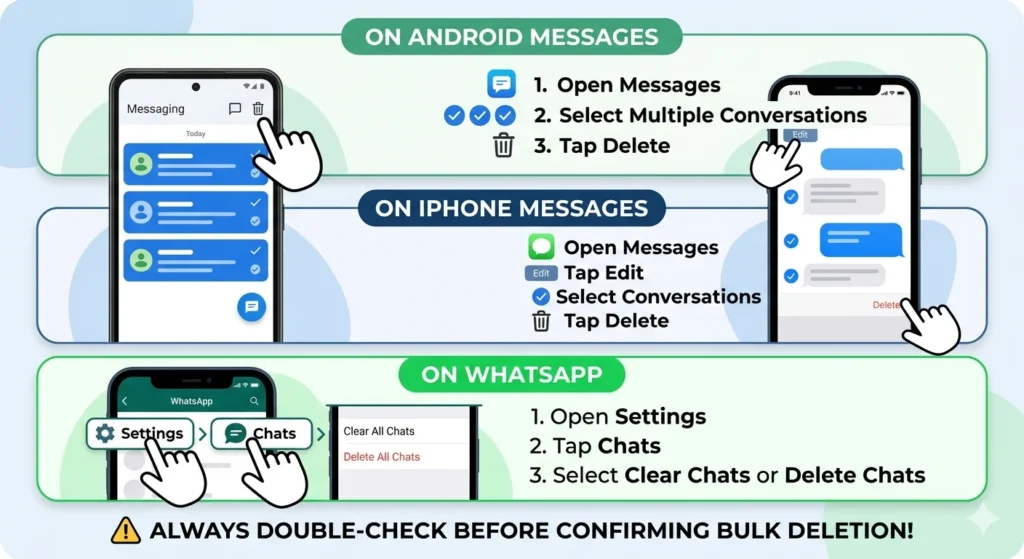
If your inbox is cluttered, deleting multiple conversations can save time.
On Android
- Open Messages.
- Select multiple conversations.
- Tap Delete.
On iPhone
- Open Messages.
- Tap Edit.
- Select conversations.
- Tap Delete.
On WhatsApp
- Open Settings.
- Tap Chats.
- Select Clear Chats or Delete Chats.
Always double-check before confirming bulk deletion.
Why Can’t I Delete a Message?
Sometimes a message refuses to delete. Common reasons include:
- The app is outdated.
- The deletion window has expired.
- Your internet connection is unstable.
- Platform restrictions apply.
- You don’t have permission to remove the message.
Updating the app often fixes the issue.
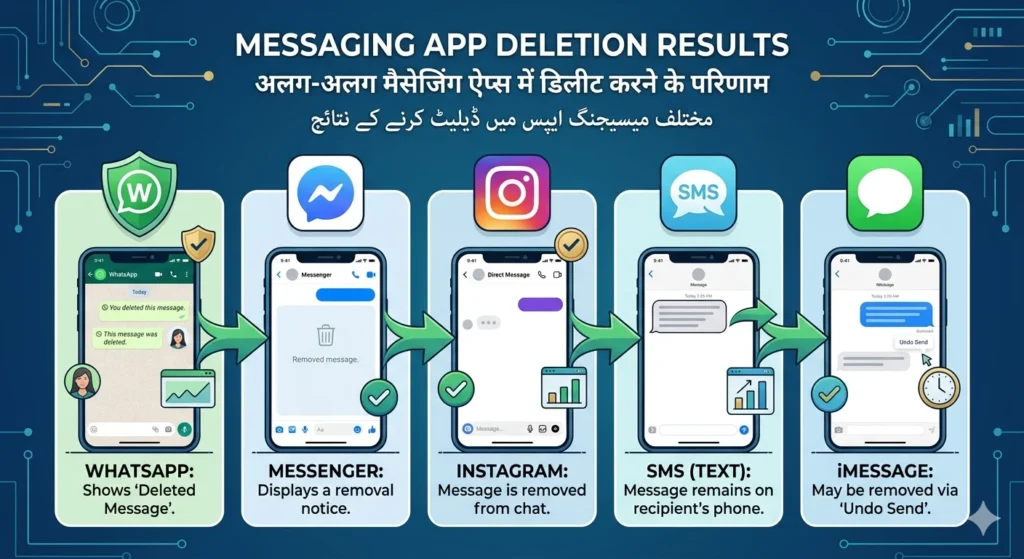
What Happens After You Delete a Message?
The result depends on the platform.
- WhatsApp shows “This message was deleted.”
- Messenger displays a removal notice.
- Instagram removes the message from the chat.
- SMS messages remain on the recipient’s phone.
- iMessage may be removed using Undo Send.
Deleting a message does not always guarantee that nobody saw it
Frequently Asked Questions
How do I fully delete a text message?
Open your messaging app, select the message, and tap Delete.
How do I cancel a text message?
If the message is still sending, switch on Airplane Mode and delete it before delivery.
How do I delete a specific message?
Press and hold the message and choose Delete or Remove.
How do I delete WhatsApp messages?
Select the message, tap the trash icon, and choose Delete for Me or Delete for Everyone.
Can I delete SMS messages from both sides?
No. Standard SMS messages usually cannot be removed from another person’s device.
Can deleted messages be recovered?
Sometimes. Recovery depends on backups and the platform you’re using.
Why don’t I see Delete for Everyone?
The app’s deletion time limit may have expired.
Can someone read a deleted message?
Yes, if they saw it before you removed it.
Is Unsend the same as Delete?
Not always. Unsend removes the message from the conversation, while Delete may only remove it from your own device.
Can I delete all messages at once?
Many apps allow you to delete multiple conversations at the same time.
Related Guides
- How to Recover Deleted Messages
- How to Delete Instagram Chats
- WhatsApp Privacy and Security Tips
- Messenger Settings and Features Guide
- How to Block Someone on WhatsApp
Conclusion
Knowing how to delete a message can save you from simple mistakes, protect your privacy, and help you keep conversations organized. Whether you’re using WhatsApp, Messenger, Instagram, iPhone, Android, Discord, Slack, TikTok, LinkedIn, or another platform, the process is usually quick and straightforward.
The most important thing to remember is that deleting a message doesn’t always mean it was never seen. The sooner you act, the better your chances of removing unwanted content before it reaches the other person.
Keep this guide bookmarked so you’ll always know exactly what to do when you need to delete a message quickly and confidently.

Vira Solen writes heartfelt messages at Best Messege, helping readers express love, emotions, and meaningful thoughts through simple and beautiful words.