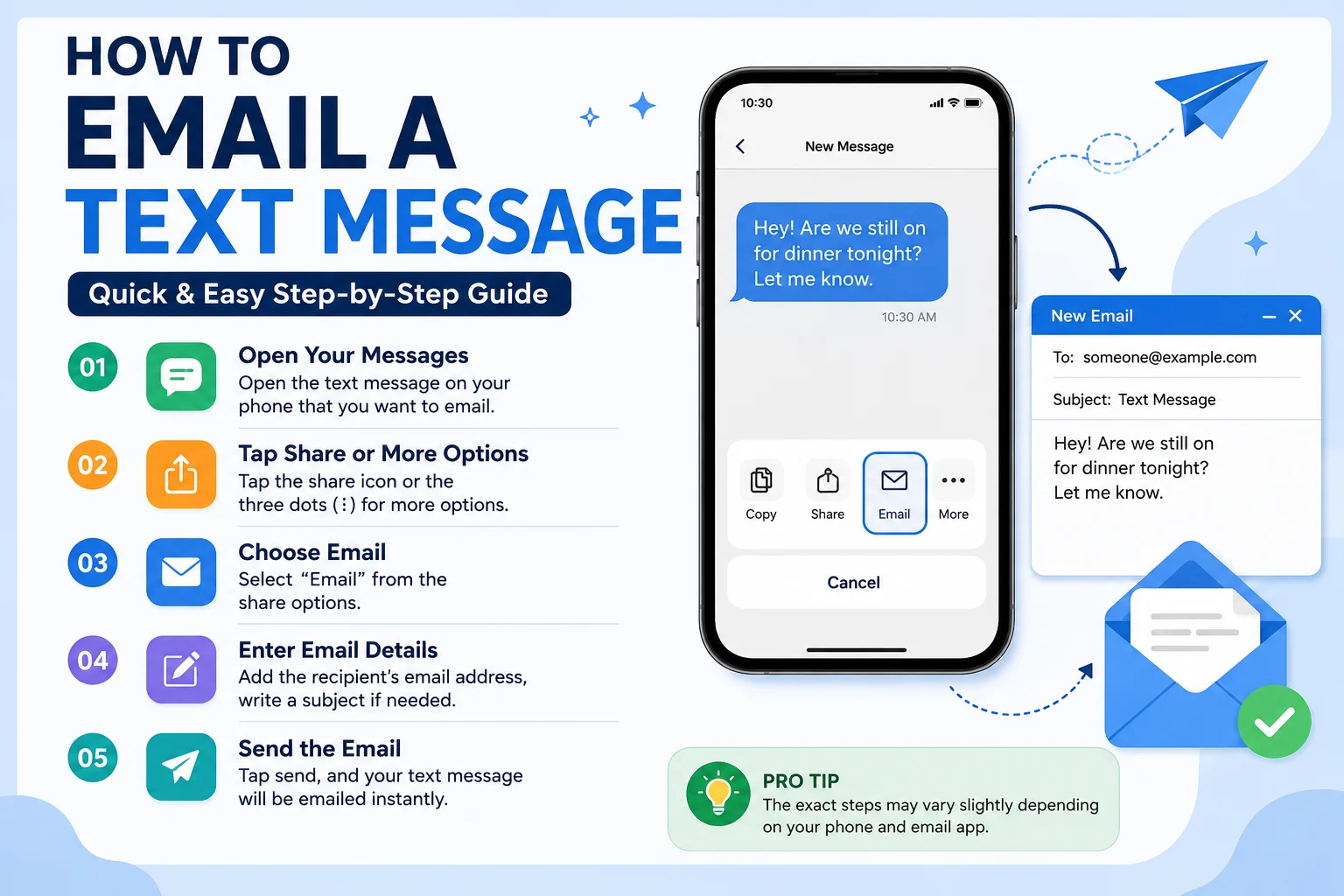
Emailing a text message is a practical way to save, share, or back up important SMS conversations in your email inbox. Whether you need a record for future reference, want to forward important information, or simply keep a secure copy of meaningful messages, this method makes it quick and convenient to move content from your phone to email.
With modern smartphones, you don’t need any technical skills to do this—both Android and iPhone devices offer simple built-in options to send text messages directly to an email address. In just a few steps, you can preserve your messages in a more organized and accessible format.
In this guide, you’ll learn easy and effective methods on how to email a text message, so you can choose the best option based on your device and needs.
📱 How to Email a Text Message on iPhone
On iPhone, there is no direct “email SMS” button for every message, but you can still easily send texts through email using simple methods.
✔ Method 1: Copy and Paste
- Open the Messages app
- Select the conversation
- Long press the message
- Tap Copy
- Open Mail app
- Paste the message
- Send it to your email
This is the most reliable way if you want to quickly save a message.
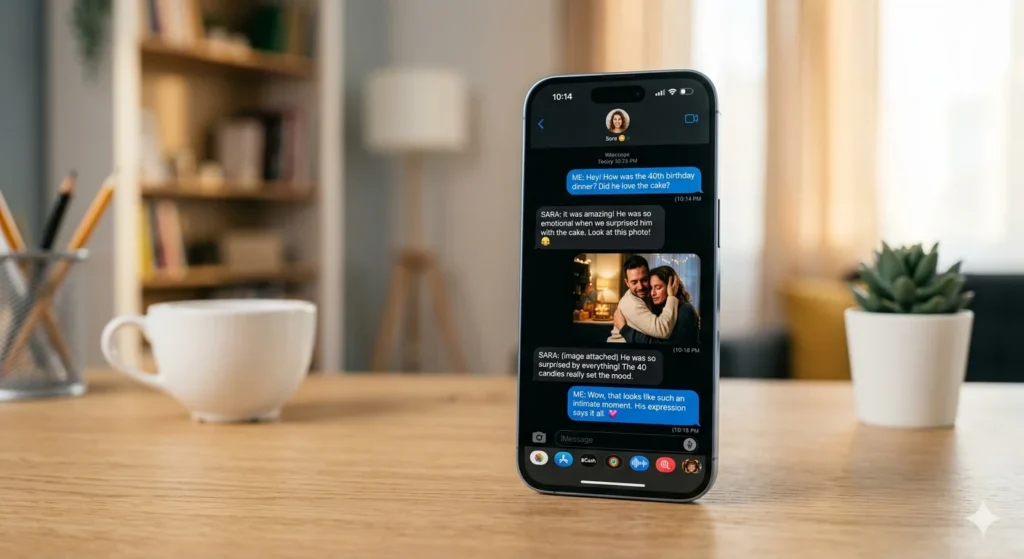
✔ Method 2: Share Option
- Open the message
- Tap and hold the text
- Tap Share (if available)
- Choose Mail
- Enter email address
- Send
💡 Tip:
If the share option is missing, always use copy-paste. It works in every situation.
🤖 How to Email a Text Message on Android
Android devices make this process slightly easier because most messaging apps include a built-in share function.
✔ Steps:
- Open your SMS app
- Long press the message
- Tap Share
- Select Gmail or Email app
- Enter email address
- Tap Send
💡 Tip:
Some Android apps allow sharing entire conversations instead of one message at a time.\
60+Do Girls Message First on Bumble? Here’s How It Works
📸 How to Email a Text Message with Screenshot
If you need full context, timestamps, or proof, screenshots are the best option.
✔ Steps:
- Take a screenshot of the conversation
- Open Gmail or Mail app
- Attach the screenshot
- Send it
✔ Why this works best:
- Shows full conversation
- Includes date and time
- Useful for work or legal proof
- Easy to store and organize
💼 When You Should Email a Text Message
Understanding how to email a text message is useful in many real-life situations:
- Work instructions you want to save
- Important client communication
- Emotional or personal messages
- Legal or official proof
- Travel or booking details
💾 How to Email a Text Message to Yourself
One of the simplest ways to protect important SMS is sending them to your own email.
✔ Steps:
- Copy the message
- Open email app
- Paste text
- Send it to yourself
💡 Why this is useful:
- Creates personal backup
- Easy to search later
- Prevents message loss
- Keeps everything organized
120+ Husband Birthday Messages to Make Him Feel Loved
⚠️ Common Problems & Easy Fixes
Sometimes how to email a text message may not work smoothly. Here are common issues:
❌ No Share Option
✔ Use copy-paste method instead
❌ Email App Not Opening
✔ Restart phone or update Gmail/Mail app
❌ Message Not Copying Properly
✔ Copy smaller parts of text
❌ Images Not Sending
✔ Use screenshot instead of MMS forwarding
📊 iPhone vs Android
| Feature | iPhone | Android |
|---|---|---|
| Direct sharing | Limited | Easier |
| Copy-paste | Yes | Yes |
| Full conversation export | No | Some apps support it |
| Ease of use | Medium | Easy |
📦 Using Apps for Emailing Text Messages
If you want advanced options, SMS backup apps can help.
✔ What they do:
- Export full SMS history
- Send messages to email
- Create automatic backups
💡 Best for:
- Business users
- Long-term storage
- Bulk message backup
📡 Important Note About Carriers
It does not matter whether you use Verizon, AT&T, T-Mobile, or any other carrier.
The method for how to email a text message depends on your phone, not your network.
🛠 Troubleshooting Guide
If something is not working:
- Update your messaging app
- Check internet connection
- Try Gmail instead of default email app
- Restart your device
- Use screenshots as a backup method
❓ FAQs
Q1: How do I email a text message from iPhone?
You can copy the message or use the share option and send it through the Mail app.
Q2: Can I send SMS directly to Gmail?
Yes, most phones allow sharing SMS to Gmail using the share feature.
Q3: How do I email multiple text messages?
You can use screenshots or SMS backup apps for full conversations.
Q4: Can I include time and date in email?
Yes, screenshots automatically include timestamps.
Q5: Why don’t I see an email option in messages?
Some phones don’t support direct sharing, so copy-paste is the best alternative.
💖 Conclusion
Now you fully understand how to email a text message using both iPhone and Android devices. Whether you want to save memories, keep work records, or store important information, emailing SMS is a simple and reliable solution.
With just a few steps, you can safely move your messages into your email inbox and access them anytime.
Start using this method today—because some messages are too important to lose forever.

Jack Rowland is a modern writer who captures real emotions through clear, honest words. His messages focus on love, motivation, and everyday moments that quietly matter.