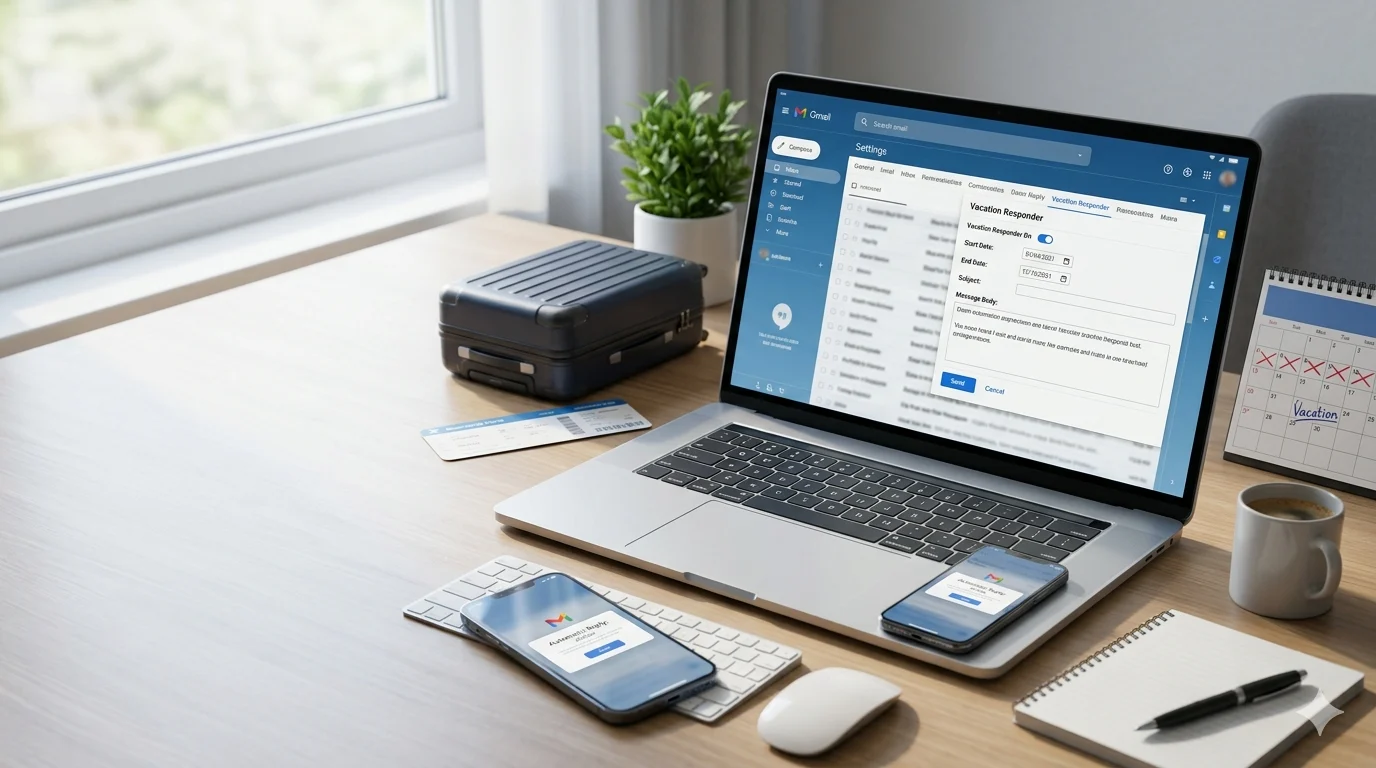
Imagine stepping away from work for a vacation, business trip, sick leave, or personal break—only to return to dozens of unanswered emails and frustrated contacts. Learning how to set away message in Gmail helps you stay professional by automatically letting people know you’re unavailable and when they can expect a reply.
Whether you use Gmail for work, school, or personal communication, an automatic away message saves time, reduces confusion, and ensures no one is left wondering why you haven’t responded. It’s a simple feature that can improve communication while giving you complete peace of mind.
In this guide, you’ll learn how to set away message in Gmail on both desktop and mobile, customize your automatic replies, schedule start and end dates, avoid common mistakes, and follow best practices to create clear, professional responses for every situation.
How to Set Away Message in Gmail on Phone
If you mainly use Gmail on your smartphone, setting an away message is quick and easy.
Follow these steps:
Open the Gmail app.
Tap your profile picture or menu.
Select Settings.
Choose your Gmail account.
Tap Vacation responder.
Turn the feature On.
Select your start date.
Choose an end date if needed.
Enter an email subject.
Type your away message.
Tap Save.
That’s all. Gmail will now automatically respond to new emails while you’re away.
Pro Tip: Send yourself a test email from another account to make sure your auto reply is working before you leave.
How to Set Away Message in Gmail on iPhone
If you use an iPhone, you’ll follow nearly the same process.
Steps for iPhone users
Open the Gmail app.
Tap your profile picture.
Go to Settings.
Select your Gmail account.
Tap Vacation responder.
Turn it on.
Choose your dates.
Add a subject line.
Write your message.
Tap Save.
The auto reply is stored on Gmail’s servers, so it continues working even if your iPhone is turned off.
How to Set Away Message in Gmail Android
Android users can activate Gmail’s Vacation Responder in less than a minute.
Here’s how:
Open Gmail.
Tap Settings.
Select your email account.
Tap Vacation responder.
Enable the feature.
Choose the start and end dates.
Add your subject.
Write your message.
Save your changes.
If you manage multiple Gmail accounts, repeat these steps for each account because Vacation Responder is enabled separately.
The Gmail Vacation Responder is Gmail’s built-in auto reply feature. Once it’s enabled, Gmail automatically replies to incoming emails during the dates you choose.
This feature is useful when you’re:
On vacation
Traveling for business
Taking sick leave
Working remotely
On maternity or paternity leave
Enjoying public holidays
Attending training or conferences
Instead of leaving people waiting, Gmail politely lets them know you’re unavailable.
Gmail Vacation Responder Features
Automatic replies
Custom start and end dates
Custom email subject
Personalized message
Option to send replies only to your contacts
These settings help you stay organized while maintaining professional communication.
Out of Office Email: How to Set Up
Many people search for out of office email how to set up because they want a professional automatic response.
A good out-of-office email should include:
Your return date
A polite thank-you
Whether you’ll check emails
An alternate contact (if urgent)
A professional closing
Professional Example
Subject: Out of Office
Hello,
Thank you for your email.
I’m currently out of the office and will return on July 10. During this time, I’ll have limited access to my inbox.
There is no major difference between mobile and desktop. Use whichever device is more convenient for you.
Best Practices Before You Leave
Before turning on your away message, take a minute to review these tips:
✔ Keep your message short and clear.
✔ Double-check your return date.
✔ Avoid sharing detailed travel plans.
✔ Include another contact if needed.
✔ Use a friendly but professional tone.
✔ Proofread your message before saving it.
These simple steps help ensure your automatic reply looks polished and gives recipients the information they need.
Gmail Auto Reply to Specific Sender
Many users look for Gmail auto reply to specific sender, but Gmail’s built-in Vacation Responder has some limitations. It automatically replies to everyone who emails you (or only your contacts if you choose that option). It cannot send different automatic replies to specific people.
If you need custom replies for certain senders, you can use Gmail filters with third-party automation tools or Google Workspace solutions. For most users, however, the standard Vacation Responder is the quickest and easiest option.
Ready-to-Use Out of Office Message Examples
Not sure what to write? Here are a few professional and friendly examples you can copy, edit, and use with your Gmail Vacation Responder.
1. Professional Out of Office Message
Subject: Out of Office
Hello,
Thank you for your email. I am currently away from the office and will return on [Date]. I will respond as soon as possible after I return.
Thank you for your patience.
Best regards, Your Name
2. Vacation Away Message
Hello,
Thanks for reaching out! I’m currently on vacation and have limited access to email. I’ll reply as soon as I return on [Date].
Have a wonderful day!
3. Sick Leave Auto Reply
Hello,
Thank you for your email. I’m currently out of the office due to illness and may not be checking my inbox regularly. I’ll respond as soon as I’m able.
Thank you for your understanding.
4. Holiday Auto Reply
Hello,
I’m away for the holidays and will return on [Date]. Your email is important to me, and I’ll reply as soon as I can after I return.
Happy Holidays!
5. Business Trip Message
Hello,
Thank you for your email. I’m traveling for business and may have limited access to email. I’ll respond as soon as possible.
Thank you for your patience.
6. Personal Leave Message
Hello,
I’m currently away on personal leave and won’t be able to respond immediately. I’ll get back to you after [Date].
Thank you for your understanding.
Common Mistakes to Avoid
Even though Gmail makes setting an away message simple, a few small mistakes can prevent it from working as expected.
Avoid these common errors:
Forgetting to tap Save after writing your message.
Choosing the wrong start or end date.
Sharing too much personal information about your trip.
Forgetting to turn off the Vacation Responder after returning.
Leaving out an alternate contact for urgent requests.
Using a confusing or unprofessional message.
Taking a minute to review your settings before you leave can save you from missed communication later.
Frequently Asked Questions
How do I set away status on Gmail?
Open the Gmail app, go to Settings, choose your Gmail account, tap Vacation responder, turn it on, add your dates, write your message, and tap Save.
How do I set an away message in email?
Most email services include an automatic reply feature. In Gmail, this feature is called Vacation Responder, and it can be activated from your account settings.
What is set as away in Gmail?
Setting an away message means Gmail automatically sends a reply to people who email you while you’re unavailable, helping them know when you’ll respond.
How do I set up auto reply on my phone?
Open the Gmail app, go to Settings, select your account, enable Vacation responder, write your message, and save your changes.
Can I edit or turn off my Gmail away message later?
Yes. You can update your message, change the dates, or turn off the Vacation Responder at any time from Gmail settings.
Conclusion
Learning how to set away message in Gmail is a simple way to stay organized and maintain professional communication while you’re away from your inbox. Whether you’re using a phone, iPhone, Android device, or a computer, Gmail’s Vacation Responder makes it easy to let people know when you’re unavailable and when they can expect a reply.
Before you leave, double-check your dates, keep your message clear and friendly, and include an alternate contact if someone may need immediate assistance. These small steps can make a big difference in creating a positive experience for the people emailing you.
Now that you know how to set away message in Gmail, you can enjoy your time away with confidence, knowing your contacts will receive a thoughtful automatic response.
Iris Vael is a writer at Best Messege, creating heartfelt and shareable messages that help readers express love, emotions, and meaningful thoughts easily.