Have you ever remembered an important text message too late? Whether it’s a birthday greeting, a meeting reminder, a business follow-up, or a message you want delivered at the perfect time, knowing how to use the iPhone schedule text message feature can save time and help you stay organized. Many iPhone users wonder if Apple allows scheduled messages directly in the Messages app or if they need to use the Shortcuts app or another method to send texts automatically.
The good news is that scheduling a text message on an iPhone is possible, although the available options depend on your iOS version and the method you choose. Understanding how scheduled messages work can help you avoid missed reminders, late replies, and confusion about automatic message delivery.
In this guide, you’ll learn everything about iPhone schedule text message, including the latest methods that actually work, how to schedule SMS and iMessage step by step, the limitations you should know, and practical tips to make sure your messages are sent on time without unnecessary hassle.
What Is the iPhone Schedule Text Message Feature?
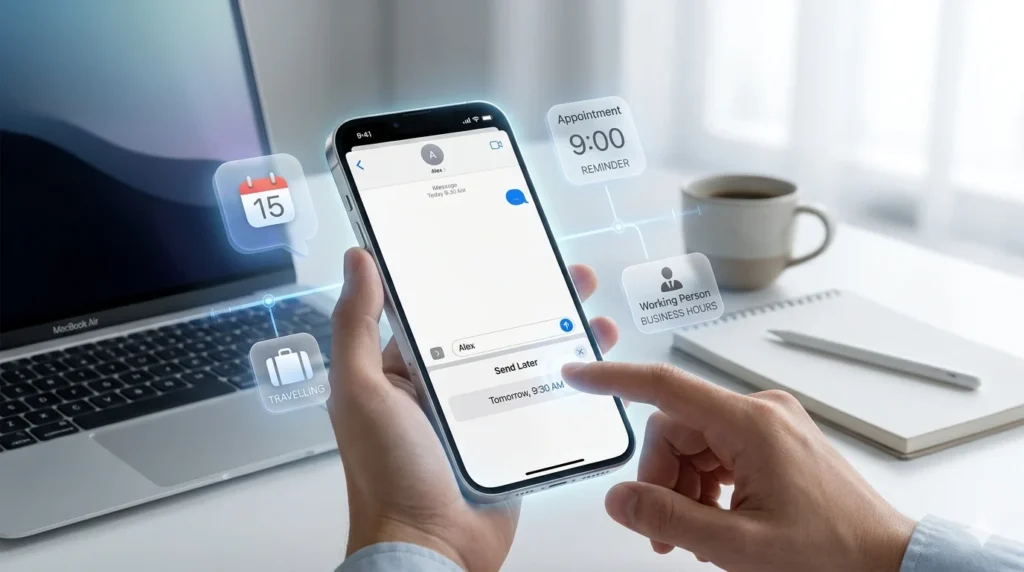
The iPhone schedule text message feature lets you write a message now and have your iPhone send it automatically at a later date and time. This is useful when you don’t want to forget an important text or when you want your message to arrive at the perfect moment.
People often use this feature to:
- Send birthday wishes at midnight.
- Schedule meeting reminders.
- Send work updates during office hours.
- Remember appointments.
- Stay in touch while traveling.
- Avoid forgetting important messages.
Apple has improved this feature over time. On newer iOS versions, many users can use Send Later directly inside the Messages app. Older versions may require the Shortcuts app to achieve a similar result.
How to Schedule a Text on iPhone
If your iPhone supports Apple’s built-in scheduling feature, sending a message later is quick.
Follow these steps:
- Open the Messages app.
- Tap the New Message button.
- Choose your contact.
- Type your message.
- Tap the + button if available.
- Select Send Later.
- Choose the date and time.
- Tap Send.
Your message will stay scheduled until the selected time arrives.
This apple iPhone schedule text message option is the easiest method because everything happens inside the Messages app. There is no need to install another app.
80+How to Set Away Message in Gmail: A Complete Step-by-Step Guide
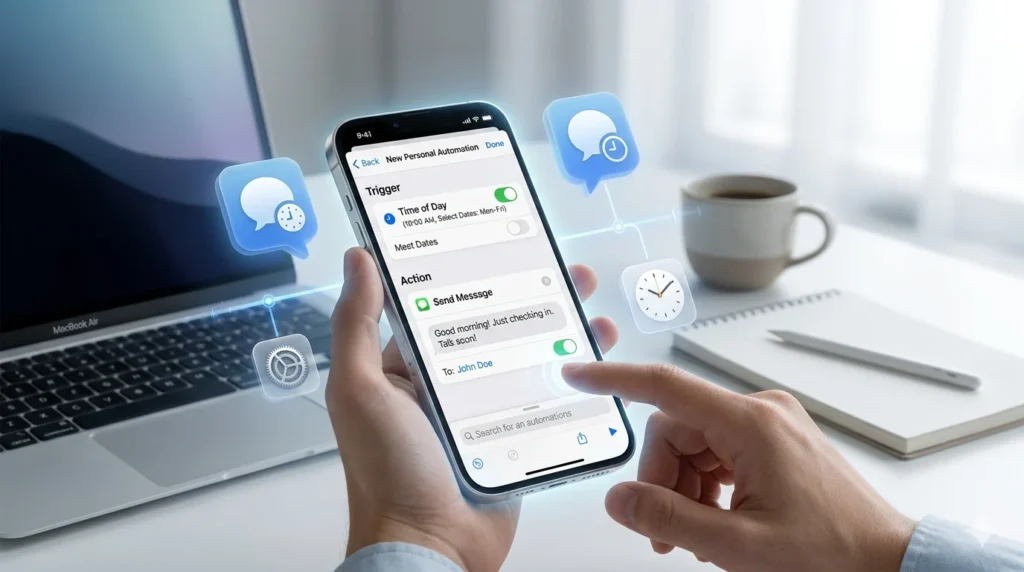
How to Schedule a Text on iPhone Using the Shortcuts App
If your iPhone doesn’t show Send Later, don’t worry. You can still create an automation using the Shortcuts app.
Steps:
- Open the Shortcuts app.
- Tap Automation.
- Create a new personal automation.
- Choose the time of day.
- Select the date and repeat options.
- Tap Next.
- Choose Send Message.
- Enter your contact and message.
- Save the automation.
Many users searching for iphone schedule text message shortcuts or iphone schedule text message imessage shortcuts use this method because it works on many older iPhone models.
Although it takes a few extra minutes to set up, it can save you time later.
How to Schedule a Text on Different iPhone Models
The process is almost the same across recent iPhones, but your available features depend more on your iOS version than on the device itself.
iPhone 16
The latest iPhone models support Apple’s newest messaging features. If you’re using the latest software, check whether Send Later appears inside the Messages app.
iPhone 15
The iPhone 15 supports message scheduling if your installed iOS version includes the feature. Otherwise, you can use Shortcuts.
iPhone 14
Users searching for How to schedule a text on iPhone 14 can follow the same steps. Make sure your software is fully updated before looking for the feature.
iPhone 13
The answer to How to schedule a text on iPhone 13 depends on your software version. If the built-in feature isn’t available, the Shortcuts app remains a reliable option.
Updating your iPhone regularly gives you access to the newest messaging improvements and security updates.
Does iPhone Schedule Text Message Work on iOS 17, iOS 18, and iOS 26?
Many people search for:
- How to schedule a text on iPhone iOS 17
- How to schedule a text on iPhone iOS 18
- How to schedule a text on iPhone iOS 26
The answer depends on your software version.
iOS 17
Many users relied on the Shortcuts app because scheduling options inside Messages were limited.
iOS 18
Apple expanded messaging features, making scheduled messaging easier for many users.
iOS 26
The newest versions of iOS continue improving the experience with a more polished Send Later feature, making scheduled texts simpler than before.
If you don’t see the option, update your iPhone to the latest available version and confirm your device supports the feature.Can You Schedule a Text on iPhone to Android?
Yes, you can schedule a text from an iPhone to an Android phone. The process is almost the same as scheduling a message to another iPhone, but there are a few things to keep in mind.
When you send a message to another iPhone, it usually goes through iMessage if both devices have it enabled. When you send a message to an Android phone, it is sent as an SMS or RCS message, depending on your carrier and software.
If you’re looking for iphone schedule text message to android, here’s what you should know:
- Schedule the message as usual.
- Make sure your mobile service is active.
- Check that the recipient’s phone number is correct.
- Leave your iPhone connected to a network until the scheduled time.
Most scheduled messages work normally as long as your device meets the required conditions.
Best iPhone Schedule Text Message Apps
If your iPhone doesn’t support the built-in feature or you want extra control, several apps can help. Many offer reminders, recurring messages, and advanced scheduling options.
Some popular choices include:
- Shortcuts (built into iPhone)
- Scheduled App
- Moxy Messenger
- Reminder-based messaging apps
Before downloading an iphone schedule text message app, check its App Store reviews, privacy policy, and compatibility with your iPhone and iOS version.
For most users, Apple’s built-in feature or the Shortcuts app is enough, so a third-party app may not be necessary.
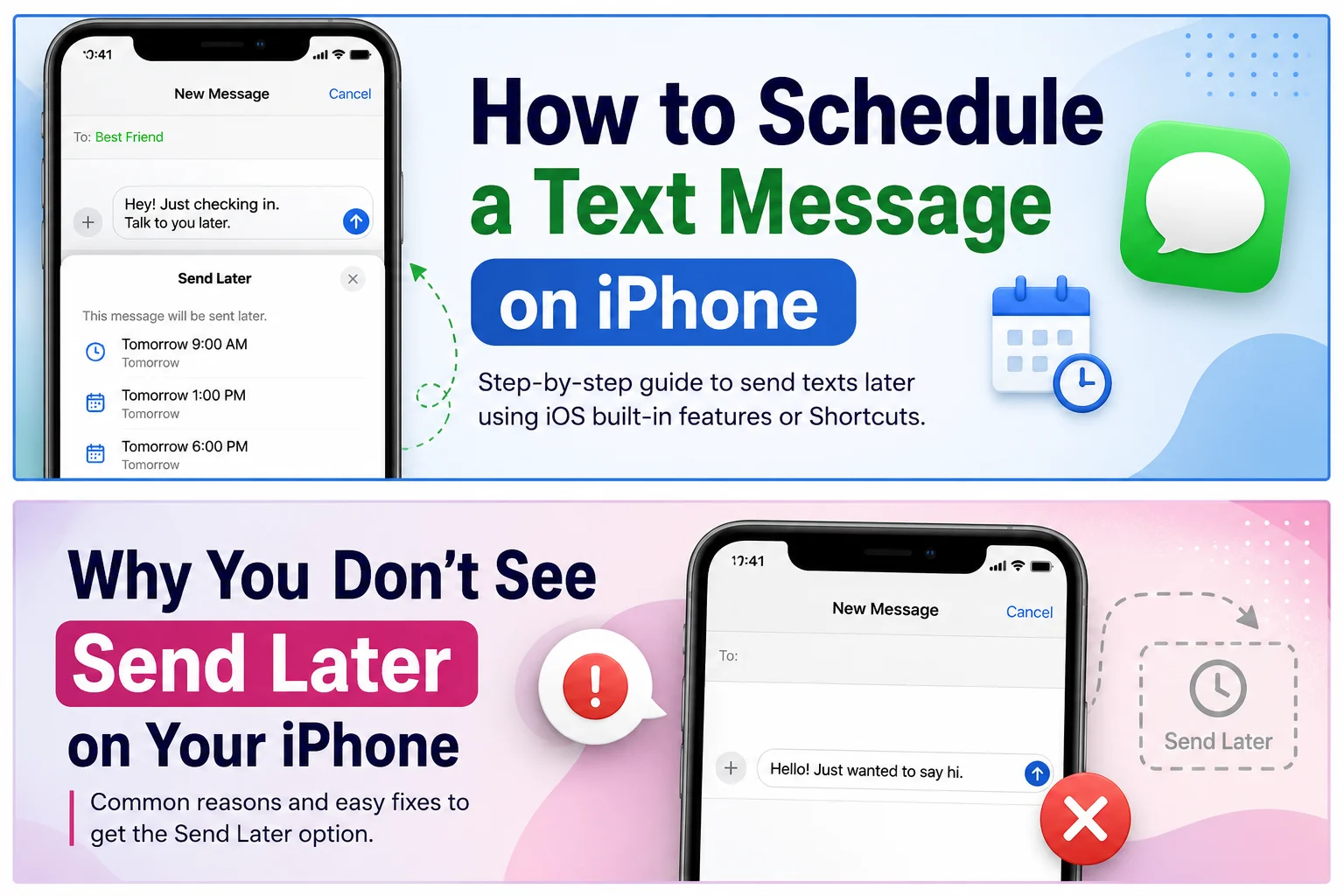
Why Don’t I See the Send Later Option on My iPhone?
If you’re asking, “Why don’t I see the Send Later option on my iPhone?”, you’re not alone. There are several common reasons why the feature may not appear.
Try these fixes:
- Update your iPhone to the latest iOS version.
- Restart your device.
- Make sure the Messages app is up to date.
- Check whether your iPhone model supports the feature.
- Verify that the feature is available in your region.
- If needed, use the Shortcuts app instead.
If the option still doesn’t appear after updating, Apple may not support the feature on your specific software version. In that case, Shortcuts remains a reliable alternative.
Do Scheduled Texts Send If the Phone Is Off?
This is one of the most common questions about the iphone schedule text message feature.
In most cases, no. If your iPhone is completely powered off at the scheduled time, the message usually cannot be sent until the device is turned back on.
For the best results:
- Keep your iPhone powered on.
- Stay connected to Wi-Fi or a mobile network.
- Make sure Airplane Mode is turned off.
- Keep enough battery charge until the scheduled time.
Once your phone is active again, the message may send depending on how the scheduling method works.
How to Schedule a Text on Your iPhone to Yourself
You can also schedule reminders for yourself. This is helpful if you want to remember an appointment, task, or important event.
To do this:
- Open the Messages app.
- Start a conversation with your own phone number (if supported) or another device linked to your Apple ID.
- Type your reminder.
- Use Send Later if available or create a Shortcuts automation.
- Choose the date and time.
- Save the schedule.
Many people use this method as a simple personal reminder without needing another reminder app.
NVDA Stock Message Board: What Investors Are Saying Right Now
Frequently Asked Questions
How do I schedule a text on iPhone 16?
Open the Messages app, create a new message, choose Send Later if your iPhone supports it, then select the date and time before sending.
How do I schedule a text on iPhone iOS 17?
Many users on iOS 17 use the Shortcuts app because built-in scheduling was limited. Create a personal automation to send your message automatically.
Is Send Later available on iOS 26?
Yes. iOS 26 offers an improved Send Later experience on supported devices, making it easier to schedule messages directly from the Messages app.
Can I schedule an iMessage to Android?
Yes. You can schedule a message to an Android phone. It will usually be delivered as an SMS or RCS message instead of iMessage.
What is the best way to schedule a text on iPhone?
For most users, Apple’s built-in iphone schedule text message feature is the easiest option. If your device doesn’t support it, the Shortcuts app is the best free alternative.
Conclusion
The iphone schedule text message feature makes it easy to stay organized and send messages exactly when you want. Whether you’re planning birthday wishes, work reminders, appointment alerts, or personal notes, scheduling your texts helps you communicate at the right moment without worrying about forgetting.
If your iPhone includes the built-in Send Later option, the process is quick and simple. If not, the Shortcuts app offers a reliable alternative that works well on many devices. Keep your iPhone updated, ensure it stays connected to the internet, and review your scheduled messages before they send.
Now that you know how to schedule texts on iPhone 13, iPhone 14, iPhone 15, iPhone 16, and across iOS 17, iOS 18, and iOS 26, you’re ready to use this feature with confidence.

Vira Solen writes heartfelt messages at Best Messege, helping readers express love, emotions, and meaningful thoughts through simple and beautiful words.