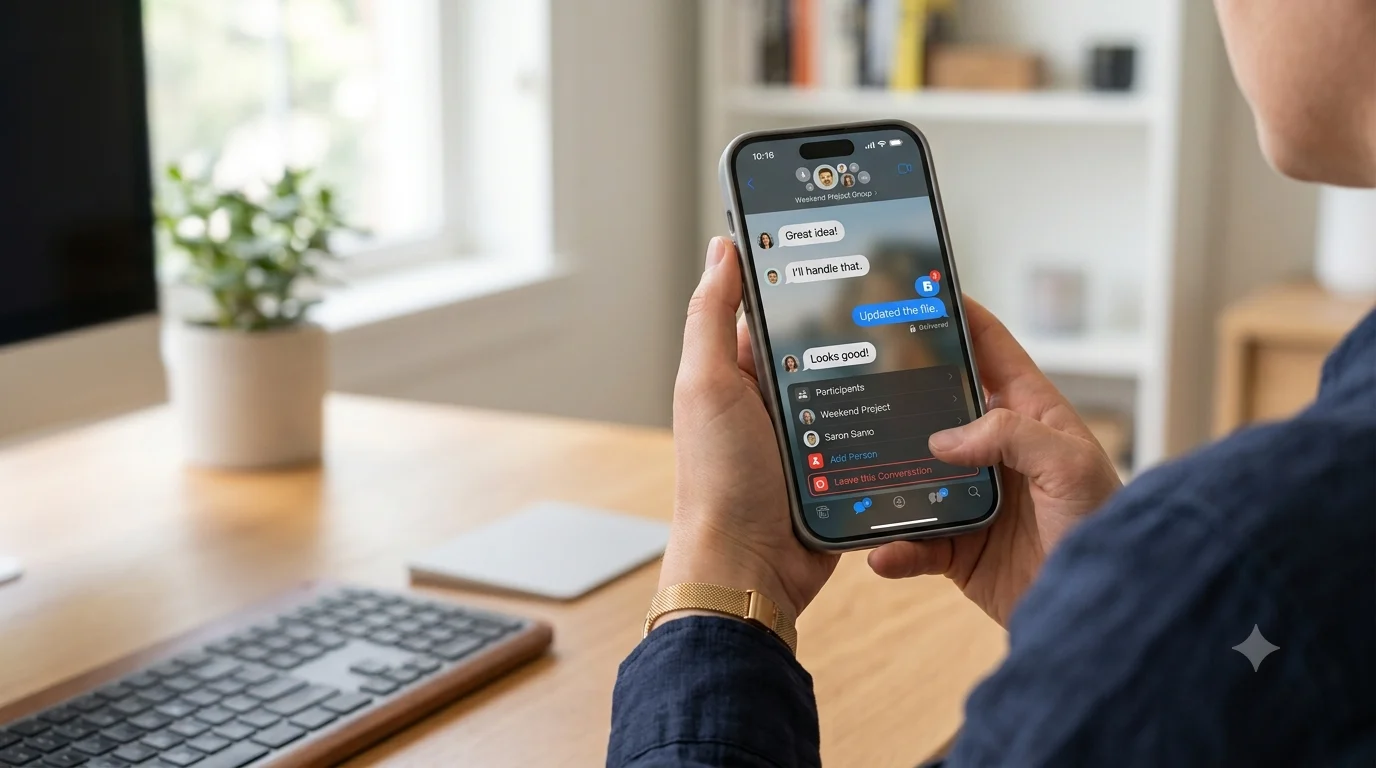
Wondering how to leave a group message on iPhone? If you’re getting endless notifications or no longer want to be part of a group chat, you’re not alone. The good news is that you can leave some iPhone group messages in just a few taps, but the option isn’t available for every conversation.
In this guide, you’ll learn how to leave a group message on iPhone, when the Leave this Conversation option appears, and why it may be missing. We’ll also explain the difference between iMessage and SMS/MMS group chats so you know exactly what to expect.
Whether you want to exit a group chat completely or simply stop the notifications, this step-by-step guide will help you manage your iPhone conversations quickly and easily.
What Does It Mean to Leave a Group Message on iPhone?
Leaving a group message means removing yourself from a conversation so you no longer receive new messages or notifications from that chat. It’s a simple way to reduce distractions when a group is no longer relevant to you.
However, not every group chat works the same way. Apple allows you to leave only iMessage groups that meet specific conditions. If the conversation includes Android users or uses SMS/MMS messaging, the Leave this Conversation option won’t appear.
You can leave a group chat only if:
- Everyone in the group is using iMessage.
- The group has at least four participants.
- iMessage is enabled for all members.
If these conditions aren’t met, don’t worry. There are still other ways to stop notifications and keep your Messages app organized.
Quick Tip: Blue message bubbles indicate iMessage, while green bubbles indicate SMS/MMS. If you see green bubbles, you usually can’t leave the conversation.
Understanding these basics makes it much easier to learn how to leave a group message on iPhone without confusion.
How to Leave a Group Message on iPhone
If your conversation is an iMessage group, leaving it takes less than a minute.
Follow these simple steps:
Step 1: Open the Messages app on your iPhone.
Step 2: Tap the group conversation you want to leave.
Step 3: Tap the group name or the participant icons at the top of the screen.
Step 4: Scroll down until you see Leave this Conversation.
Step 5: Tap the option and confirm your choice.
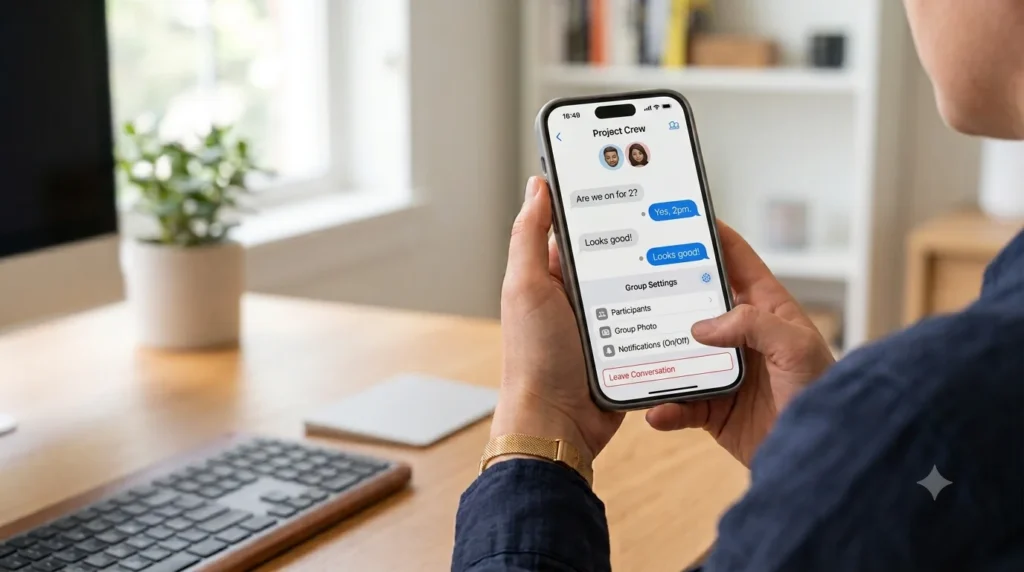
Once you leave, you’ll stop receiving new messages from that group. The remaining members will see a small notification that you’ve left the conversation.
Important Note
If the Leave this Conversation button is missing or grayed out, it doesn’t mean your iPhone is broken. It simply means the group doesn’t meet Apple’s requirements.
Why Can’t I Remove Myself from a Group Text on iPhone?
One of the most common questions users ask is, “Why can’t I remove myself from a group text on iPhone?” The answer usually depends on how the conversation was created.
Here are the most common reasons:
- The group includes one or more Android users.
- The conversation is using SMS or MMS instead of iMessage.
- The group has only three participants.
- One or more members have iMessage turned off.
- Your iPhone software needs updating.
Because SMS and MMS messages are handled through your mobile carrier, Apple doesn’t provide a way to leave those conversations. Instead, every reply is sent to all participants automatically.
Helpful Tip: If you’re unsure which type of group you’re in, check the message bubbles. Blue means iMessage. Green means SMS or MMS.
Knowing the reason behind the missing option can save you time and frustration.
How to Leave a Group Message on iPhone If It Won’t Let You
Sometimes leaving the conversation simply isn’t possible. Thankfully, you still have several options to make the chat much less annoying.
1. Hide Alerts
Open the group conversation, tap the group name, and enable Hide Alerts. You’ll stay in the group, but your iPhone won’t notify you every time someone sends a message.
2. Delete the Conversation
If you no longer need the chat history, swipe left on the conversation from the Messages list and tap Delete. Keep in mind that if someone sends a new message later, the conversation will appear again.
3. Ask Someone to Create a New Group
If the discussion has changed and you no longer need to be included, politely ask another participant to start a new group without your number.
4. Check Your iMessage Settings
Go to Settings → Apps → Messages and make sure iMessage is turned on. Installing the latest iOS update can also fix minor issues that affect the Messages app.
Can You Leave an iPhone Group Text Without Anyone Knowing?
Many people wonder if they can quietly leave a group chat without anyone noticing. Unfortunately, the answer is no for iMessage groups.
When you tap Leave this Conversation, Apple automatically displays a system message informing the other participants that you left the chat. This notification cannot be hidden or turned off.
If you prefer not to draw attention, the best option is to mute the conversation instead. Open the group chat, tap the group name, and turn on Hide Alerts. You’ll stop receiving notifications, but you’ll remain in the group without anyone knowing you’ve muted it.
Quick Tip: Muting a group chat is ideal when you want fewer interruptions without officially leaving the conversation.
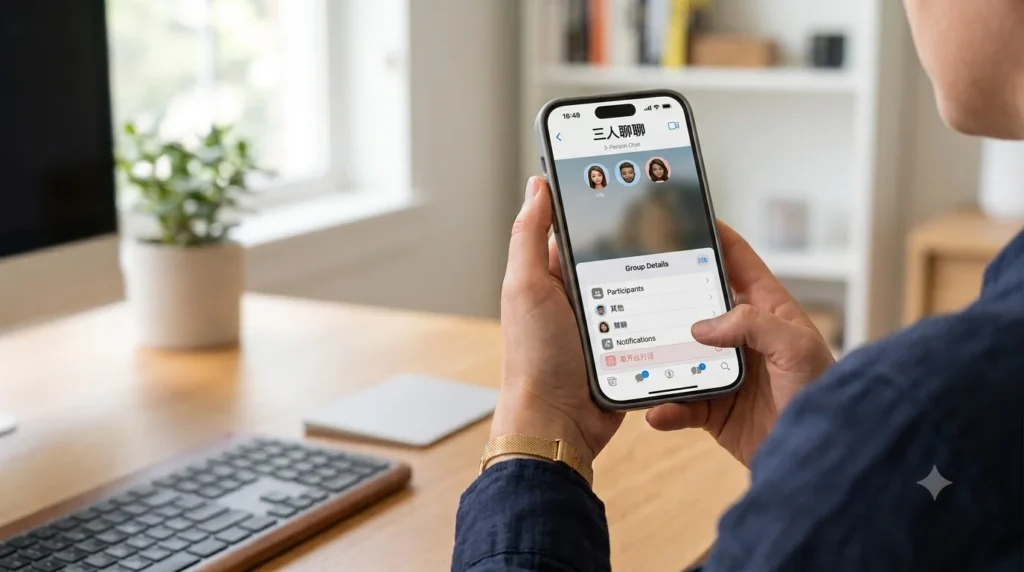
How to Leave a 3-Person Group Chat on iMessage
If you’re in a three-person iMessage conversation, you may notice that the Leave this Conversation option doesn’t appear.
This is because Apple only allows users to leave group chats with four or more participants. In a three-person conversation, leaving would effectively turn it into a one-on-one chat, which isn’t supported.
Instead, you can:
- Turn on Hide Alerts to silence notifications.
- Delete the conversation from your Messages app.
- Ask the other participants to start a new chat without including you.
While these options don’t remove you from the conversation, they can make it much easier to manage unwanted messages.
How to Leave a Group Chat on iPad
The process on an iPad is almost identical to an iPhone because both devices use the Messages app.
Follow these steps:
- Open the Messages app.
- Select the group conversation.
- Tap the group name at the top.
- Scroll down.
- Tap Leave this Conversation if the option is available.
If you don’t see the option, the conversation is likely an SMS/MMS group or doesn’t meet Apple’s requirements.
If leaving isn’t possible, use Hide Alerts to stop notifications while staying in the chat.
Do Unsent Instagram Messages Show in Notifications?
How to Leave a Group Text on Android
Android phones work differently from iPhones. Most messaging apps don’t let you completely leave SMS group conversations.
If you’re using Google Messages, you can usually:
- Mute notifications.
- Archive the conversation.
- Block the conversation if necessary.
- Delete the chat from your phone.
Messaging apps from different manufacturers may offer slightly different options, so the exact steps can vary.
If the group uses apps like WhatsApp, Telegram, or Messenger, you can leave the conversation directly through each app’s settings.
Can I Mute a Group Text on iPhone Without Them Knowing?
Yes. Muting a group conversation is completely private.
When you enable Hide Alerts, only you know the setting has changed. Other members won’t receive a notification, and they won’t know you’ve muted the chat.
To mute a group conversation:
- Open the Messages app.
- Select the group chat.
- Tap the group name.
- Turn on Hide Alerts.
This is one of the best solutions if you still need occasional access to the conversation but don’t want constant notifications.
How to Leave a Group Chat on iPhone SE
Whether you have an older or newer iPhone SE, the steps are the same as other iPhone models.
Simply:
- Open Messages.
- Choose the group conversation.
- Tap the group name.
- Scroll down.
- Tap Leave this Conversation.
If the option doesn’t appear, check whether:
- Everyone is using iMessage.
- There are at least four participants.
- Your iPhone is updated to the latest version of iOS.
If these requirements aren’t met, use Hide Alerts as an alternative.
60+Duke Message Board: Latest Fan Discussions & Updates
FAQS.
1. Why can’t I remove myself from a group text on iPhone?
You can only leave iMessage groups with at least four participants. If the conversation uses SMS/MMS or includes Android users, the Leave this Conversation option won’t be available.
2. How do I leave a group message on iPhone if it won’t let me?
If you can’t leave, try enabling Hide Alerts, deleting the conversation, checking your iMessage settings, or asking the group to create a new chat without you.
3. Can you leave an iPhone group text without anyone knowing?
No. When you leave an iMessage group, everyone receives a system notification. If you don’t want others to know, mute the conversation instead.
4. Can I mute a group text on iPhone without them knowing?
Yes. Turning on Hide Alerts is completely private. Other members won’t know you’ve muted the conversation.
5. Does deleting a group chat remove me from it?
No. Deleting the conversation only removes it from your device. If someone sends a new message later, the chat will reappear unless you’ve actually left the group.
Conclusion
Learning how to leave a group message on iPhone is easier once you understand how iMessage and SMS group chats work. While Apple only lets you leave certain iMessage groups, there are still simple ways to reduce unwanted notifications and keep your Messages app organized.
Whether you choose to leave the conversation, mute alerts, or troubleshoot a missing option, you now have the knowledge to manage group chats with confidence. The right solution depends on your situation, but each method helps you stay in control of your messages.
If you found this guide helpful, explore our other iPhone messaging tips to learn more useful tricks and make the most of your device.