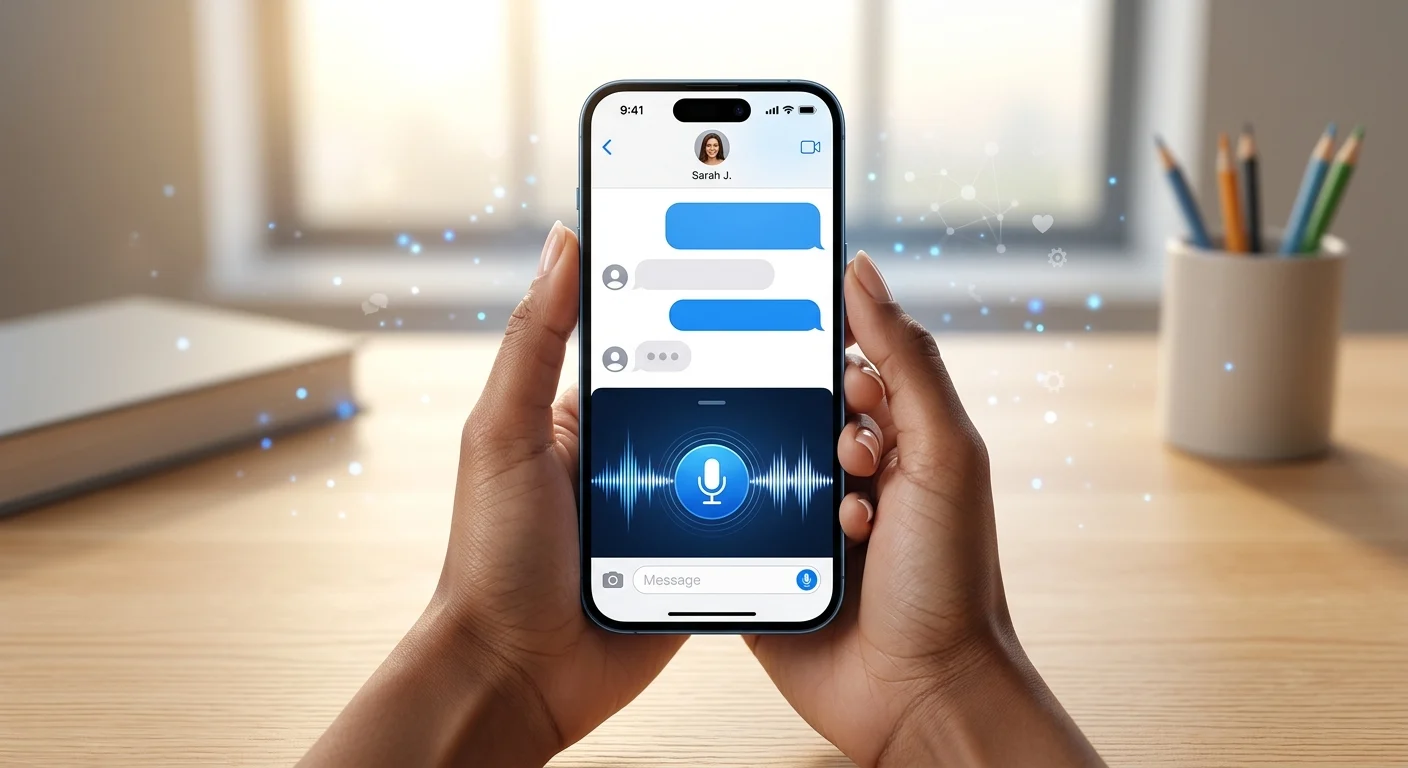
Sending a voice message on iPhone is a quick and personal way to communicate when typing is inconvenient. Whether you want to share detailed information, express emotions, or send a message on the go, voice messages make conversations more natural and engaging.
The iPhone Messages app includes a built-in feature that lets users record and send audio messages in just a few taps. This can save time, add a personal touch, and help you communicate more effectively with friends, family, or coworkers.
If you’re wondering how to send a voice message on iPhone, this guide will walk you through the process step by step. You’ll also learn useful tips, troubleshooting solutions, and answers to common questions, making it easy to record and share voice messages confidently from your iPhone.
What Is a Voice Message on iPhone?
A voice message is a short audio recording sent through the Messages app. Instead of typing a text, you record your voice and send it directly to the recipient.
Voice messages are useful because they:
- Save time when typing is inconvenient.
- Let people hear your tone and emotions.
- Make communication more personal.
- Help explain complex information quickly.
Many iPhone users prefer voice messages for everyday conversations because they feel more natural than traditional texting.
How to Send Voice Message on iPhone
The process is simple and only takes a few seconds.
Steps:
- Open the Messages app.
- Select an existing conversation or start a new one.
- Tap the + button beside the text field.
- Choose Audio from the menu.
- Press and hold the microphone icon.
- Record your message.
- Release the button when finished.
- Tap the send arrow.
Your voice message will be delivered instantly.
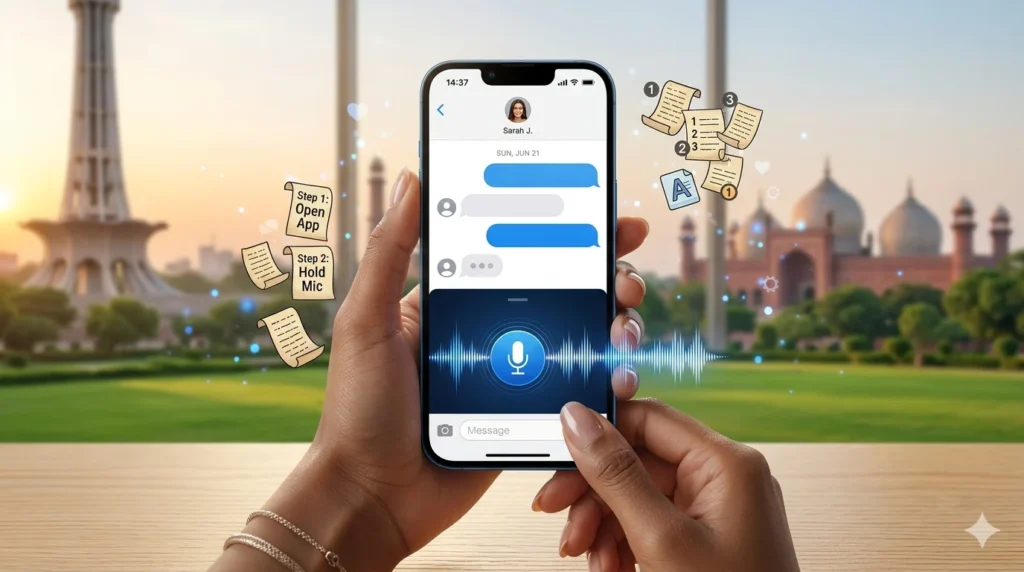
How to Send Voice Message on iPhone Using the Messages App
The Messages app is Apple’s default messaging platform and the easiest way to send audio recordings.
When recording:
- Speak clearly.
- Hold your phone close enough to capture your voice.
- Minimize background noise.
- Keep recordings short and focused.
Using the built-in Messages app ensures the best compatibility with other Apple devices and most modern smartphones.
How to Send Voice Message on iPhone iOS 17
Many users became confused after upgrading to iOS 17 because the microphone icon was moved.
To send a voice message on iOS 17:
- Open Messages.
- Open a conversation.
- Tap the + icon.
- Select Audio.
- Record your message.
- Tap Send.
Although the interface changed, the feature still works the same way.
How to Send Voice Message on iPhone iOS 18
The process for send voice message iPhone iOS 18 remains very similar.
iOS 18 Instructions
- Launch Messages.
- Open the desired chat.
- Tap the + button.
- Select Audio.
- Record your message.
- Send it.
Apple has focused on making the experience smoother while keeping the process familiar for users.
How to Send a Voice Message on iPhone: Easy Step-by-Step Guide
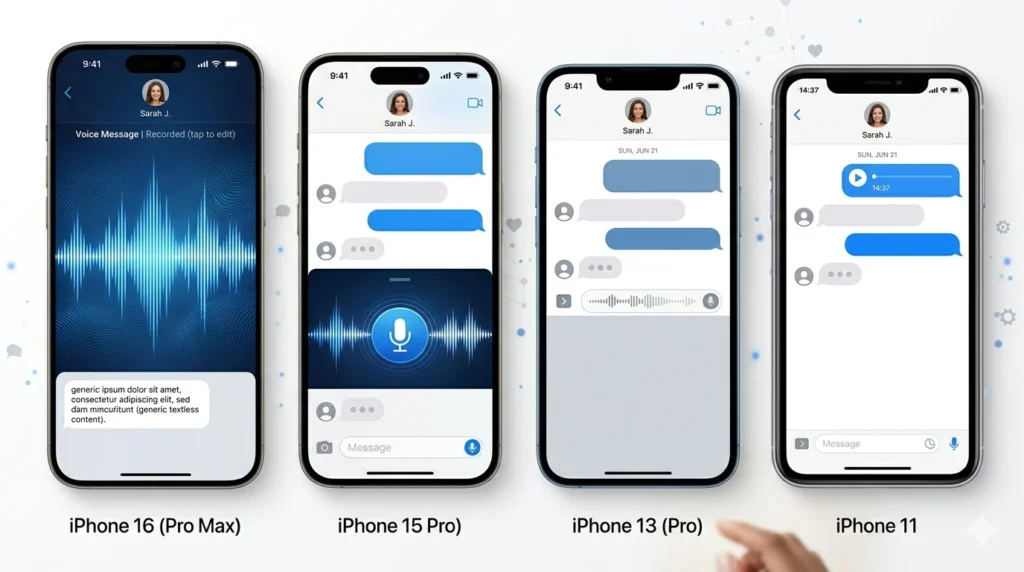
How to Send Voice Message on iPhone 16, 15, 13, and 11
The good news is that the process is almost identical across supported devices.
iPhone 16
The latest iPhone 16 models support voice messaging through the Messages app with the newest iOS features.
iPhone 15
Voice messages work the same way through iMessage and SMS-supported conversations.
iPhone 13
Users can record and send audio messages using the built-in Audio option.
iPhone 11
Even older devices support voice messaging as long as they run a compatible version of iOS.
No matter which device you own, the basic steps remain the same.
How to Send Voice Message from iPhone to Android
Many users wonder whether audio messages can be shared with Android phones.
The answer is yes.
Steps:
- Open Messages.
- Start a conversation with the Android user.
- Select Audio.
- Record your message.
- Tap Send.
Keep in mind that the experience may vary depending on the Android device and messaging service being used.
IGPK Message Board: Investor Discussions, Stock Updates & Insights
How to Enable Voice Message on iPhone
If the audio option is missing, you may need to check your settings.
Enable Voice Messages
- Open Settings.
- Tap Messages.
- Make sure iMessage is turned on.
- Check microphone permissions.
- Update iOS if needed.
- Restart your device.
Once these settings are correct, the Audio option should appear inside the Messages app.
Can’t Send Voice Message on iPhone? Try These Fixes
If you can’t send voice message iPhone recordings, one of these solutions may help.
Check Internet Connection
Voice messages require a stable connection for proper delivery.
Verify iMessage Settings
Ensure iMessage is enabled under Settings > Messages.
Restart Your Device
A simple restart often resolves temporary software issues.
Update iOS
Running outdated software can cause messaging problems.
Check Microphone Permissions
Make sure the Messages app has permission to access your microphone.
Free Up Storage
Low storage space may prevent recordings from being saved or sent.
Voice Message on iPhone Disappeared? Here’s Why
One of the most common complaints after updates is that voice messaging seems to disappear.
Usually, the feature hasn’t been removed. Instead:
- The Audio option may have moved.
- Settings may have changed.
- Permissions may need to be updated.
Try opening a conversation, tapping the + icon, and looking for the Audio option. In most cases, the feature is still available.
How to Listen to Audio Messages on iPhone
Listening to voice messages is simple.
Steps:
- Open Messages.
- Select the conversation.
- Tap the play button.
- Adjust volume if needed.
- Replay the message whenever necessary.
Using headphones can improve audio quality, especially in noisy environments.
How to Keep Voice Messages on iPhone Forever
By default, some audio messages expire after a certain period.
To keep them permanently:
- Open Settings.
- Tap Messages.
- Find Audio Messages.
- Tap Expire.
- Select Never.
This ensures important recordings remain available.
How to Keep Audio Messages on iPhone Automatically
If you regularly receive important voice messages, changing the expiration setting is the easiest solution.
When set to Never, audio recordings remain saved without requiring manual action.
This is useful for:
- Family messages
- Work instructions
- Important reminders
- Personal memories
How to Turn Off Audio Messages on iPhone
Some users prefer traditional text messages.
To reduce audio messaging usage:
- Avoid selecting the Audio option.
- Manage microphone permissions.
- Encourage contacts to send text messages instead.
While you cannot completely remove the feature from Messages, you can choose not to use it.
Tips for Sending Better Voice Messages
To make your recordings sound clear and professional:
- Speak slowly and clearly.
- Keep messages concise.
- Avoid noisy environments.
- Hold the phone steadily.
- Review recordings when possible.
- Stay close to the microphone.
These small adjustments can dramatically improve audio quality.
Frequently Asked Questions
How do I send a voice message on an iPhone?
Open Messages, tap the + button, choose Audio, record your message, and tap Send.
Why can’t I send voice messages on my iPhone?
Common causes include internet issues, disabled iMessage, microphone permission problems, or outdated software.
Can I send a voice message from iPhone to Android?
Yes. Most Android users can receive audio messages sent from an iPhone.
How do I keep voice messages on my iPhone permanently?
Go to Settings > Messages > Expire and select Never.
Where is the voice message button on iOS 17 and iOS 18?
Tap the + icon in a conversation and select Audio from the menu.
Conclusion
Learning how to send voice message on iPhone is a simple way to make conversations more personal and efficient. Whether you’re using iOS 17, iOS 18, iPhone 11, iPhone 13, iPhone 15, or the latest iPhone 16, the process only takes a few taps.
Voice messaging allows you to communicate naturally, share emotions, and save time when typing isn’t convenient. If you encounter problems, most issues can be fixed through settings adjustments, software updates, or simple troubleshooting steps.
If you found this guide helpful, explore our articles on iMessage vs Text Message, Samsung RCS Message, and How to See an Unsent Message for more messaging tips and tutorials.

Sophie Linton is a reflective writer who finds beauty in everyday emotions and honest words. Her messages gently explore love, self-growth, and the quiet strength of human feelings.