Clicked Send too soon? If you’re searching for unsend message Outlook, you’re probably trying to fix an email sent by mistake. Whether it went to the wrong recipient, included incorrect information, or missed an important attachment, Outlook’s message recall feature may help you recover from the error before it causes unnecessary confusion or embarrassment.
This guide explains exactly how to unsend a message in Outlook, when the recall feature works, and the situations where it may fail. You’ll also learn the difference between recalling an email in Outlook and using the Undo Send option, along with the requirements for each feature to work successfully.
Follow the simple steps and practical tips in this article to improve your chances of recalling a sent email, avoid common mistakes, and use Outlook’s email tools with greater confidence every time you send a message.
Can You Unsend an Email in Outlook?
Yes—but only under certain conditions.
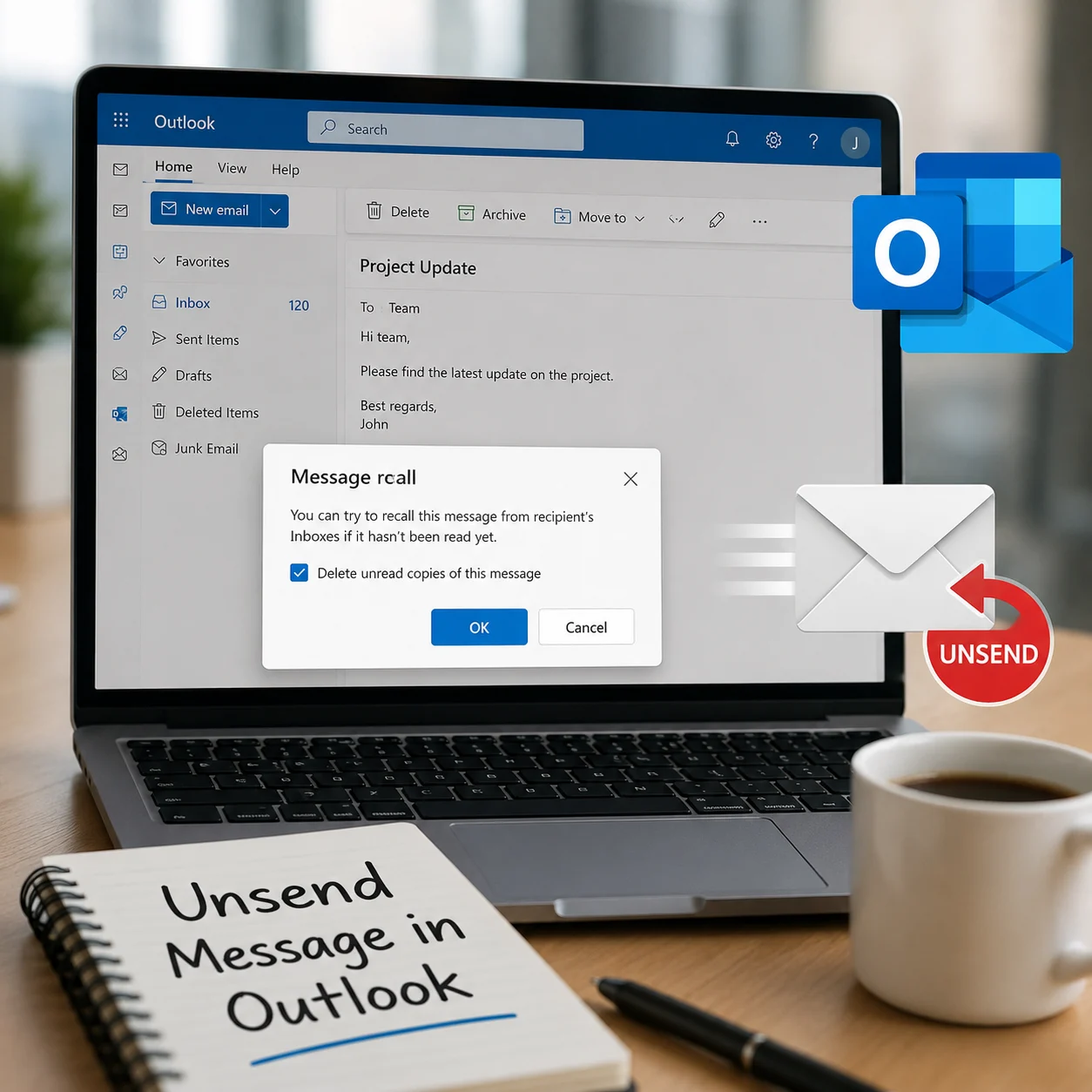
Unlike some messaging apps, Outlook doesn’t truly “unsend” an email. Instead, it uses a feature called Recall Message, which asks the recipient’s mailbox to delete the email before it’s opened.
For the recall to work successfully, both you and the recipient usually need to be using Microsoft Outlook within the same Microsoft 365 or Exchange organization. If the recipient has already opened the email or uses another email service like Gmail or Yahoo, the recall request will most likely fail.
Outlook Recall Works Best When:
Both users are in the same Microsoft 365 or Exchange organization.
The recipient hasn’t opened the email.
The mailbox supports the recall feature.
You’re using a supported version of Outlook.
It May Not Work If:
The email was sent outside your organization.
The recipient already read the email.
They use Gmail, Yahoo Mail, or another email provider.
Your organization has disabled message recall.
Quick Answer: You can recall an Outlook email, but you can’t guarantee that it will disappear from every recipient’s inbox.
How to Unsend Message Outlook on Windows
If you’re using the classic Outlook desktop application, recalling an email is quick and simple.
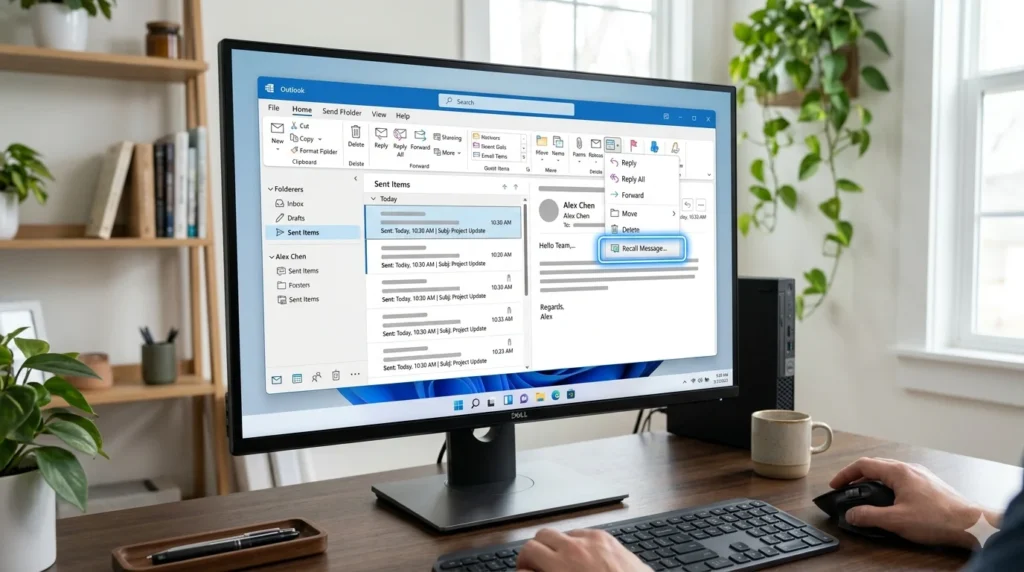
Step 1: Open Sent Items
Launch Outlook and select the Sent Items folder.
Step 2: Open the Email
Double-click the message you want to recall so it opens in a new window.
Step 3: Choose Recall Message
From the Message tab, select Recall This Message.
If you don’t see the option, your Outlook version or account may not support email recall.
Step 4: Select an Action
You’ll have two options:
Delete unread copies of this message
Delete unread copies and replace with a new message
If you forgot an attachment or need to fix incorrect information, choose the second option. Outlook will let you edit the email before sending the updated version.
Step 5: Confirm the Recall
You can also ask Outlook to notify you whether the recall succeeds or fails for each recipient.
Pro Tip
The faster you send the recall request, the better your chances of success. If the recipient has already opened the email, Outlook usually can’t remove it. In that case, sending a polite correction is the best solution.How to Unsend Message Outlook 365
If you’re using Microsoft Outlook 365, recalling an email is easier than in older versions. Microsoft has improved the recall process, especially for users within the same Microsoft 365 organization. Even so, the feature still has limitations, so acting quickly is important.
Steps to Recall an Email in Outlook 365
Open Outlook and go to Sent Items.
Double-click the email you want to recall.
Select Recall Message from the toolbar or message options.
Choose one of these options:
Delete unread copies of this message
Delete unread copies and replace with a new message
Confirm your choice and wait for Outlook to process the request.
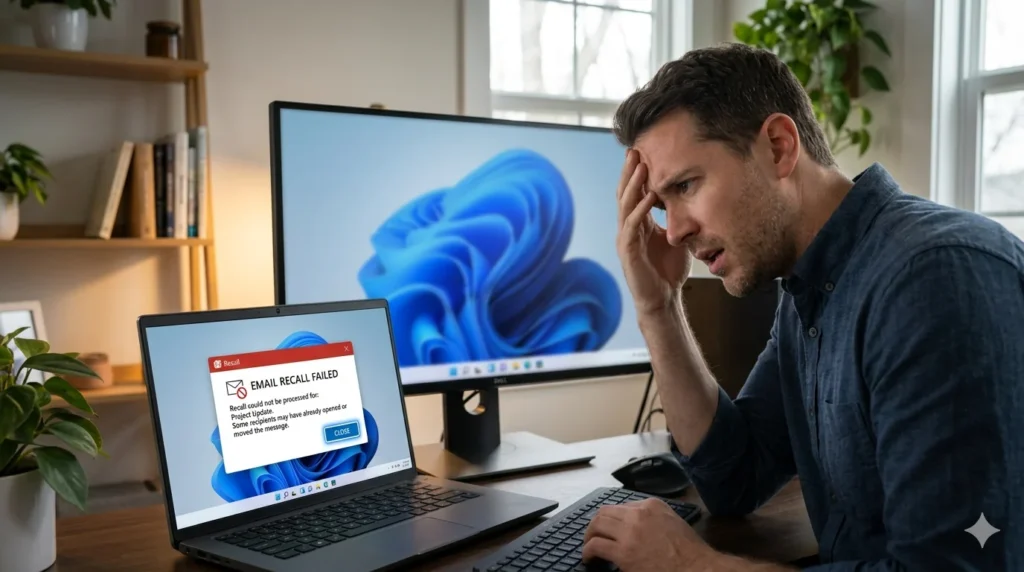
If the recall is successful, the original email will be removed before the recipient reads it. If not, Outlook may notify you that the recall failed.
When Does Outlook 365 Recall Work?
You’ll have the best chance of success when:
Both users have Microsoft 365 or Exchange accounts.
The email stays unread.
Both mailboxes belong to the same organization.
Your administrator hasn’t disabled the recall feature.
Common Reasons It Fails
Even in Outlook 365, recall may not work if:
The email has already been opened.
It was sent to someone outside your company.
The recipient uses Gmail, Yahoo Mail, or another email service.
Tip: If recall isn’t available, send a corrected email immediately. A quick follow-up often solves the issue faster than waiting for a recall request
How to Recall an Email in Outlook Web
If you use Outlook on the web, you may still be able to recall an email, but the feature is only available for supported Microsoft 365 business or school accounts.
Steps to Recall an Email in Outlook Web
Sign in to Outlook using your web browser.
Open the Sent Items folder.
Select the email you want to recall.
Click Recall Message if the option appears.
Follow the on-screen instructions and wait for the result.
If you don’t see the recall option, your account may not support it or your organization’s administrator may have disabled the feature.
Outlook Web Recall Tips
Recall works only for supported Microsoft 365 accounts.
It doesn’t usually work with personal Outlook.com accounts.
The recipient must not have opened the email.
Emails sent outside your organization generally can’t be recalled.
What If Recall Isn’t Available?
Don’t panic. Send a polite correction as soon as possible.
Example:
Subject: Correction to My Previous Email
Hello,
Please ignore my previous email. It contained incorrect information. Here’s the updated version with the correct details.
Thank you for your understanding.
A professional correction helps avoid confusion and shows responsibility.
Mac users often ask whether unsend message Outlook Mac works the same as it does on Windows. The answer depends on the Outlook version you’re using.
Newer versions of Outlook for Mac support more Microsoft 365 features, but email recall is still subject to the same conditions. If the recipient has already opened the email or uses another email service, the recall request will likely fail.
Steps to Recall an Email on Mac
Open Outlook on your Mac.
Go to Sent Items.
Open the email you want to recall.
If available, click Recall Message.
Choose to delete the unread email or replace it with a corrected version.
Confirm your request.
Why Recall May Not Be Available
You may not see the recall option if:
You’re using an older Outlook for Mac version.
Your account doesn’t support recall.
The feature has been disabled by your organization.
Best Alternative for Mac Users
If you can’t recall the email, send a revised version right away. A quick follow-up with the correct information is often the fastest way to fix the mistake.
Helpful Tip: Keep Outlook updated to the latest version. Microsoft regularly improves Outlook features, security, and performance across Windows and Mac.
Quick Summary
Outlook Version
Recall Supported?
Outlook 365
✅ Yes (supported accounts)
Outlook Web
✅ Yes (business/school accounts)
Outlook for Mac
✅ Limited support
Personal Outlook.com
❌ Usually not
Gmail, Yahoo & Other Services
❌ No
Can You Unsend Emails in the Outlook App?
Many people manage their emails on a smartphone and wonder if unsend message Outlook app is possible. The answer depends on the version of Outlook you’re using.
At the moment, the Outlook mobile app for Android and iPhone doesn’t offer the same Recall Message feature available in the desktop version. If you accidentally send an email, you usually can’t recall it directly from the app.
What Can You Do Instead?
If you notice the mistake immediately, you can:
Open Outlook on your desktop or web browser and try to recall the email if your account supports it.
Send a follow-up email with the correct information.
Use the Undo Send feature if it’s available on your account.
If you frequently send important emails from your phone, make it a habit to review the recipient, subject line, and attachments before tapping Send. Those few extra seconds can save you from unnecessary stress.
Recall Email Outlook Time Limit
One of the most common questions is, “Can I unsend an email after one hour?”
The truth is that Outlook doesn’t have a fixed recall time limit. Instead, success depends on whether the recipient has already opened the email.
If the message remains unread and both accounts meet Microsoft’s recall requirements, the recall may still work—even after an hour. However, once the email has been opened, recalling it is usually no longer possible.
Increase Your Chances of Success
Send the recall request as soon as you notice the mistake.
Make sure both users belong to the same Microsoft organization.
Check that the recipient hasn’t opened the message.
The sooner you act, the more likely the recall will succeed.
Why Can’t I Unsend a Message on Outlook?
Sometimes Outlook displays a recall option, but the email still isn’t removed. This happens because the recall feature only works under specific conditions.
Common reasons for failure include:
The recipient already opened the email.
The email was sent outside your organization.
The recipient uses Gmail, Yahoo Mail, or another email service.
Your company has disabled message recall.
The recipient’s email application doesn’t support Outlook recall.
If your recall request fails, don’t panic. The best solution is to send a polite correction or updated email. Being clear and honest usually resolves the situation quickly.
How to Recall Email Outside Your Organization
Unfortunately, Outlook Recall doesn’t normally work for emails sent outside your Microsoft 365 or Exchange organization.
For example, if you send an email from your company Outlook account to someone using Gmail, Yahoo Mail, or another external service, the recall request won’t remove the email from their inbox.
What Should You Do?
If the email contains a mistake:
Send a corrected version immediately.
Apologize briefly if necessary.
Clearly explain which information should be ignored.
Keep your follow-up professional and concise.
Although you can’t recall the original email, a timely correction can prevent misunderstandings.
How to Retrieve a Sent Email in Outlook
Many users search for how to retrieve sent email in Outlook, expecting to recover or remove a message after sending it.
It’s important to understand the difference:
Retrieve means finding an email you’ve already sent.
Recall means asking Outlook to remove an unread email from the recipient’s mailbox.
To locate a sent email:
Open Outlook.
Select Sent Items.
Use the search box if needed.
Open the email to review, forward, or attempt a recall if the option is available.
If the recall feature isn’t supported, you won’t be able to remove the message from the recipient’s inbox.
How to Unsend an Email in Outlook 2026
Microsoft continues to improve Outlook, but the basic recall requirements remain the same in 2026.
To successfully unsend message Outlook, remember these key points:
Act quickly after sending the email.
Use a supported Microsoft 365 or Exchange account.
Recall works best when both users belong to the same organization.
The recipient must not have opened the message.
For extra protection, consider enabling Undo Send or Delay Send if your Outlook version supports those features. These tools give you a few extra seconds to cancel an email before it’s delivered.
Frequently Asked Questions
1. Can you unsend an email message in Outlook?
Yes, but only if your Outlook account supports Recall Message and the recipient hasn’t opened the email.
2. Why can’t I unsend a message on Outlook?
The email may have already been read, sent outside your organization, or delivered to an unsupported email service like Gmail.
3. Can I unsend an email after one hour?
Possibly. Outlook doesn’t have a fixed time limit. Success depends on whether the email is still unread.
4. Does Outlook Recall work on Mac?
Some newer versions of Outlook for Mac support recall, but availability depends on your account and organization.
5. Does Outlook Recall work with Gmail?
No. Outlook Recall generally works only within the same Microsoft 365 or Exchange organization.
Conclusion
Accidentally sending an email doesn’t have to turn into a major problem. By understanding how to unsend message Outlook, you can act quickly and improve your chances of recalling an unread email before it reaches the recipient.
Remember that Outlook Recall works only under specific conditions, so it’s always a good idea to review your message before clicking Send. If recalling the email isn’t possible, sending a polite correction is often the best solution.
We hope this guide has helped you understand how unsend message Outlook, Outlook 365, Outlook Web, Mac, and the Outlook app work in 2026. Bookmark this page so you can quickly refer back whenever you need to recall an email or avoid common Outlook mistakes.
Vira Solen writes heartfelt messages at Best Messege, helping readers express love, emotions, and meaningful thoughts through simple and beautiful words.