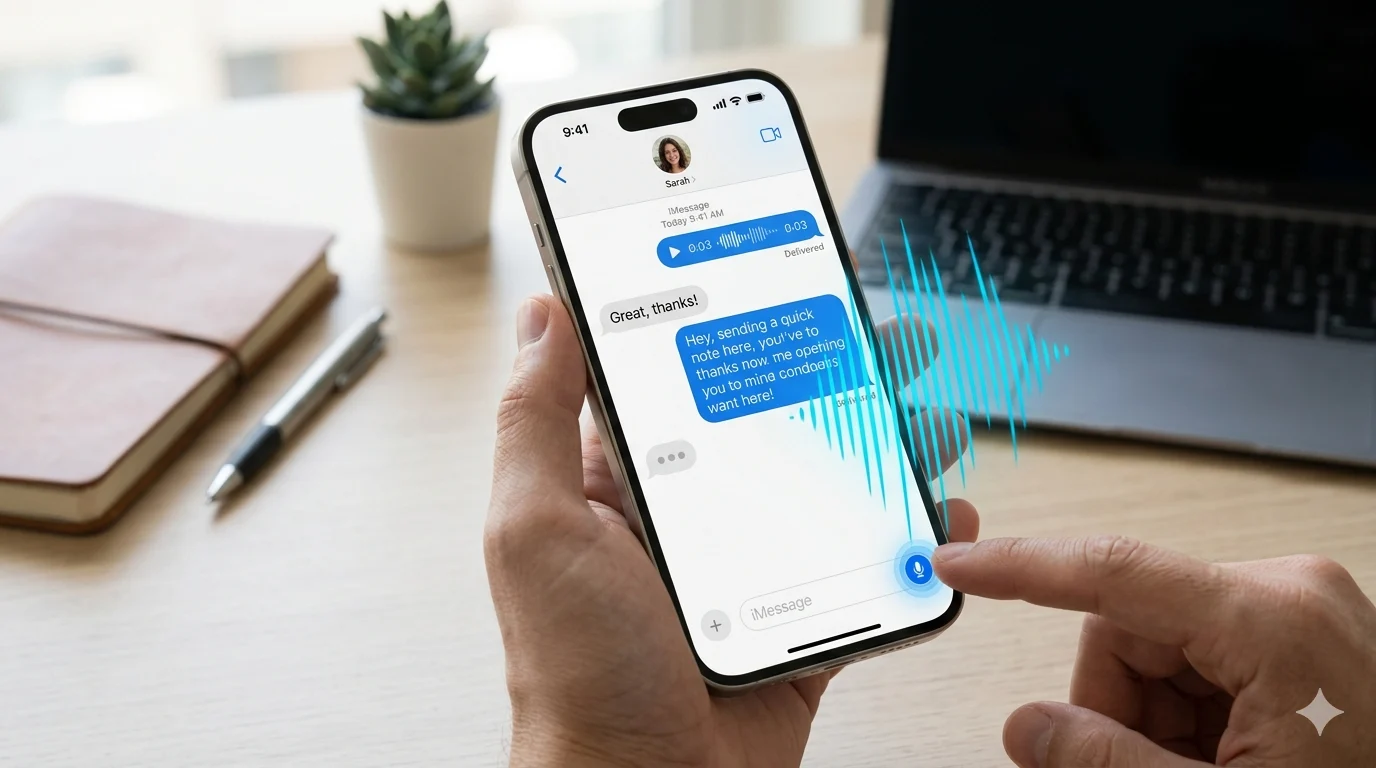
Have you ever wanted to send a quick voice note instead of typing a long message? If you’re looking to enable voice messages on iPhone, you’re not alone. Many users want a faster and easier way to communicate but often can’t find the right setting or microphone option in the Messages app. Voice messages make chatting more personal, especially when you’re busy or on the go.
The good news is that enabling voice messages on iPhone is simple and only takes a few steps. Once activated, you can record and send audio messages instantly without typing. It’s a helpful feature for sharing updates, emotions, or quick instructions in a more natural way.
In this guide, you’ll learn how to enable voice messages on iPhone step by step, where to find the microphone icon, and what to do if it doesn’t appear. Keep reading to unlock a faster and more convenient way to chat.
Table of Contents
- How to Enable Voice Messages on iPhone
- How to Voice Message on iPhone
- Voice Message on iPhone Disappeared
- How to Keep Voice Messages on iPhone
- How to Enable Audio Messages on iMessage
- How to Enable Voice Texting on iPhone
- How to Send Voice Messages on iPhone During a Call
- How to Send Voice Messages on iPhone iOS 17
- Enable Voice Messages on iPhone iOS 18
- Turn On Visual Voicemail on iPhone
- How to Set Up Voicemail on iPhone
- Voice Messages vs Voice Texting vs Voicemail
- Common Voice Message Problems and Fixes
- FAQs
How to Enable Voice Messages on iPhone
Before sending voice messages, you must ensure iMessage is enabled.
Steps
- Open Settings.
- Tap Apps.
- Select Messages.
- Turn on iMessage.
- Open the Messages app.
- Choose a conversation.
- Tap the + icon.
- Select Audio.
- Record your message.
- Tap Send.
Once completed, you’ll be able to send audio messages through iMessage.
Pro Tip
If the Audio option is missing, restart your iPhone and check for software updates.
How to Voice Message on iPhone
Voice messaging is one of the easiest ways to communicate without typing.
Steps
- Open Messages.
- Select a conversation.
- Tap the + icon.
- Choose Audio.
- Record your message.
- Tap Stop.
- Review the recording.
- Tap Send.
The recipient will receive your recording directly in the conversation.
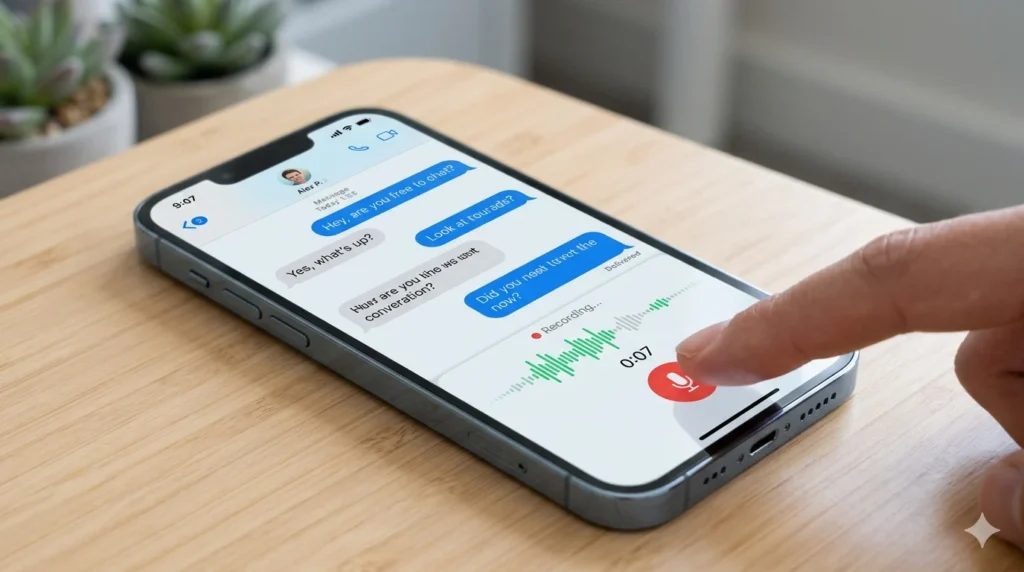
Voice Message on iPhone Disappeared? Here’s the Fix
Many users notice that the voice message option disappears after an iOS update.
Solutions
- Restart your iPhone.
- Enable iMessage.
- Update iOS.
- Check Screen Time restrictions.
- Sign out and back into your Apple ID.
- Reset network settings.
- Force close and reopen Messages.
These fixes solve most voice message issues.
How to Keep Voice Messages on iPhone
By default, audio messages may disappear automatically after a period of time.
To Keep Voice Messages Forever
- Open Settings.
- Tap Messages.
- Scroll to Audio Messages.
- Tap Expire.
- Select Never.
This ensures your important recordings stay available.
How to Enable Audio Messages on iMessage
Audio messages work through iMessage rather than standard SMS texting.
Enable Audio Messages
- Turn on iMessage.
- Connect to Wi-Fi or cellular data.
- Open Messages.
- Select a conversation.
- Tap the + icon.
- Choose Audio.
You can now record and send audio messages instantly.
How to Enable Voice Texting on iPhone
Voice texting converts spoken words into written text.
Steps
- Open Settings.
- Tap General.
- Select Keyboard.
- Turn on Enable Dictation.
- Open a messaging app.
- Tap the microphone icon.
- Start speaking.
Your words will automatically appear as text.
Samsung Text Message App: Features, Settings & Complete Guide
How to Send Voice Message on iPhone During a Call
Many users wonder if they can send a voice message while talking on a phone call.
Unfortunately, iMessage audio recordings cannot be created during an active phone call.
Alternative Options
- End the call first.
- Use Voice Memos and share the recording later.
- Send a voice message after the call ends.
How to Send Voice Messages on iPhone iOS 17
Apple changed the Messages layout in iOS 17.
Steps
- Open Messages.
- Select a conversation.
- Tap the + icon.
- Select Audio.
- Record your message.
- Tap Send.
The feature still exists but is now located inside the app menu.
Enable Voice Messages on iPhone iOS 18
Voice messaging continues to work similarly in iOS 18.
Steps
- Open Messages.
- Select a conversation.
- Tap the + icon.
- Choose Audio.
- Record your message.
- Tap Send.
If the feature is unavailable, check for software updates and verify iMessage settings.
Turn On Visual Voicemail iPhone
Visual Voicemail lets you manage voicemail messages without calling a voicemail number.
Setup Steps
- Open the Phone app.
- Tap Voicemail.
- Select Set Up Now.
- Create a password.
- Record a greeting.
- Save your settings.
Your carrier must support Visual Voicemail for this feature to work.
How to Set Up Voicemail on iPhone
Voicemail allows callers to leave messages when you’re unavailable.
Setup Instructions
- Open Phone.
- Tap Voicemail.
- Select Set Up Now.
- Create a password.
- Record a greeting.
- Save your settings.
Voicemail will now be active on your device.
Voice Messages vs Voice Texting vs Voicemail
Many users confuse these three features because they all involve audio communication.
Voice Messages
Voice messages are audio recordings sent through the Messages app. They allow you to send your actual voice to another person.
Voice Texting
Voice texting uses Dictation to convert speech into written text.
Voicemail
Voicemail records messages left by callers when you don’t answer a phone call.
Quick Comparison
| Feature | Voice Messages | Voice Texting | Voicemail |
|---|---|---|---|
| Records Voice | Yes | No | Yes |
| Creates Text | No | Yes | No |
| Uses Messages App | Yes | Yes | No |
| Stored in Conversations | Yes | Yes | No |
Understanding these differences helps you choose the right communication tool.
How to Disable Message Blocking and Fix Texting Issues Fast
Common Voice Message Problems and Fixes
Even after you enable voice messages, occasional issues may occur.
Audio Button Missing
Fix: Enable iMessage and check the + menu.
Voice Message Won’t Send
Fix: Verify your internet connection.
Messages Disappear
Fix: Set Expire to Never.
Poor Audio Quality
Fix: Clean the microphone and reduce background noise.
Feature Not Working After Update
Fix: Restart your iPhone and install updates.
Troubleshooting Table
| Problem | Solution |
|---|---|
| Audio button missing | Enable iMessage |
| Voice message won’t send | Check internet connection |
| Voice messages disappear | Set Expire to Never |
| Poor sound quality | Clean microphone |
| Feature missing after update | Restart device |
| Visual Voicemail unavailable | Contact carrier |
Frequently Asked Questions
How do I activate voice messages on my iPhone?
Enable iMessage in Settings, open Messages, tap the + icon, select Audio, and start recording.
How do I enable voice messages on iPhone?
Turn on iMessage and use the Audio option within the Messages app.
Why did the voice message option disappear on my iPhone?
Apple may have moved it under the + menu, or iMessage may be disabled.
How do I keep voice messages on my iPhone permanently?
Go to Settings > Messages > Expire and select Never.
How do I enable voice texting on iPhone?
Enable Dictation in Settings > General > Keyboard.
How do I send a voice message on iPhone during a call?
You must end the call before recording and sending an iMessage audio message.
How do I enable audio messages on iMessage?
Open a conversation, tap the + icon, select Audio, and record your message.
Does voice messaging work on iOS 17 and iOS 18?
Yes. Voice messaging is supported on both iOS 17 and iOS 18.
Conclusion
Learning how to Enable Voice Messages on iPhone can make everyday communication quicker and more personal. Whether you’re sending audio messages, using voice texting, saving important recordings, or setting up voicemail, Apple’s built-in tools make staying connected simple and convenient.
If your voice message feature isn’t working correctly, most problems can be fixed by checking iMessage settings, updating your software, or adjusting message preferences. With the steps and troubleshooting tips in this guide, you can confidently send, receive, and manage voice messages on your iPhone.
If you found this guide helpful, share it with friends or family who may also be looking for ways to enable voice messages on their iPhone. Sometimes, hearing a voice can communicate more clearly and personally than words on a screen.